To fix a blue screen error in Windows 11, first note the stop code shown at the bottom of the crash screen, then undo whatever changed right before the crashes started: unplug new hardware, roll back or update the driver you just installed, or remove the latest update in Settings > Windows Update > Update history > Uninstall updates. If the crashes continue, repair Windows files with DISM and sfc /scannow, test your memory, and use Safe Mode or the recovery screen when Windows won’t stay up.
A single crash that never comes back usually needs no fix at all. Windows restarts on its own, and the restart often solves the problem. Work through this guide when the same error keeps returning.
Applies to: Windows 11 Home and Pro, versions 22H2 through 25H2. The black crash screen, quick machine recovery and point-in-time restore need version 24H2 or later. The steps follow Microsoft’s guide to unexpected restarts and stop code errors.
Why your “blue screen” may be black
This crash is officially called a stop code error, a bug check or a kernel error. Most people still call it a blue screen or BSOD (blue screen of death). Windows shows it when something goes wrong deep in the system, usually in a driver or a piece of hardware, and it stops on purpose to protect your data.
In 2025, Microsoft redesigned the screen. On Windows 11, version 24H2 and later, the crash screen is black, the sad face and QR code are gone, and the message is short. The restart now takes about two seconds for most people, so the screen may flash by quickly.
| Your Windows 11 version | What the crash screen looks like |
|---|---|
| 24H2 and 25H2 | Black background with “Your device ran into a problem and needs to restart.” and a percentage. The stop code and, when Windows knows it, the file that failed are listed in small text near the bottom. |
| 23H2 and older | Blue background with a sad face, a longer message, a QR code and the stop code. |
| Windows Insider preview builds | Green background. The cause and fixes are the same. |
The fixes in this guide are the same whatever color you saw. Not sure which version you have? Press Windows key + R, type winver and press Enter.
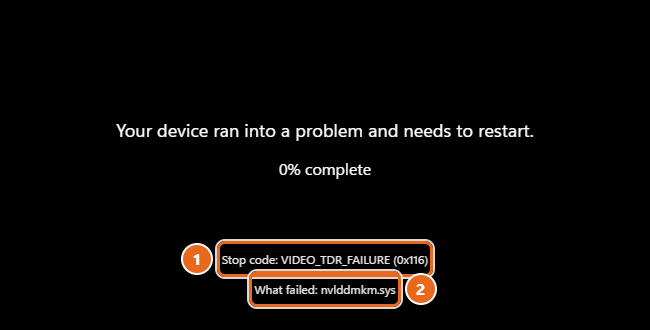
A black screen with no text is a different problem. If your screen goes dark and shows nothing, or only a mouse pointer, Windows did not crash with a stop code. That is a display or sign-in issue, handled separately as a blank screen problem. This guide is for screens that show the “needs to restart” message and a stop code.
What to do right after a crash
- Let the restart finish. When the screen shows a percentage, Windows is saving crash information. Don’t hold the power button unless the percentage has not moved for several minutes.
- Write down what you were doing. Playing a game, plugging in a dock, waking the laptop from sleep or installing an update are all useful clues.
- Use the PC normally for a day. If it does not crash again, you can stop here. One crash is not a sign of failing hardware.
- Back up your files if the crashes repeat. Copy anything important to OneDrive or an external drive before you try the bigger fixes below. Some recovery options remove apps or files, and a failing drive can get worse.
About 70 percent of stop errors come from third-party driver code and about 10 percent from hardware, based on Microsoft’s analysis of crash reports. That is why the steps below start with drivers and recent changes, and leave the reinstall options for last.
Find the stop code and the cause
The stop code is a name in capital letters, such as MEMORY_MANAGEMENT, often followed by a hexadecimal number such as (0x1A). The What failed line, when it appears, names the file that was running when Windows stopped. A file ending in .sys is almost always a driver, and its name often points to the company that made it.
The new screen moves fast, so you will often miss it. You can still find the code after Windows restarts.
Use Reliability Monitor (easiest)
- Select Start, type
reliability, and open View reliability history. - Find the day of the crash. Critical events, including crashes, are marked with a red X.
- Select that day, then double-click the Windows crash in the list below the graph. In the technical details, look for the bug check code (often labeled BCCode), such as
116forVIDEO_TDR_FAILURE.
Use Event Viewer
- Right-click Start and select Event Viewer.
- Expand Windows Logs and select System.
- Select Filter Current Log on the right. In Event sources, check BugCheck, then select OK.
- Open the newest event (Event ID 1001). It reports that the computer has rebooted from a bugcheck, gives the bug check code, such as
0x00000116, and shows where the dump file was saved.
More ways to read these logs, including the event IDs that matter, are in checking crash logs on Windows 11.
Look for dump files
When Windows crashes, it can save a memory dump. Small dumps go in C:\Windows\Minidump, and larger ones are saved as C:\Windows\MEMORY.DMP. You don’t need to open them yourself, but keep them. A technician, a hardware maker’s support team or Microsoft’s WinDbg debugger can read them to find the exact driver involved. If the folder is empty, see Troubleshooting.
Keep the crash screen up longer (optional)
If you want to read the screen itself, you can stop Windows from restarting automatically:
- Select Start, type
advanced system settings, and press Enter. - On the Advanced tab, select Settings under Startup and Recovery.
- Under System failure, clear Automatically restart. Leave Write debugging information set to Automatic memory dump.
- Select OK twice.
The next crash stays on screen until you restart the PC yourself. Turn the box back on once you have the code, so an unattended PC can recover by itself.
Undo the last change
Most repeated crashes start right after something new: a driver, an app, a Windows update or a device. Undoing that change is the fastest fix. If Windows keeps crashing before you can finish these steps, start it in Safe Mode first; every way in is covered in getting into Safe Mode in Windows 11.
Disconnect new hardware
- Shut down the PC.
- Unplug anything you added recently: a USB hub or dock, external drive, webcam, game controller, printer or second monitor. If you installed a new internal part, such as memory or a graphics card, remove it or put the old one back.
- Turn the PC on and use it as usual. If the crashes stop, reconnect devices one at a time to find the one that causes them, then check the maker’s site for a Windows 11 driver or firmware update.
Roll back a driver
If the crashes began after a driver update, especially for a graphics card, Wi-Fi adapter or storage controller, go back to the previous driver.
- Right-click Start and select Device Manager.
- Expand the category for the device, such as Display adapters. A yellow exclamation point next to a device means Windows sees a problem with it.
- Right-click the device and select Properties.
- Open the Driver tab and select Roll Back Driver.
- Choose a reason, select Yes, and restart the PC when asked.
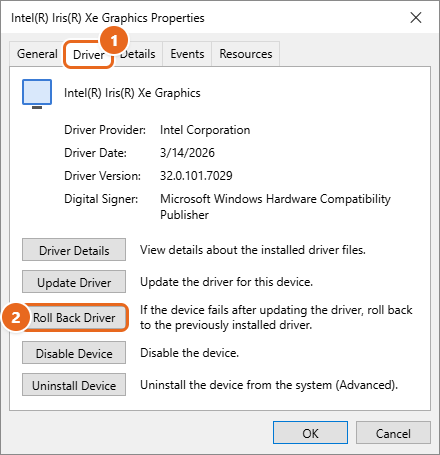
If Roll Back Driver is grayed out, you have two choices. Select Uninstall Device, restart, and let Windows install a basic driver, or download an older version from the device or PC maker’s support page. As a short test, you can also select Disable Device for a non-essential device, such as a webcam, and see whether the crashes stop.
Uninstall a recent app
Antivirus tools, VPNs, RGB lighting utilities, fan controllers, overclocking tools and game anti-cheat software all install low-level drivers. If one arrived shortly before the crashes, remove it.
- Open Settings > Apps > Installed apps.
- Select the three dots next to the app, then select Uninstall and confirm.
- Restart the PC.
You can reinstall the latest version later, once its maker releases a fix.
Uninstall a recent Windows update
If the crashes started the day an update installed, remove it.
- Open Settings > Windows Update > Update history.
- Scroll to Related settings and select Uninstall updates.
- Select Uninstall next to the newest update, confirm, and restart.
Your files and apps are kept. Some updates can’t be removed, and Windows will try to install the update again later, so pause updates for a week in Settings > Windows Update while you wait for a fixed version. If you just moved to a new version of Windows 11, such as 25H2, you can return to the previous one from Settings > System > Recovery > Go back. That option stays available for 10 days after the upgrade.
Update Windows, drivers and firmware
If nothing changed before the crashes started, the fix may already exist in a newer update.
- Open Settings > Windows Update and select Check for updates. Install everything offered and restart.
- Go to Windows Update > Advanced options > Optional updates. Expand Driver updates, check any driver for the device you suspect, and select Download & install.
- For graphics cards, also check NVIDIA, AMD or Intel’s site. On a laptop or a brand-name desktop, the PC maker’s support page often has drivers tuned for your model, so try those first.
- Check the PC maker’s site for a BIOS or UEFI firmware update, and for SSD firmware from the drive maker. Follow the maker’s instructions exactly, keep a laptop plugged in, and don’t turn the PC off during a firmware update.
Other ways to get drivers are in updating drivers in Windows 11.
Repair system files and check the drive
Damaged Windows files and a failing drive can both cause stop errors. These commands repair Windows without touching your personal files.
- Right-click Start and select Terminal (Admin). Select Yes if you are asked for permission.
- Type
DISM /Online /Cleanup-Image /RestoreHealthand press Enter. This repairs the copy of Windows files that the next tool relies on, and it may download clean files from Windows Update. It can sit at the same percentage for a while; that is normal. - When DISM finishes, type
sfc /scannowand press Enter. Wait until it reaches 100 percent. A message that it found and repaired files means it fixed something. - Type
chkdsk C: /fand press Enter. Because Windows is using drive C, you will be asked to schedule the check. TypeY, press Enter, and restart the PC.
If CHKDSK reports bad sectors, or the drive maker’s health tool shows warnings, back up your files right away and plan to replace the drive. What each SFC result means is explained in checking for and fixing corrupted files in Windows 11.
Test memory, heat and overclocking
Crashes that happen at random times, with different stop codes each time, often point to hardware. Stop codes such as MEMORY_MANAGEMENT and PAGE_FAULT_IN_NONPAGED_AREA are common signs of a memory problem.
Test your RAM
- Save your work and close your apps.
- Press Windows key + R, type
mdsched.exe, and press Enter. - Select Restart now and check for problems (recommended). The PC restarts into a blue memory test screen and runs on its own. Leave it alone until Windows starts again.
- To read the result, open Event Viewer, go to Windows Logs > System, and look for an event with the source MemoryDiagnostics-Results.
If the test finds errors, the memory or its slot is likely faulty. On a desktop with more than one memory stick, test with one stick at a time to find the bad one. The PC maker’s own test tools, which can check more than memory, are covered in running hardware diagnostics on Windows 11.
Remove overclocks and check temperatures
- Turn off overclocking. Reset CPU and graphics card overclocks to their defaults. A memory profile such as XMP or EXPO in the BIOS also counts as an overclock, so turn it off while you test. Settings that seemed stable for months can start failing as parts age or after a BIOS update.
- Watch the heat. If crashes happen mostly in games or other heavy work, check temperatures with the graphics card’s control app or the PC maker’s tool. Clean dust out of fans and vents, and keep laptops on a hard surface.
- Check the power. On a desktop, a weak or aging power supply can cause crashes under load, especially after a graphics card upgrade.
Check free space, malware and startup software
- Free up space. Windows needs room for its page file and for updates. Keep 10 to 15 percent of the drive free. Check in Settings > System > Storage.
- Scan for malware. Open Windows Security > Virus & threat protection > Scan options, choose Full scan, and select Scan now. Malware is not a common cause of stop errors, but it is worth ruling out.
- Try a clean boot. If the PC runs fine in Safe Mode but crashes in normal mode, a background program is the likely cause. Press Windows key + R, type
msconfig, and open the Services tab. Check Hide all Microsoft services, select Disable all, and select OK. Then open Task Manager > Startup apps and disable the third-party items. Restart. If the crashes stop, turn things back on a few at a time until you find the one that causes them. When you are done, go back tomsconfigand select Normal startup.
When Windows 11 won’t start
If the PC crashes before you reach the desktop, or restarts over and over, use the Windows Recovery Environment (Windows RE). It is a set of repair tools that runs outside of Windows.
Before you start: if BitLocker or device encryption is on, most recovery tools ask for your BitLocker recovery key. If you signed in to Windows with a Microsoft account, the key is usually saved in that account, and you can look it up from another device. Have it ready before you start.
Let quick machine recovery try first
On Windows 11, version 24H2 and later, a feature called quick machine recovery can fix startup failures caused by a known, widespread problem, such as a bad update affecting many PCs. After repeated failed starts, Windows enters Windows RE, connects to the internet over Ethernet or supported Wi-Fi, and checks Windows Update for a fix from Microsoft. If it finds one, it applies it and restarts, without touching your files.
It is on by default in Windows 11 Home. On Pro, your organization may control it. You can check it in Settings > System > Recovery > Quick machine recovery, or run it by hand from Windows RE with Troubleshoot > Advanced options > Quick machine recovery. It won’t fix a problem unique to your PC, such as a bad driver you installed, so move on to the steps below if it finds nothing.
Open Windows RE
- If Windows still starts: open Settings > System > Recovery, and select Restart now next to Advanced startup. You can also hold Shift while you select Power > Restart.
- If Windows won’t start: Windows usually opens Windows RE by itself after failed starts. If it doesn’t, turn the PC on, and as soon as the Windows or maker logo appears, hold the power button until it shuts off. Do this twice. On the third start, Windows shows the Automatic Repair screen. Select Advanced options.
- If nothing works: start the PC from a recovery drive or Windows 11 installation USB, and select Repair my PC (labeled Repair your computer on older media).
Screenshots of each route are in entering recovery mode in Windows 11.
Try these tools in order
- Startup Repair. Select Troubleshoot > Advanced options > Startup Repair. It checks for common problems that stop Windows from loading and fixes them automatically.
- Uninstall Updates. Select Troubleshoot > Advanced options > Uninstall Updates, then choose Uninstall latest quality update (the monthly update) or Uninstall latest feature update (a version upgrade such as 25H2). Your files and apps are kept.
- Safe Mode. Select Troubleshoot > Advanced options > Startup Settings > Restart. When the list appears, press 4 or F4 for Safe Mode, or 5 or F5 for Safe Mode with Networking if you need to download a driver. In Safe Mode, roll back or uninstall the driver or app as described under Undo the last change.
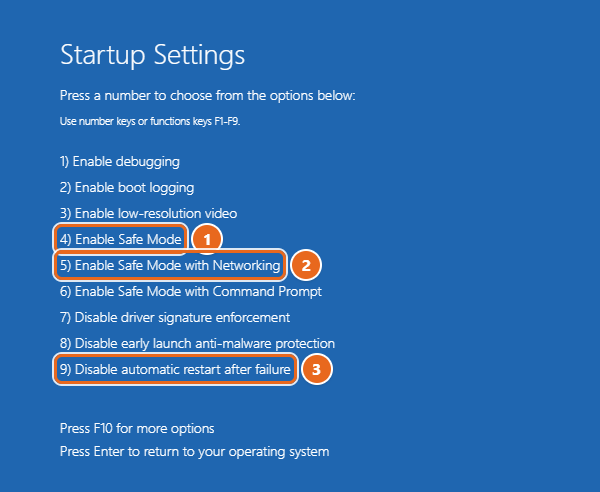
The same Startup Settings list has option 9) Disable automatic restart after failure. Use it only when Windows is stuck in a loop of failing and restarting. It keeps the crash screen visible so you can write down the stop code, and it lasts for that one startup.
If Safe Mode also crashes, the cause is more likely hardware or damaged Windows files than a third-party driver. Go back to the hardware checks above, or use the restore options below.
Restore, reinstall or reset
Use these when the steps above don’t stop the crashes. Start with the least disruptive option. Back up your files first if you still can.
| Option | Where to find it | What you keep |
|---|---|---|
| System Restore | Start search: Create a restore point > System Restore. In Windows RE: Troubleshoot > Advanced options > System Restore. | Personal files. Apps, drivers and updates added after the restore point are removed. |
| Point-in-time restore (24H2 and later) | Settings > System > Recovery > Point-in-time restore to view restore points. To restore, in Windows RE: Troubleshoot > Point-in-time restore. | Nothing newer than the restore point. It rolls back files, apps and settings together. Files stored in OneDrive are not affected. |
| Reinstall Windows with Windows Update (22H2 and later) | Settings > System > Recovery > Fix problems using Windows Update > Reinstall now | Files, apps and settings. |
| Reset this PC | Settings > System > Recovery > Reset PC, or Troubleshoot > Reset this PC in Windows RE | Your choice of Keep my files or Remove everything. Apps and settings are removed either way. |
| Clean install from USB | Windows 11 installation media | Nothing on the drive you install to. |
Warning: point-in-time restore keeps restore points for only about three days, and it removes any files you created or changed after the restore point unless they are in OneDrive. Copy recent work somewhere safe before you use it. System Restore only works if restore points were being created before the crashes began.
Reinstalling with Windows Update is the best next step when Windows still starts, because it replaces Windows system files and keeps everything else. If you need to go further, restoring Windows 11 to a previous date and resetting Windows 11 walk through each screen. A reset or clean install fixes software causes, but it won’t fix failing memory, a dying drive or overheating. If the crashes come back after a clean install with no extra software, the hardware is the likely cause.
Common stop codes and where to start
A stop code is a clue, not a diagnosis. Combine it with what changed recently and the file named next to What failed. The full bug check code reference lists every code.
| Stop code | Code | Where to start |
|---|---|---|
| IRQL_NOT_LESS_OR_EQUAL | 0xA | Drivers, then memory |
| DRIVER_IRQL_NOT_LESS_OR_EQUAL | 0xD1 | The driver named on screen, often network or storage |
| KMODE_EXCEPTION_NOT_HANDLED | 0x1E | Recently installed drivers and apps |
| MEMORY_MANAGEMENT | 0x1A | Memory test and overclock settings |
| PAGE_FAULT_IN_NONPAGED_AREA | 0x50 | Memory, then the driver named on screen, then CHKDSK |
| SYSTEM_SERVICE_EXCEPTION | 0x3B | Drivers, then DISM and SFC |
| CRITICAL_PROCESS_DIED | 0xEF | DISM and SFC, recent updates, drive health |
| VIDEO_TDR_FAILURE | 0x116 | Graphics driver: roll back or clean reinstall; check heat |
| DPC_WATCHDOG_VIOLATION | 0x133 | Storage and chipset drivers, SSD firmware |
| KERNEL_SECURITY_CHECK_FAILURE | 0x139 | Drivers and damaged system files |
| NTFS_FILE_SYSTEM | 0x24 | CHKDSK and drive health; back up first |
| INACCESSIBLE_BOOT_DEVICE | 0x7B | Windows RE: Startup Repair, Uninstall Updates; storage settings in BIOS |
| WHEA_UNCORRECTABLE_ERROR | 0x124 | Hardware: overclocks, heat, power, BIOS update |
Troubleshooting
The screen disappears before I can read it
That is normal on version 24H2 and later. Use Reliability Monitor or Event Viewer to read the code after the restart, or clear Automatically restart in Startup and Recovery so the next crash stays on screen.
There is no Minidump folder or dump file
Check Startup and Recovery and make sure Write debugging information is not set to (none). Windows also needs a page file and some free space to save a dump. If the PC loses power or freezes instead of showing the crash screen, no dump is written at all, and the cause is more likely power or hardware.
It crashes only in games or heavy apps
Focus on the graphics driver, temperatures, overclocks and the power supply. Do a clean reinstall of the graphics driver from the card maker, using its “clean install” or “factory reset” option if one is offered.
It crashes when waking from sleep or after a dock is connected
Update the chipset, graphics and dock firmware from the PC maker. Try a different USB-C port or a direct cable instead of the dock to see whether the dock is involved.
Windows asks for a BitLocker recovery key
This is expected in Windows RE when the drive is encrypted. Enter the 48-digit key. Without it, you can’t use most recovery tools or read the drive, so don’t reset the PC until you have it or your files are backed up elsewhere.
I can’t find the blue screen troubleshooter
Some older guides send you to Settings > System > Troubleshoot > Other troubleshooters for a blue screen troubleshooter. The current official stop error steps don’t include one, so skip that step and use the fixes above. Also ignore advice to press F8 at startup; Windows 11 uses Startup Settings in Windows RE instead.
The crashes continue after a reset
If a reset or clean install with no extra apps still crashes, test the memory and drive with the PC maker’s diagnostics and contact the maker’s support. Bring the stop codes and dump files with you.
FAQ
Is the blue screen of death gone in Windows 11?
No, only the color and layout changed. On Windows 11, version 24H2 and later, the same stop error appears on a black screen with a shorter message. Older Windows 11 versions still show the blue screen with a sad face and QR code.
Will a blue screen delete my files?
The crash itself doesn’t delete files, but anything you had open and unsaved is lost. A crash during a save, or a failing drive, can damage files, so back up your files if the crashes repeat.
Can a virus cause a blue screen?
It can, but it is uncommon. Drivers and hardware cause most stop errors. Run a full scan with Windows Security to rule it out.
Is it safe to keep using a PC that blue screens?
One crash is nothing to worry about. If crashes repeat, save often, back up your files, and fix the cause soon. Repeated crashes can corrupt files, and they can be an early warning of a failing drive.
What does “What failed” mean on the crash screen?
It is the file Windows was running when it stopped. A .sys file is usually a driver, so search for its name to find out which device or app installed it. That file is the best place to start, but it isn’t always the root cause.
Why do I see a green screen?
Green crash screens appear on Windows Insider preview builds. Treat it like any other stop error, and check the Feedback Hub and Insider announcements, because preview builds can have bugs that a later build fixes.
I’m using Windows 10. Are the steps the same?
Mostly, but the menus differ, and Windows 10 still shows the blue version of the screen. The Windows 10 menus are covered in fixing a blue screen error in Windows 10.
Start with the stop code and the last thing that changed on your PC. That one clue solves most repeat crashes. If you are still stuck after all of these checks, the advanced troubleshooting for stop code errors article explains how to read dump files and what to send to a technician.

Matt Jacobs writes and maintains the guides on Support Your Tech, which he started in 2017. He spent most of his career keeping small-business PCs running and still takes the occasional consulting job, so the steps here come from fixing the same problems on other people’s computers. Every guide is checked on his own Windows 11, Windows 10, Mac, iPhone and iPad before it goes up.