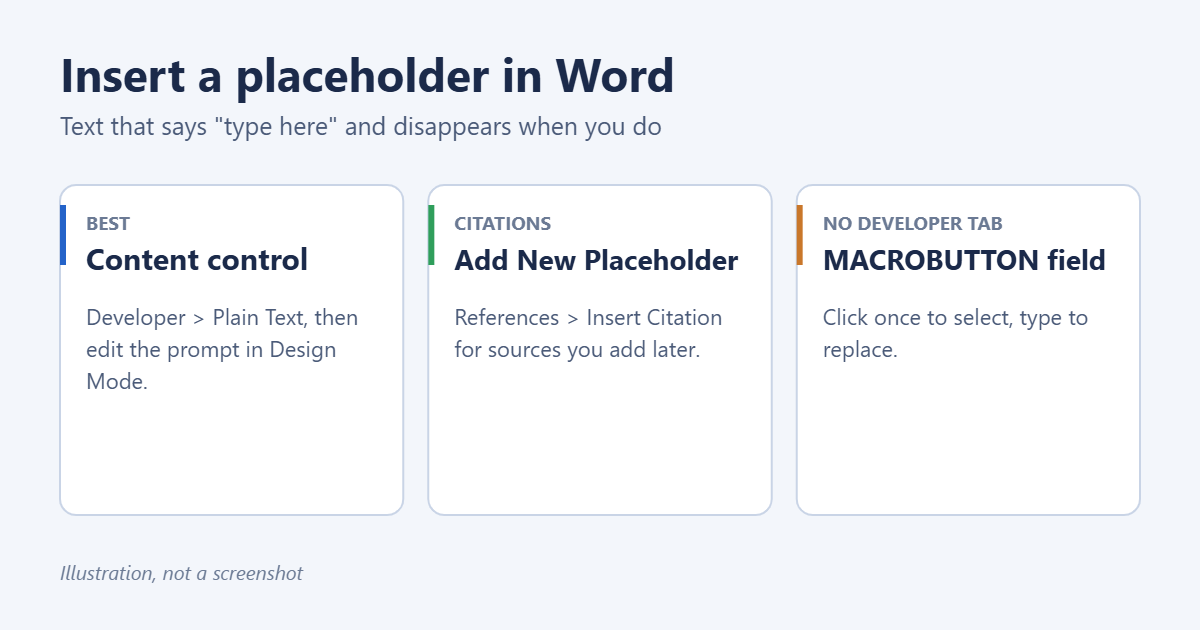
The best way to insert a placeholder in Word is a content control: turn on the Developer tab, select Plain Text Content Control, then select Design Mode and type your prompt, such as “Enter client name”. When someone clicks it and types, the prompt is replaced. For sources in an essay, use References > Insert Citation > Add New Placeholder instead.
Applies to: Word for Microsoft 365, Word 2024, 2021, 2019 and 2016 on Windows, and Word for Mac (content controls are more limited on Mac).
Step 1: Show the Developer tab
- Go to File > Options > Customize Ribbon.
- In the right-hand list, tick Developer and select OK.
On a Mac, go to Word > Preferences > Ribbon & Toolbar and tick Developer.
Step 2: Insert a text placeholder (content control)
- Click where the placeholder should go.
- On the Developer tab, select Plain Text Content Control (Aa icon). Word inserts “Click or tap here to enter text.”
- Select Design Mode, select the placeholder text, and type your own prompt, such as [Client name].
- Select Design Mode again to turn it off.
Select Properties to give it a title, color, or tick Content control cannot be deleted so the field stays even if someone selects all text.
Other placeholder types
- Rich Text Content Control: allows formatting and several paragraphs.
- Picture Content Control: shows a picture icon; clicking it opens the Insert Picture box. Great for templates with a logo or photo spot.
- Date Picker: shows a calendar.
- Drop-Down List: lets people pick from options you set in Properties.
Citation placeholders for essays
- Click where the citation should go.
- Go to References > Insert Citation > Add New Placeholder.
- Type a short name, such as Smith2024, and select OK.
- Later, go to References > Manage Sources, select the placeholder (marked with a ?) and select Edit to fill in the source details.
The bibliography updates with the full source once it’s filled in. For the rest of an essay’s layout, set up APA format in Word.
Placeholder without the Developer tab: MACROBUTTON field
- Press Ctrl+F9 to insert field braces.
- Inside them, type MACROBUTTON NoMacro [Type name here].
- Press F9 to update the field.
The text “[Type name here]” appears. One click selects it, so typing replaces it, which makes it a handy quick placeholder in letters.
Simplest option: highlighted brackets
Type [NAME] and highlight it in yellow. It’s not clickable, but it’s obvious. Before sending, use Ctrl+F to search for “[” and make sure none are left.
Example: a reusable letter with placeholders
Here’s a quick setup for a standard client letter:
- Write the letter once with your usual wording.
- Replace the date with a Date Picker Content Control and set its format in Properties, for example “MMMM d, yyyy”.
- Replace the client’s name and address with Plain Text Content Controls titled Name and Address, with prompts such as [Client name].
- Replace the paragraph that changes each time with a Rich Text Content Control so formatting is allowed.
- Add a Picture Content Control in the header for a logo, if different people use different logos.
- Save it as a Word Template (.dotx).
Tip: in each control’s Properties, tick Use a style to format text typed into the empty control so whatever people type matches your letter’s font.
Find placeholders nobody filled in
Before sending, turn on Design Mode to see every control’s tags, or press Ctrl+F and search for your bracket character. For citation placeholders, open References > Manage Sources; any source still marked with a question mark is unfinished.
Use placeholders in a template
Save the document as a template (.dotx) so every new copy starts with the placeholders. Saving and changing templates is covered in making your own template in Word and editing a template in Word.
Troubleshooting
The placeholder text won’t change
Design Mode is off. Turn it on, edit the grey text, and turn it off again.
The placeholder text prints
Placeholder text in content controls prints if left unfilled. Fill it in or delete the control before printing.
Placeholders disappear when someone selects all and deletes
Tick Content control cannot be deleted in Properties, or restrict editing to filling in forms.
Frequently asked questions
Can I turn placeholders into a fillable form?
Yes. Content controls are what fillable Word forms are built from, and you can take them further to make a fillable PDF in Word.
What’s the “Show picture placeholders” option?
It’s a display setting in File > Options > Advanced that shows empty boxes instead of images to speed up scrolling. It isn’t for creating placeholders.

Matt Jacobs has been working as an IT consultant for small businesses since receiving his Master’s degree in 2003. While he still does some consulting work, his primary focus now is on creating technology support content for SupportYourTech.com.
His work can be found on many websites and focuses on topics such as Microsoft Office, Apple devices, Android devices, Photoshop, and more.