To open the Group Policy Editor in Windows 10, press Windows + R, type gpedit.msc, and press Enter. The Local Group Policy Editor opens, with Computer Configuration and User Configuration on the left. It’s included in Windows 10 Pro, Enterprise, and Education, but not Home.
Applies to: Windows 10 Pro, Enterprise, and Education. Checked against Microsoft Learn on September 27, 2026. On Windows 11, see how to open Group Policy Editor in Windows 11.
You need an administrator account. Only change policies you understand, because some can change how your PC works for everyone.
Open the Local Group Policy Editor
- Press Windows + R to open the Run box.
- Type gpedit.msc and select OK. Select Yes if User Account Control asks.
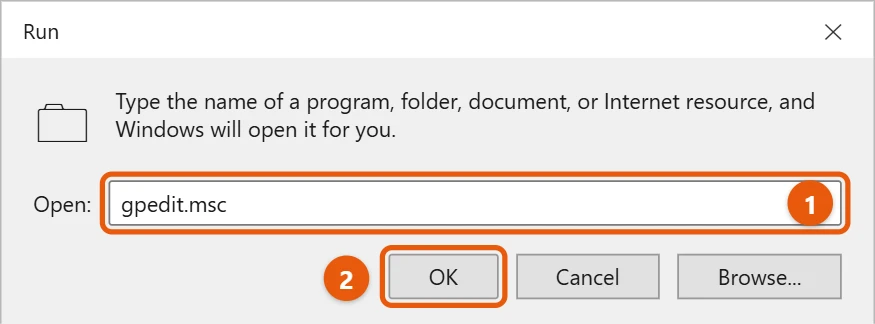
You can also select Start, type edit group policy, and open it from the results.
Find Computer Configuration and User Configuration
The left pane has two main sections:
- Computer Configuration: settings for the whole PC, no matter who signs in.
- User Configuration: settings for user accounts.

Most everyday settings are under Administrative Templates. Double-click a setting to read what it does, then choose Enabled, Disabled, or Not Configured and select OK.
If gpedit.msc isn’t found
Windows 10 Home doesn’t include the Group Policy Editor. Many of its settings are also in the Settings app. On a work or school PC, your organization may manage these settings for you.
Other ways to open it
- Run box: press Windows + R, type
gpedit.msc, and press Enter. - Control Panel search: open Control Panel and type group policy in its search box, then select Edit group policy.
- Command Prompt or PowerShell: type
gpedit.mscand press Enter. - A desktop shortcut: right-click the desktop, select New > Shortcut, and enter
gpedit.msc.
Find the setting you need
There are thousands of policies. To find one, select Administrative Templates under Computer or User Configuration, then choose All Settings. Select the Setting column to sort them alphabetically, or right-click Administrative Templates, choose Filter Options, and search by keyword. Double-click a policy to read its full explanation before changing it.
Before you change a policy
Policies can switch off features for everyone on the PC, so make a restore point first: press Windows + R, type sysdm.cpl, open System Protection, and select Create. Keep a note of each policy you change. To undo one, set it back to Not Configured rather than the opposite setting.
If a policy change doesn’t take effect
- Apply it right away. Open Command Prompt as administrator and run
gpupdate /force, or restart the PC. - The change applies to the wrong people. Computer Configuration affects everyone on the PC; User Configuration affects users. Check you edited the right side.
- Your organization overrides it. On a work PC joined to a domain, settings from the organization win over local ones.
- An app ignores the policy. Some policies only work on Pro, Enterprise, or Education editions, which the explanation text usually says.
Frequently asked questions
What does “Not Configured” mean?
Windows uses its normal behavior. Set a policy back to Not Configured to undo a change.
What can I do with it?
For example, you can pause updates or stop the upgrade to Windows 11. See how to turn off automatic updates in Windows 10 and how to stop Windows 10 from upgrading to Windows 11.
Can I add the Group Policy Editor to Windows 10 Home?
Not officially. Scripts online claim to install it, but Microsoft doesn’t support them, and many policies don’t work on Home anyway. A Pro edition of Windows is the supported way to get it, and it’s also included in Windows 11 Pro if you’re planning to upgrade.
How is it different from Registry Editor?
Most policies are stored in the registry, but the Group Policy Editor shows them with names and explanations, and it’s much harder to break something by accident. Use it instead of editing the registry when a policy exists for what you want.
To apply your changes right away, see how to run gpupdate /force in Windows 10.
Microsoft’s guide is Local Group Policy Editor. More help is on our Windows Help & Guides page.
Related: how to disable USB ports in Windows 10.

Matt Jacobs has been working as an IT consultant for small businesses since receiving his Master’s degree in 2003. While he still does some consulting work, his primary focus now is on creating technology support content for SupportYourTech.com.
His work can be found on many websites and focuses on topics such as Microsoft Office, Apple devices, Android devices, Photoshop, and more.