To open Settings in Windows 10, press Windows + I. You can also select Start and then the Settings gear icon above Power. Settings opens on the Windows Settings home page, where you can pick a category or type in Find a setting.
Applies to: Windows 10. Windows 10 reached end of support on October 14, 2025, and only PCs enrolled in Extended Security Updates still get security fixes, through October 12, 2027.
1. Press Windows + I
The quickest way is the keyboard shortcut. Hold down the Windows key and press I. It works from the desktop and from inside most apps.
- Select Start in the bottom-left corner of the screen.
- Select Settings (the gear icon) on the left side, just above Power.
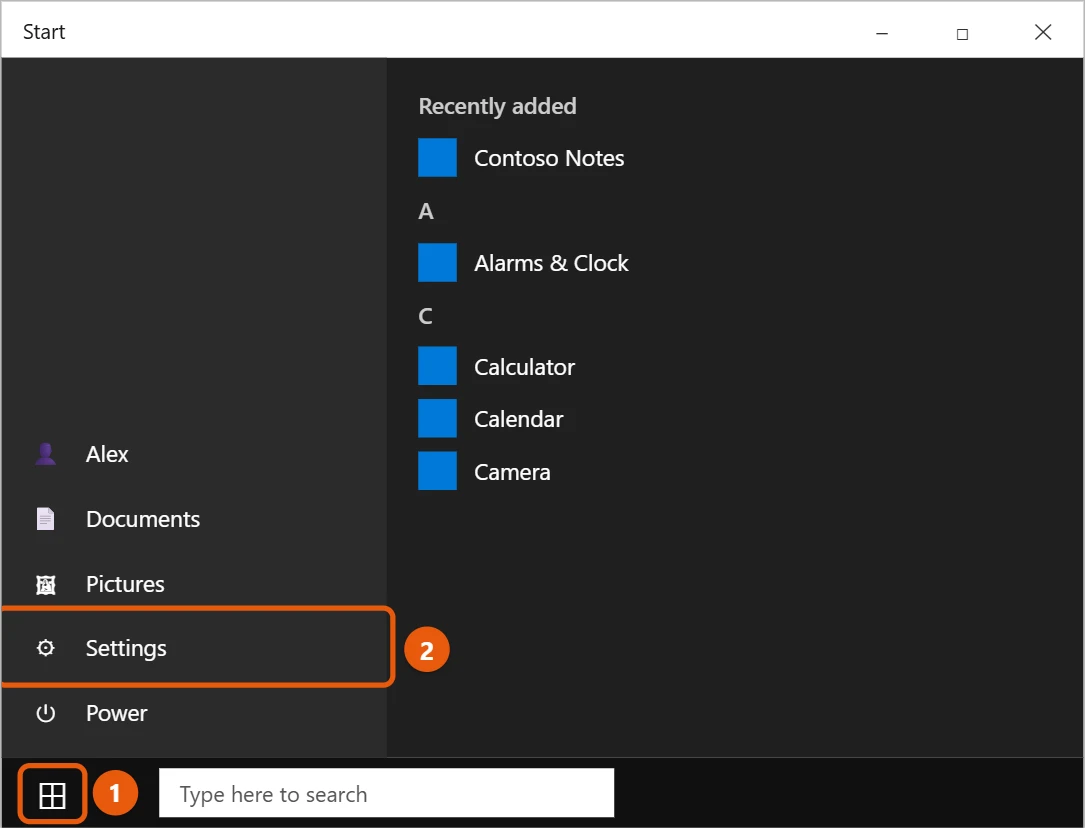
If you only see icons on the left, select the gear. Hover over the icons to see their names.
3. Other ways to open Settings
- Search: Select the search box on the taskbar, type Settings, and select the Settings app. Search returning nothing is its own problem: fixing Windows Search not working in Windows 10.
- Win+X menu: Right-click Start (or press Windows + X) and select Settings.
- Action Center: Select the Action Center icon at the right end of the taskbar and select All settings.
- File Explorer: Open This PC and select Open Settings on the Computer tab. There are several ways to open File Explorer in Windows 10.
Find a setting
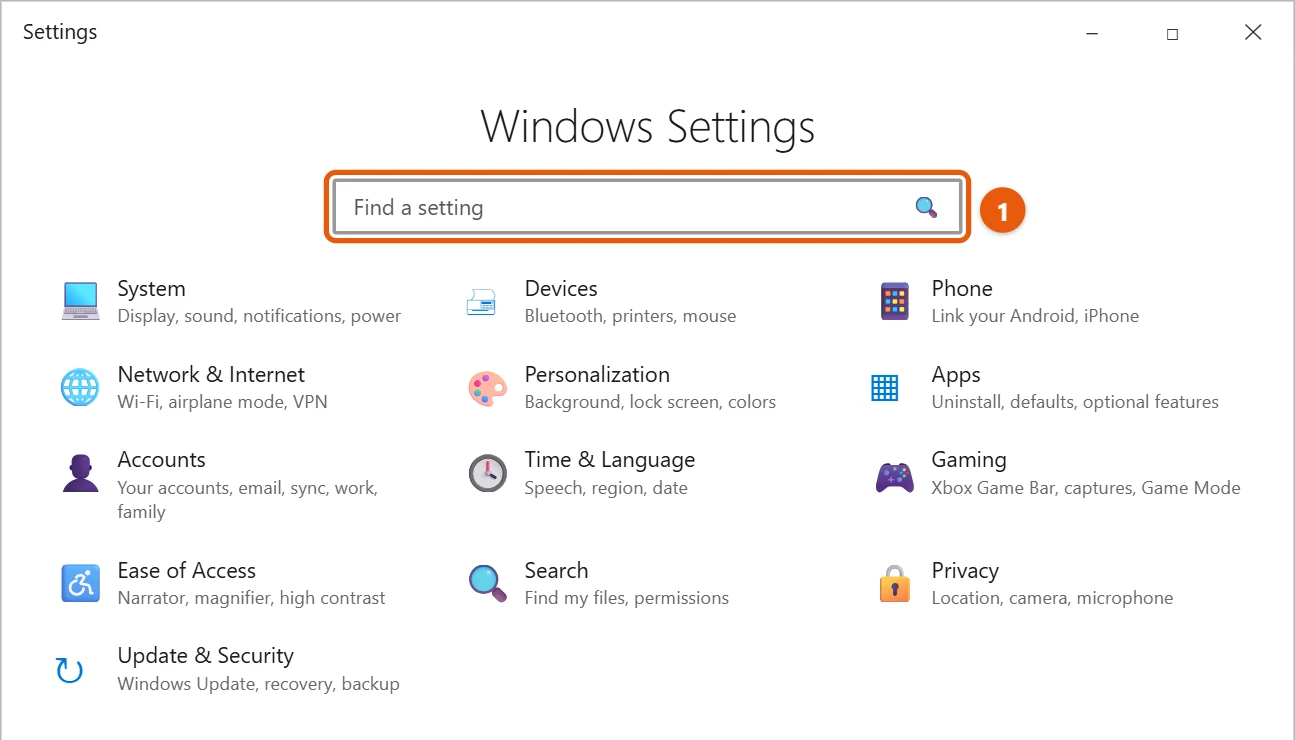
The Windows Settings home page groups everything into categories: System, Devices, Phone, Network & Internet, Personalization, Apps, Accounts, Time & Language, Gaming, Ease of Access, Search, Privacy, and Update & Security.
If you’re not sure where something is, type a word such as display or printer in the Find a setting box at the top. You can also press Ctrl + E to jump to the box.
What each category covers
Here is what you will find on each tile of the Windows Settings home page:
- System: display, sound, notifications, power and sleep, storage, multitasking, and About.
- Devices: Bluetooth, printers and scanners, mouse, touchpad, typing, pen, and AutoPlay.
- Phone: link an Android phone or iPhone to the PC.
- Network & Internet: Wi-Fi, Ethernet, VPN, airplane mode, mobile hotspot, and proxy.
- Personalization: background, colors, lock screen, themes, fonts, Start, and taskbar.
- Apps: uninstall apps, default apps, startup apps, and offline maps.
- Accounts: your info, email accounts, sign-in options, work or school access, and family and other users.
- Time & Language: date and time, region, language, and speech.
- Gaming: Xbox Game Bar, captures, and Game Mode.
- Ease of Access: text size, Narrator, Magnifier, high contrast, closed captions, and keyboard and mouse aids.
- Search: SafeSearch, search history, and which folders Windows indexes.
- Privacy: app permissions for location, camera, microphone, and more.
- Update & Security: Windows Update, Windows Security, backup, troubleshoot, recovery, and activation.
The exact list can vary slightly by Windows 10 version. Select Home at the top of the left pane to get back to the category tiles from any page.
Move around Settings with the keyboard
- Press Tab to move between the left pane, the page, and the search box.
- Use the arrow keys to move between items, then press Enter or Spacebar to open or toggle one.
- Press Alt + Left arrow (or select the back arrow in the top-left corner) to go back a page.
- Press Ctrl + E to jump to the search box.
- Press Windows + Ctrl + Enter to turn Narrator on or off if you want Settings read aloud.
Jump straight to a Settings page
Every Settings page has its own address that starts with ms-settings:. Press Windows + R, type one of these, and press Enter:
| Type this | To open |
|---|---|
ms-settings:windowsupdate | Windows Update |
ms-settings:display | Display (brightness, resolution, scaling) |
ms-settings:network-wifi | Wi-Fi |
ms-settings:bluetooth | Bluetooth & other devices |
ms-settings:appsfeatures | Apps & features (uninstall programs) |
ms-settings:defaultapps | Default apps |
ms-settings:sound | Sound (output and input devices) |
ms-settings:notifications | Notifications & actions |
ms-settings:powersleep | Power & sleep |
ms-settings:storagesense | Storage |
ms-settings:printers | Printers & scanners |
ms-settings:mousetouchpad | Mouse |
ms-settings:personalization-background | Background (desktop wallpaper) |
ms-settings:taskbar | Taskbar |
ms-settings:startupapps | Startup apps |
ms-settings:signinoptions | Sign-in options (PIN, password, Windows Hello) |
ms-settings:dateandtime | Date & time |
ms-settings:privacy-webcam | Camera privacy |
ms-settings:privacy-microphone | Microphone privacy |
ms-settings:recovery | Recovery (reset this PC, advanced startup) |
ms-settings:activation | Activation |
ms-settings:about | About (device specs and Windows version) |
These also work when the Settings window opens but crashes on its home page.
Make a desktop shortcut to a Settings page
- Right-click an empty part of the desktop and select New > Shortcut.
- Type an address from the table, such as
ms-settings:display, and select Next. - Give the shortcut a name, such as Display settings, and select Finish.
Double-click the shortcut to open that page. You can also use these addresses in a batch file with the start command, for example start ms-settings:windowsupdate.
If Settings won’t open
- Restart your PC and try again.
- Check for damaged system files. Open Command Prompt as an administrator, type
sfc /scannow, and press Enter. Restart when it’s done. - If Settings crashes or freezes, close it in Task Manager (press Ctrl + Shift + Esc or use the other ways to open Task Manager in Windows 10) and open it again.
If Settings still won’t open
Reset the Settings app. This doesn’t change any of your settings, only the app itself. Open PowerShell as administrator and run:
Get-AppxPackage *windows.immersivecontrolpanel* | Reset-AppxPackageRestart the PC and try again. If it still fails, create a new user account through Control Panel and test Settings there; if it works, the problem is limited to your profile.
Frequently asked questions
Is Settings the same as Control Panel?
No. Control Panel still exists in Windows 10, but most everyday options have moved to Settings. Some older tools, such as Backup and Restore (Windows 7), are still in Control Panel.
Can I pin Settings to the taskbar?
Yes. Open Settings, right-click its icon on the taskbar, and select Pin to taskbar. You can also right-click Settings in the Start menu and select Pin to Start.
How do I change the Start menu itself?
That’s done from Personalization in Settings; the options are explained in changing the Start menu in Windows 10.
Why are some settings grayed out?
Either you’re using a standard account and the setting needs an administrator, or the PC is managed by an organization. A message at the top of the page usually says Some of these settings are managed by your organization.
Can I open Settings from Command Prompt?
Yes. Type start ms-settings: and press Enter.
Is Settings different in Windows 11?
Yes. Windows 11 redesigned it with a left-hand menu, but Windows + I and the ms-settings addresses still work the same way.
For the older tools that live only in Control Panel, opening Control Panel in Windows 10 takes a different route. Most Settings pages also have a Get help link, and there are other ways to get help in Windows 10.
More detail is in Keyboard shortcuts in Windows (Windows + I) and Understand and explore Windows Settings.

Matt Jacobs has been working as an IT consultant for small businesses since receiving his Master’s degree in 2003. While he still does some consulting work, his primary focus now is on creating technology support content for SupportYourTech.com.
His work can be found on many websites and focuses on topics such as Microsoft Office, Apple devices, Android devices, Photoshop, and more.