The quickest way to open Control Panel in Windows 10 is to press the Windows key, type control panel, and press Enter. You can also press Windows + R, type control and press Enter. Control Panel is no longer on the Windows + X menu in current versions of Windows 10, which is why many people can’t find it.
Applies to: Windows 10 Home and Pro, all current versions. Windows 10 reached the end of standard support on October 14, 2025. Windows 11 has its own version of these steps.
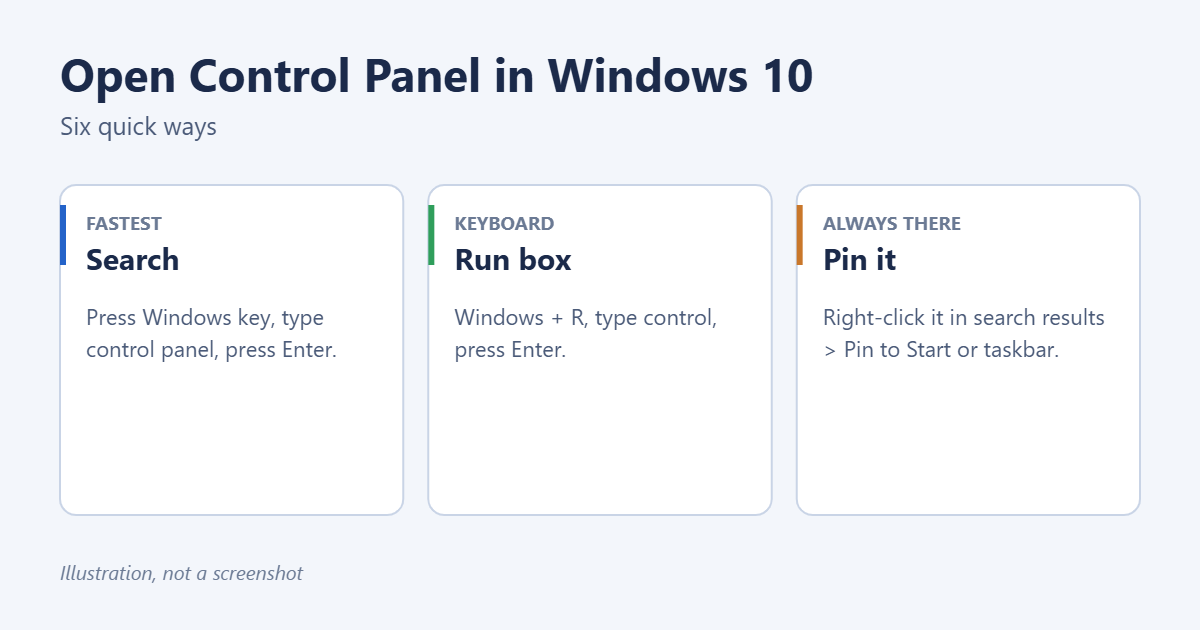
Method 1: Search
- Select Start or the search box on the taskbar.
- Type control panel.
- Select Control Panel in the results, or press Enter.
Method 2: Run box
- Press Windows + R.
- Type control and press Enter.
This also works from Command Prompt or PowerShell. Type control and press Enter.
- Select Start.
- Scroll down the app list to Windows System and expand it.
- Select Control Panel.
Method 4: File Explorer address bar
Open File Explorer, click the address bar, type Control Panel and press Enter.
Method 5: Pin it so it’s always one click away
- Search for control panel.
- Right-click the result and select Pin to Start or Pin to taskbar.
To put it on the desktop instead, right-click the desktop, select Personalize > Themes > Desktop icon settings, tick Control Panel and select OK.
Method 6: Open a specific page directly
Press Windows + R and type one of these to jump straight to a common page:
- appwiz.cpl: Programs and Features (uninstall programs)
- ncpa.cpl: Network Connections
- mmsys.cpl: Sound
- powercfg.cpl: Power Options
- sysdm.cpl: System Properties
- firewall.cpl: Windows Defender Firewall
More ways to open it
- Task Manager: press Ctrl+Shift+Esc, select File > Run new task, type control and select OK. This works even when the Start menu or taskbar is frozen.
- Settings: open Settings and type control panel in its search box.
- A desktop shortcut you make yourself: right-click the desktop, select New > Shortcut, type control, select Next, name it Control Panel and select Finish.
- Open it as administrator: right-click Command Prompt in search results, select Run as administrator, then type control. Pages opened this way already have admin rights.
Make Control Panel easier to use
Control Panel opens in Category view. Change View by at the top right to Large icons or Small icons to see every item in one list. You can also type in the search box at the top right of the Control Panel window.
Control Panel or Settings?
Many options have moved to the Settings app (Windows + I), and some Control Panel links now open Settings instead. Control Panel is still where you’ll find Programs and Features, Device Manager, Credential Manager, Mail profiles, and classic network and power settings. For example, removing McAfee completely and adding a network printer often still go through Control Panel.
Troubleshooting
Control Panel doesn’t open
Restart the PC. If it still won’t open, run sfc /scannow in Command Prompt (Admin) to repair system files.
“This operation has been cancelled due to restrictions”
An administrator or a Group Policy has blocked Control Panel. On a work PC, ask IT. On your own PC, sign in with an administrator account, or make another account on Windows 10 if you need one.
Control Panel isn’t in the Windows + X menu
That’s expected. Settings replaced it in the Windows + X menu in Windows 10 version 1703.
Frequently asked questions
What’s the keyboard shortcut for Control Panel?
There isn’t a dedicated one. Windows + R, then control, is the quickest. You can make your own by right-clicking a desktop shortcut to Control Panel, selecting Properties and setting a Shortcut key.
Is Control Panel being removed?
Features are gradually moving into Settings, but Control Panel is still included in Windows 10 and Windows 11.
What is “God Mode”?
It’s a folder that lists every Control Panel task in one place. Create a new folder on the desktop and rename it to GodMode.{ED7BA470-8E54-465E-825C-99712043E01C}.

Matt Jacobs has been working as an IT consultant for small businesses since receiving his Master’s degree in 2003. While he still does some consulting work, his primary focus now is on creating technology support content for SupportYourTech.com.
His work can be found on many websites and focuses on topics such as Microsoft Office, Apple devices, Android devices, Photoshop, and more.