To freeze rows in Google Sheets on a computer, select View > Freeze and choose 1 row to keep your header row on screen, or 2 rows for the top two. To freeze more, click a cell in the last row you want to keep visible first, then choose View > Freeze > Up to row [number]. In the Google Sheets app, tap or touch and hold a row number and choose Freeze.
Applies to: Google Sheets in a web browser on Windows, Mac and ChromeOS, and the Google Sheets app for Android, iPhone and iPad. The steps match Google’s help page on freezing rows and columns.
What freezing rows does (and what it doesn’t)
Freezing pins rows to the top of the sheet so they stay in view while everything below them scrolls. It’s most useful for a header row, the row of labels such as Name, Email and Amount that tells you what each column means.
A few rules explain almost every question people have about it:
- Frozen rows always start at row 1. You can freeze row 1, rows 1 and 2, or rows 1 through 10, but you can’t freeze row 15 on its own. If the row you want to keep in view is further down, move it to the top first.
- Each sheet tab has its own setting. Freezing the header on the Sheet1 tab doesn’t freeze anything on Sheet2.
- The setting is saved with the spreadsheet. The number of frozen rows is stored as a property of the sheet (Google’s Sheets API calls it the frozen row count), so collaborators who open the file see the same frozen rows. If someone else unfreezes them, they’re unfrozen for you too.
- Freezing only changes what you see. It doesn’t move, edit or protect any data, and it doesn’t change formulas or cell references.
- Freezing isn’t the same as locking. Frozen rows can still be edited by anyone with edit access. To stop people from changing cells, use Data > Protect sheets and ranges instead.
The examples below use a small volunteer sign-up list with the headers Name, Email, Shift and Team in row 1 and about 200 people underneath, starting with Jordan Lee ([email protected]) in row 2.
This menu route works in every browser on Windows, Mac and ChromeOS.
Freeze the top row (your header row)
- Open the spreadsheet at sheets.google.com and select the tab you want to change at the bottom of the window.
- Select View in the menu bar at the top of the page.
- Point to Freeze. A submenu opens with row options at the top and column options underneath.
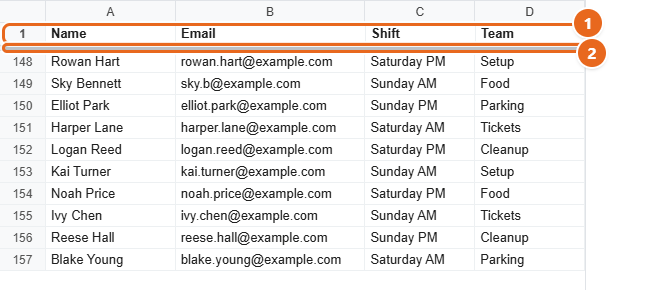
- Select 1 row. The submenu closes, and a thick gray line appears under row 1.
- Scroll down. Row 1 stays at the top of the sheet while the rows under it move.
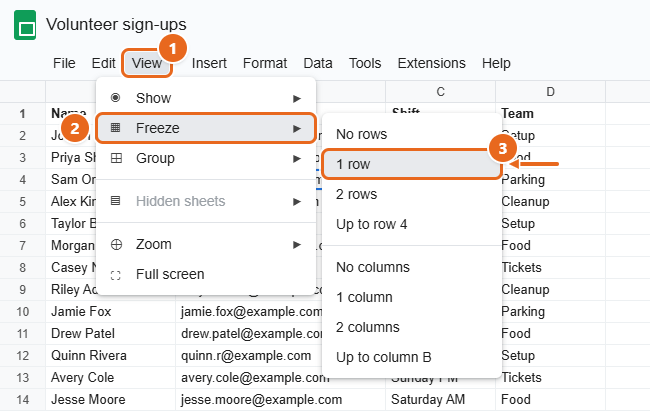
You don’t need to select row 1 first for 1 row or 2 rows. Those choices always freeze from the top of the sheet, whichever cell is selected.
Freeze two rows
If your sheet has a title in row 1 and the column labels in row 2, select View > Freeze > 2 rows. Both rows stay on screen together.
Freeze three or more rows
For more than two rows, Sheets bases the option on the cell you have selected.
- Click any cell in the last row you want to keep visible. For example, to freeze rows 1 through 4, click cell A4 (or click the row number 4 to select the whole row).
- Select View > Freeze.
- Select Up to row 4. The number in this option always matches the row of the selected cell, so check it before you click.
Rows 1 through 4 now stay at the top. If you see the wrong number, close the menu by pressing Esc, click a cell in the correct row and try again.
Keyboard tip: In Chrome on Windows or ChromeOS, press Alt + V to open the View menu (in other browsers it’s Alt + Shift + V), then use the arrow keys to reach Freeze. On any computer you can also press Alt + / (Option + / on a Mac) to open the Tool finder, the search box Google used to call Search the menus, and type freeze. Google’s shortcut list doesn’t include a dedicated one-key shortcut for freezing.
Method 2: Drag the gray freeze bar
The fastest way with a mouse or trackpad is to drag the freeze bar yourself. In the top-left corner of the sheet, where the row numbers meet the column letters, there’s a small blank box. Its bottom edge is a thick gray bar that controls frozen rows, and its right edge controls frozen columns.
- Point to the thick gray bar along the bottom edge of the blank corner box, just above row number 1. The pointer changes to a hand when you’re in the right place.
- Click and hold, then drag the bar down. A line follows the pointer as you move.
- Release the mouse button just below the last row you want to freeze. To freeze only the header, release it between row 1 and row 2.
- Scroll down to check. Everything above the gray line stays put.
The bar is small and easy to miss on a high-resolution screen. If you can’t grab it, zoom in with View > Zoom or just use Method 1.
Method 3: Right-click a row number
The right-click menu on a row number also has a freeze option. Google’s help page doesn’t list this route, but it appears in current versions of Sheets on the web.
- Right-click the row number of the last row you want to keep visible, such as 3 to freeze rows 1 through 3.
- Near the bottom of the menu, point to View more row actions.
- Select Freeze up to row 3. The thick gray line appears under row 3.
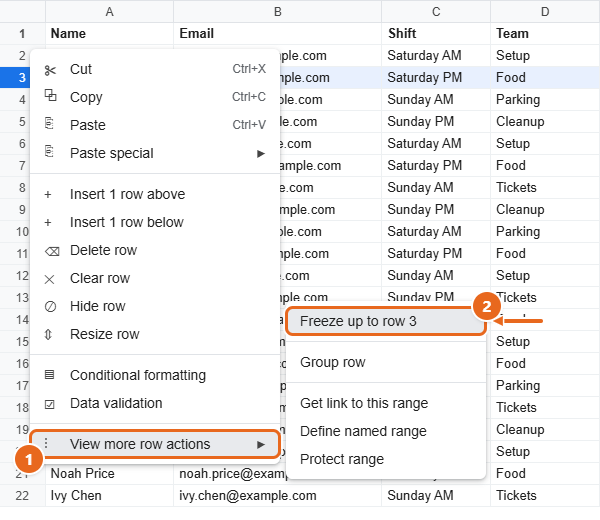
The same idea works for columns: right-click a column letter and choose View more column actions > Freeze up to column [letter].
Whichever method you use, the result is the same: a thick gray line marks the bottom of the frozen area, and the rows above it don’t scroll.
Freeze rows and columns at the same time
Rows and columns are frozen separately, so changing one doesn’t undo the other. To keep both the header row and a name column in view:
- Select View > Freeze > 1 row.
- Open the menu again and select View > Freeze > 1 column.
Now row 1 stays at the top when you scroll down, and column A stays on the left when you scroll right. To freeze up to a specific row and column, click the cell where they meet first. For example, with cell B3 selected, the Freeze submenu offers both Up to row 3 and Up to column B. You still choose them one at a time. You can also drag both gray bars in the top-left corner, one down and one to the right.
If you’ve used Excel, this is the Google Sheets version of Freeze Panes. Excel puts it in a different place, and freezing the top row in Excel shows where if you work in both programs. Excel files you open in Google Sheets follow the same rules covered here.
Freeze rows in the Google Sheets app (Android, iPhone and iPad)
The Google Sheets app doesn’t have a View menu. Instead, you freeze rows from the row number itself. You need edit access to the spreadsheet to change its frozen rows.
Android phone or tablet
- Open the spreadsheet in the Google Sheets app.
- Touch and hold the row number of the last row you want to keep visible, such as 1 for a header row.
- In the menu that appears, tap Freeze. The rows from the top down to the one you selected stay in place as you scroll.
iPhone or iPad
- Open the spreadsheet in the Google Sheets app.
- Tap the row number of the last row you want to keep visible. A black menu appears above the row.
- Tap the right arrow at the end of the menu until you see Freeze, then tap it. On an iPad, where there’s more room, the option may appear without scrolling and can read Freeze row.
Set the number of frozen rows from the sheet tab
The app also has a counter for frozen rows. It’s useful when you want an exact number, or when the row menu is hard to reach on a small screen.
- Tap the name of the sheet tab at the bottom of the screen, such as Sheet1. A menu of sheet options opens.
- Find Freeze rows and use the up and down arrows to set how many rows to freeze. Freeze columns works the same way.
- Tap outside the menu to close it and go back to the sheet.
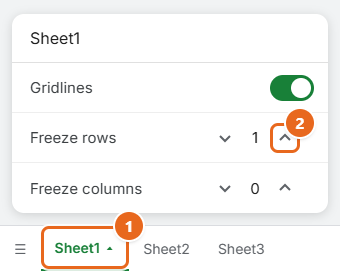
The sheet tab menu isn’t described on Google’s help page, and its layout has changed between app versions, so if you don’t see the counter, use the row-number method above.
How to unfreeze rows
Unfreezing doesn’t delete or move anything. The rows scroll with the rest of the sheet again.
- Computer, View menu: Select View > Freeze > No rows. To unfreeze columns, choose No columns.
- Computer, drag: Drag the thick gray line back up to the top-left corner box.
- Android: Touch and hold a frozen row number, then tap Unfreeze.
- iPhone or iPad: Tap a frozen row number, tap the right arrow, then tap Unfreeze.
- App, sheet tab: Tap the sheet tab name and lower Freeze rows to 0.
To change how many rows are frozen, you don’t have to unfreeze first. Choose a different option in View > Freeze or drag the gray line to a new spot, and the new setting replaces the old one.
Print frozen rows on every page
Frozen rows normally print only once, at the top of the first page. To repeat your header row at the top of every printed page:
- Freeze the header row with any method above.
- Select File > Print.
- In the print settings panel, select Headers & footers.
- Check Repeat frozen rows. If you also froze columns, you can check Repeat frozen columns.
- Select Next and print as usual.
Other print settings are on the Print from Google Sheets help page.
Troubleshooting
I want to freeze a row in the middle of the sheet
Sheets can only freeze rows starting from row 1. If you need a particular row on screen, cut it and paste or insert it near the top, or move the whole block above it to another tab. For comparing two distant parts of a long list, a filter (Data > Create a filter) that shows only the rows you care about is often easier than freezing.
The Freeze options are grayed out or missing
- You’re typing in a cell. If the cursor is blinking inside a cell or the formula bar, press Esc (or Enter) and open the menu again.
- You only have view or comment access. Frozen rows are saved with the file, so the freeze options may not be available without edit access. Ask the owner for edit access, or select File > Make a copy and freeze rows in your own copy.
- You’re on the wrong tab. Each tab has its own frozen rows. Check the highlighted tab at the bottom of the window.
The freeze stops at the wrong row
Up to row and Freeze up to row use the row you selected. If more or fewer rows are frozen than you wanted, click a cell in the correct last row and choose the option again, or drag the gray line up or down.
The rest of the sheet barely scrolls
If the frozen rows take up most of the window, there’s little space left for the rows that should scroll, especially on a laptop or with a high zoom level. Freeze fewer rows, reduce the zoom with View > Zoom, or shorten tall header rows by turning off text wrapping in them.
My frozen rows disappeared
Because the setting is shared, another editor may have unfrozen them, or the file may have been replaced by a new import. Freeze the rows again. To see who changed the file and when, open File > Version history > See version history.
Sorting moved my header row
Freeze the header row before you sort. When you sort, also check Data has header row in Data > Sort range > Advanced range sorting options so the labels aren’t mixed into your data. If the header already moved, press Ctrl + Z (Command + Z on a Mac) to undo the sort.
FAQ
How do I freeze the top row in Google Sheets?
Select View > Freeze > 1 row. A thick gray line appears under row 1, and that row stays at the top as you scroll.
How do I freeze the first three rows?
Click any cell in row 3, then select View > Freeze > Up to row 3. You can also drag the gray bar in the top-left corner down to just below row 3.
Is there a limit to how many rows I can freeze?
Google doesn’t publish a fixed number, but the frozen rows have to fit in the window with room for the rest of the sheet to scroll. In practice, one to three rows is usually all a header needs.
Will other people see the rows I freeze?
Yes. Frozen rows are saved as part of the sheet, so everyone who opens the file sees them, and anyone with edit access can change them.
Does freezing a row stop people from editing it?
No. Freezing only keeps rows on screen. To restrict editing, protect the range with Data > Protect sheets and ranges. If you just want to tidy the view instead, you can also hide columns or rows in Google Sheets that people don’t need to see.
Can I freeze rows in Google Sheets on my phone?
Yes. In the Android app, touch and hold a row number and tap Freeze. On an iPhone or iPad, tap a row number, tap the right arrow, then tap Freeze.
Are frozen rows the same as Freeze Panes in Excel?
They do the same job. If you download your sheet as an Excel file, check the frozen rows after opening it in Excel, since the two programs set them up in different menus.
Next, freeze the header row in your busiest spreadsheet, then turn on Repeat frozen rows the next time you print it so every page has labels.

Matt Jacobs has been working as an IT consultant for small businesses since receiving his Master’s degree in 2003. While he still does some consulting work, his primary focus now is on creating technology support content for SupportYourTech.com.
His work can be found on many websites and focuses on topics such as Microsoft Office, Apple devices, Android devices, Photoshop, and more.