To make columns in Word, click anywhere in your document, select the Layout tab, then select Columns and choose Two or Three. Word immediately reflows the text into newspaper-style columns. To put only part of the document in columns, select those paragraphs first, and to set exact widths or add a line between columns, choose Columns > More Columns.
Applies to: Word for Microsoft 365 (Windows and Mac), Word 2024, Word 2021, Word 2019, Word 2016 and Word for the web. The steps match Microsoft’s training page on columns.
Text columns or table columns?
Word has two very different things people call “columns,” and picking the right one saves a lot of frustration.
| Text columns (Layout > Columns) | Table columns (Insert > Table) | |
|---|---|---|
| How text behaves | Flows down the first column, then continues at the top of the next one, like a newspaper | Stays in its own cell; each column is independent |
| Good for | Newsletters, brochures, flyers, school reports, word lists, glossaries | Side-by-side comparisons, a schedule, a two-language document, a resume layout |
| Reading order | Top to bottom, then the next column | Row by row, across the page |
| Where it’s covered | Most of this guide | Make side-by-side columns with a table |
A quick test: if a reader should finish column one before starting column two, use text columns. If item 3 on the left must always line up with item 3 on the right, use a table.
Before you start
- Use Print Layout view. Columns appear side by side only in Print Layout. If your columns look like one long column, select View > Print Layout.
- Turn on formatting marks. Select Home > Show/Hide ¶ (or press Ctrl + Shift + 8 on Windows). You’ll see the section breaks and column breaks that control your layout, which makes fixing problems much easier.
- Know about sections. Column settings belong to a section of the document. Word treats the whole document as one section until you, or Word, add a section break. That’s why the same Columns menu can change the whole document or just one passage.
- Columns fill one at a time. Word fills the first column to the bottom of the page before anything appears in the second column. If you only have a few lines of text, it’s normal to see one column of text and an empty space beside it.
Make the whole document into columns
This works the same way in a blank document or one that already has text. In a blank document, everything you type afterward flows into the columns.
- Open your document in Word and click anywhere in the text. Don’t select anything, or Word will apply columns to the selection only.
- Select the Layout tab on the ribbon. In older versions such as Word 2013, this tab is called Page Layout.
- In the Page Setup group, select Columns. A menu opens with small page previews.
- Choose a preset:
- One: a normal full-width page (this is the default).
- Two: two columns of equal width.
- Three: three columns of equal width.
- Left: two columns with a narrow column on the left and a wide column on the right.
- Right: two columns with a wide column on the left and a narrow column on the right.
- Look at the page. Your text now flows from the bottom of the first column to the top of the next. If you need more than three columns or exact measurements, choose More Columns instead and follow the steps for custom columns.
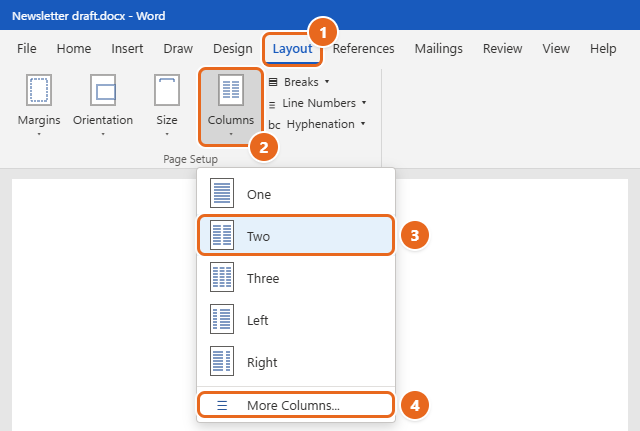
On a standard US Letter page with 1-inch margins, the text area is 6.5 inches wide. The Two preset splits that into two 3-inch columns with a half-inch gap, and Three gives you three columns of about 1.83 inches each. If your columns feel cramped, narrow the page margins before adding more columns. Changing them is covered in setting margins in Word.
Put only part of a document in columns
A common layout is a full-width title and introduction followed by two columns of body text, or a single list of terms set in three columns in the middle of a normal page. Here’s how to do that.
- Select the paragraphs you want in columns. Drag across them, or click at the start, hold Shift and click at the end.
- Select Layout > Columns.
- Choose Two, Three, Left or Right.
- Check the result. Only the selected text changes. The paragraphs above and below stay full width.
Behind the scenes, Word adds a Continuous section break before and after your selection so that part of the page can have its own layout. With Show/Hide ¶ turned on you’ll see them as dotted lines labeled Section Break (Continuous). Leave them in place: deleting one changes which layout the surrounding text uses (see Remove columns).
Tip: Select whole paragraphs, including the paragraph mark at the end. If you select only part of a paragraph, Word still has to break it into its own section, which can split a sentence across layouts in a way you didn’t intend.
Start columns partway through a document
If you’re typing a newsletter and want everything from this point on in two columns, you don’t need to select anything. Use the Columns dialog instead.
- Click where the columns should begin, for example at the start of the first article under your full-width headline.
- Select Layout > Columns > More Columns. The Columns dialog box opens.
- Under Presets, choose Two (or enter a number in Number of columns).
- Open the Apply to list and choose This point forward.
- Select OK. Word inserts a section break at the cursor. Everything before it keeps its old layout, and everything after it uses columns.
If you later want the columns to stop, click where the full-width text should resume, open More Columns again, choose One, and set Apply to to This point forward. How sections work is explained in creating sections in Word.
Change column width, spacing and add a line between
The presets are fine for most documents. When you need four or more columns, columns of different widths, a wider gap, or a vertical divider line, use the Columns dialog box.
- Click inside the columns you want to change. If the document has several sections, the change applies to the section your cursor is in.
- Select Layout > Columns > More Columns.
- Pick a preset or type a value in Number of columns.
- To add a vertical line between the columns, check Line between.
- Under Width and spacing, set the Width of the columns and the Spacing (the gap) after each one. With Equal column width checked, changing column 1 changes them all.
- For columns of different sizes, clear Equal column width, then enter a width and spacing for each column number.
- Choose where the settings apply in the Apply to list, watch the Preview box, and select OK.
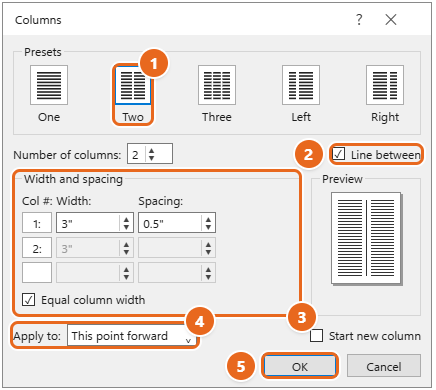
Here’s what each part of the dialog does:
| Setting | What it does |
|---|---|
| Presets | One-click layouts: One, Two, Three, Left and Right. Choosing one sets the number, widths and spacing together. |
| Number of columns | Any number the page can fit. Word won’t accept a value that would make the columns too narrow for the page width and margins. |
| Line between | Draws a thin vertical line in the gap between columns. |
| Width and spacing | Column width and the gap to the right of each column. The last column has no spacing box because nothing comes after it. |
| Equal column width | Keeps every column the same width. Clear it to size each column separately. |
| Apply to | Whole document, This section, This point forward or Selected text. The options shown depend on where your cursor is and whether text is selected. |
| Start new column | Available with This point forward. Starts the new layout at the top of a new column instead of on the same line. |
| Preview | A small page drawing that updates as you change settings. |
You can also drag column edges on the horizontal ruler. Turn the ruler on with View > Ruler, click inside the columns, and drag the gray bars between the white column areas. The dialog is more precise, so use it when you need specific measurements.
Example: For a sidebar layout on a Letter page with 1-inch margins, clear Equal column width and set column 1 to 2 inches with 0.4-inch spacing and column 2 to 4.1 inches. The total (2 + 0.4 + 4.1) equals the 6.5-inch text width, which is what Word expects.
Insert a column break
A column break pushes everything after your cursor to the top of the next column. It’s how you start a new article at the top of column two, or keep a heading together with the paragraph under it.
- Click at the start of the line that should begin the next column.
- Select Layout > Breaks.
- Under Page Breaks, select Column. The text after the cursor jumps to the next column. If you were already in the last column, it moves to the first column on the next page.
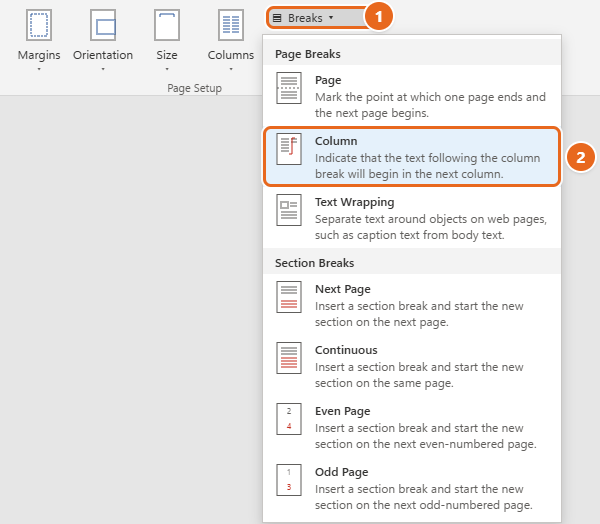
The keyboard shortcut is faster: press Ctrl + Shift + Enter on Windows or Command + Shift + Return on a Mac. Both are listed in Microsoft’s Insert a column break and keyboard shortcut pages.
To delete a column break, turn on Show/Hide ¶, click just before the dotted line labeled Column Break, and press Delete. The text flows back into the previous column.
A column break is one of several break types in Word. To start the next text on a new page instead, insert a page break in Word.
Make columns end at the same height
On the last page of a columned section, Word fills the first column completely before moving on, so you can end up with one long column and one short one. To even them out:
- Click at the very end of the text that’s in columns.
- Select Layout > Breaks > Continuous (under Section Breaks).
- Word splits the remaining text more evenly so the columns on that page end at roughly the same height.
A Continuous section break is particularly useful in documents with columns, because it lets you change the number of columns without starting a new page. That same break is what lets you return to one full-width column below a two-column block, for example for a closing paragraph or a footer-style note.
If you’d rather control exactly where each column ends, use column breaks instead, but remember they won’t adjust if you later add or remove text.
Make columns in Word for Mac
Word for Mac (Microsoft 365, 2024, 2021 and 2019) uses the same ribbon commands as Windows.
- Click in the document, or select the paragraphs you want in columns.
- Select the Layout tab, then select Columns.
- Choose One, Two, Three, Left or Right, or choose More Columns to set the number, width, spacing and Line between.
- To insert a column break, put the cursor where the new column should start and select Layout > Breaks > Column, or press Command + Shift + Return.
The Mac dialog looks a little different from the Windows one but has the same core options. Show formatting marks with the ¶ button on the Home tab.
Make columns in Word for the web
Some older guides say Word for the web can’t make columns. That’s out of date. Microsoft added multi-column layouts to Word for the web in 2024, and its Create columns help page now lists the web version.
- Open the document at office.com or from OneDrive and make sure you’re in Editing mode, not Viewing.
- Click in the document, or select the text you want in columns.
- Select Layout > Columns.
- Choose One, Two or Three, or choose More Columns to customize the layout.
If you don’t see Columns, your ribbon may be collapsed into the simplified single-line view. Select the Layout tab and look for the command under the … (More options) button, or switch to the classic ribbon. If something in the web version doesn’t match these steps, select Editing > Open in Desktop App and use the Windows or Mac steps above.
Make side-by-side columns with a table
Text columns are the wrong tool when each line on the left has to stay next to a matching line on the right, such as English and Spanish versions of the same paragraph or a “Before” and “After” list. A borderless table does this better.
- Click where the columns should go and select Insert > Table.
- Drag across the grid to choose two columns and as many rows as you need, then click.
- Type your content. Press Tab to move to the next cell. Each cell grows as you type, and the rows stay lined up.
- To hide the grid lines, click inside the table, select the Table Design tab, open Borders and choose No Border. The table still exists, but readers see two clean columns.
Need more rows later? You can add a row to a table in Word at any point.
Avoid faking columns with the Tab key or lots of spaces. It looks fine until you edit a line, then everything shifts.
Remove columns
To return text to a single full-width column:
- Click anywhere inside the columns. To change only part of the document, select that text instead.
- Select Layout > Columns > One.
If you just added columns and don’t like the result, press Ctrl + Z (Windows) or Command + Z (Mac) to undo.
Choosing One leaves any section breaks Word added. They’re harmless, but if you want to clean them up, turn on Show/Hide ¶, click the Section Break (Continuous) line and press Delete.
Warning: deleting a section break merges two sections, and the merged section takes on the layout of one of them. According to Microsoft’s section break guide, each section break controls the formatting of the text before it, so deleting the wrong break can suddenly turn your full-width introduction into columns, or your columns back into one. If that happens, press Ctrl + Z right away.
Troubleshooting
The whole document changed instead of one part
You probably had the cursor in the text with nothing selected, so Word applied the columns to the whole section. Undo, select only the paragraphs you want, and choose the columns again. Or use More Columns and set Apply to to Selected text or This point forward.
My text stays in the first column
This is usually normal. Word fills the first column to the bottom of the page before it starts the second. Add more text, insert a column break where the second column should begin, or balance the columns with a Continuous section break.
The columns look like one column
Check the view. In Draft or Web Layout view, Word doesn’t show columns side by side. Select View > Print Layout.
Text jumps to the next column or page too early
Turn on Show/Hide ¶ and look for a stray Column Break, Page Break or extra empty paragraphs at the bottom of the column. Delete the unwanted mark. Paragraph settings such as Keep with next can also move a heading and the following lines to the next column together, which is usually what you want.
I can’t make a heading stretch across both columns
A heading inside the columned section is stuck in one column. Put the heading above the columns in its own one-column section: click at the start of the first column, insert a Continuous section break, then set the section that contains the heading to One column. Or select only the body text (not the heading) before applying columns.
Pictures don’t fit or push the columns around
A picture wider than the column is shrunk or spills over. Click the picture, drag a corner handle until it fits the column width, and under Layout Options choose In Line with Text so it moves with its paragraph. For a picture that spans both columns, put it in a one-column section between two columned sections.
Columns or More Columns is grayed out
Make sure you’re editing the document, not reading it. Read Mode, a document opened as read-only, or editing restrictions (Review > Restrict Editing) can block layout changes. In Word for the web, switch from Viewing to Editing.
Word won’t accept the number of columns I typed
The columns would be too narrow for the page. Reduce the spacing, narrow the margins, switch to Landscape under Layout > Orientation, or use fewer columns.
FAQ
How do I make two columns in Word?
Click in the document, then select Layout > Columns > Two. Select specific paragraphs first if you want only that part in two columns.
How many columns can a Word page have?
There’s no fixed number in the menu. The limit depends on the page width, margins and spacing, because Word won’t let a column get too narrow. In practice, more than three or four columns on a portrait Letter page makes lines too short to read comfortably.
How do I add a vertical line between columns?
Select Layout > Columns > More Columns, check Line between, and select OK. Microsoft’s Insert a line between columns page covers the same option. A line elsewhere on the page is a different job, handled by inserting a horizontal line in Word.
Can I have different columns on different pages?
Yes. Each section can have its own column layout. Insert a section break (Layout > Breaks > Next Page for a new page, or Continuous for the same page), click in the new section, and choose the columns you want.
What’s the difference between Left and Right?
Left makes a narrow column on the left and a wide one on the right. Right does the opposite. Both are handy for a sidebar of notes, dates or pull quotes beside the main text.
Is there a keyboard shortcut for columns?
There’s no default shortcut for the Columns menu itself, but Ctrl + Shift + Enter (Windows) or Command + Shift + Return (Mac) inserts a column break.
Should I justify text in columns?
Many newsletters use justified text (Home > Justify, or Ctrl + J) so both edges of each column are straight. In narrow columns this can leave large gaps between words. If that happens, switch back to left alignment or turn on hyphenation under Layout > Hyphenation > Automatic.
Why does Word add section breaks when I make columns?
Column settings belong to a section. To give part of a page a different number of columns, Word has to wrap that part in its own section, so it adds Continuous section breaks before and after it.
Once your columns are set, try a two-column layout with a full-width headline and a Line between divider. It’s a quick way to turn a plain document into a clean newsletter or handout.

Matt Jacobs has been working as an IT consultant for small businesses since receiving his Master’s degree in 2003. While he still does some consulting work, his primary focus now is on creating technology support content for SupportYourTech.com.
His work can be found on many websites and focuses on topics such as Microsoft Office, Apple devices, Android devices, Photoshop, and more.