To create a bootable Windows 10 USB drive, download Microsoft’s Media Creation Tool, run it, choose Create installation media (USB flash drive, DVD, or ISO file) for another PC, pick USB flash drive, and select your drive. The tool downloads Windows 10 and makes the drive bootable, which takes 20 to 60 minutes depending on your internet speed.
Applies to: Windows 10 installation media, created on any Windows PC. Checked against Microsoft’s Windows 10 download page on September 24, 2026.
Windows 10 reached end of support on October 14, 2025. If you’re installing it to keep an older PC running, enroll in Extended Security Updates so it keeps getting security fixes. For a new install on supported hardware, consider a Windows 11 USB instead.
What you need
- A blank USB flash drive with at least 8 GB. Everything on it will be erased, so copy off anything you want to keep.
- A Windows PC with an internet connection to run the tool. You need to be signed in as an administrator.
- A Windows 10 license (a product key or a digital license) for the PC you’ll install it on. If the PC ran Windows 10 before, its digital license usually activates it again automatically.
Create the USB drive with the Media Creation Tool
- Go to Microsoft’s Download Windows 10 page and, under Create Windows 10 installation media, select Download Now.
- Open the downloaded file and select Yes when Windows asks for permission.
- Select Accept to agree to the license terms.
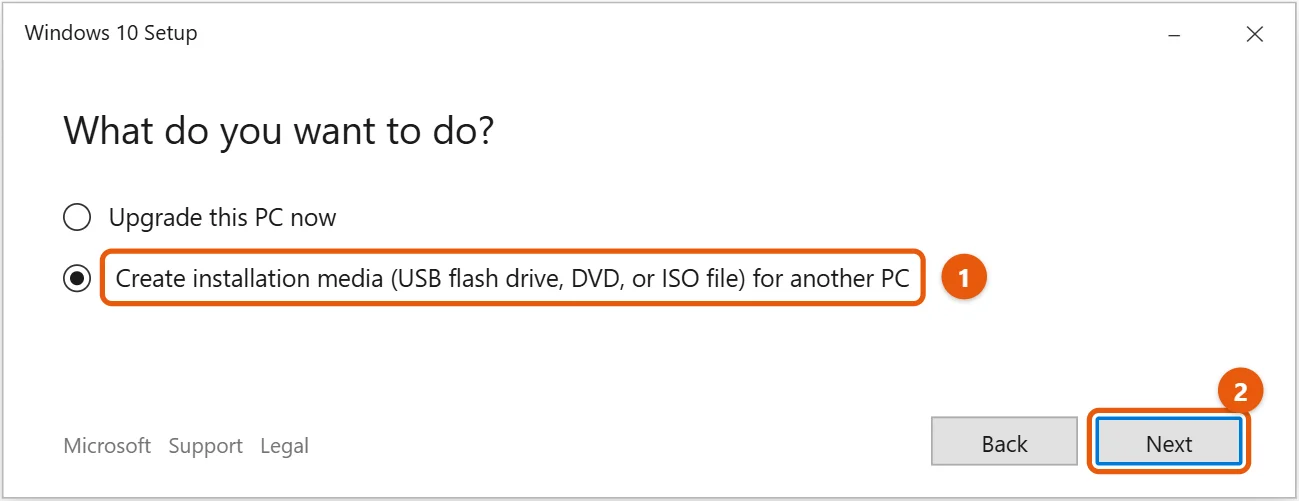
- On What do you want to do?, choose Create installation media (USB flash drive, DVD, or ISO file) for another PC, then select Next.
- Choose the language, edition, and architecture. If you’re making the drive for this PC, leave Use the recommended options for this PC checked. Otherwise, uncheck it and pick 64-bit (x64) for almost any PC made in the last decade. The single Windows 10 entry covers Home and Pro; see how to download Windows 10 Pro for how the edition is decided.
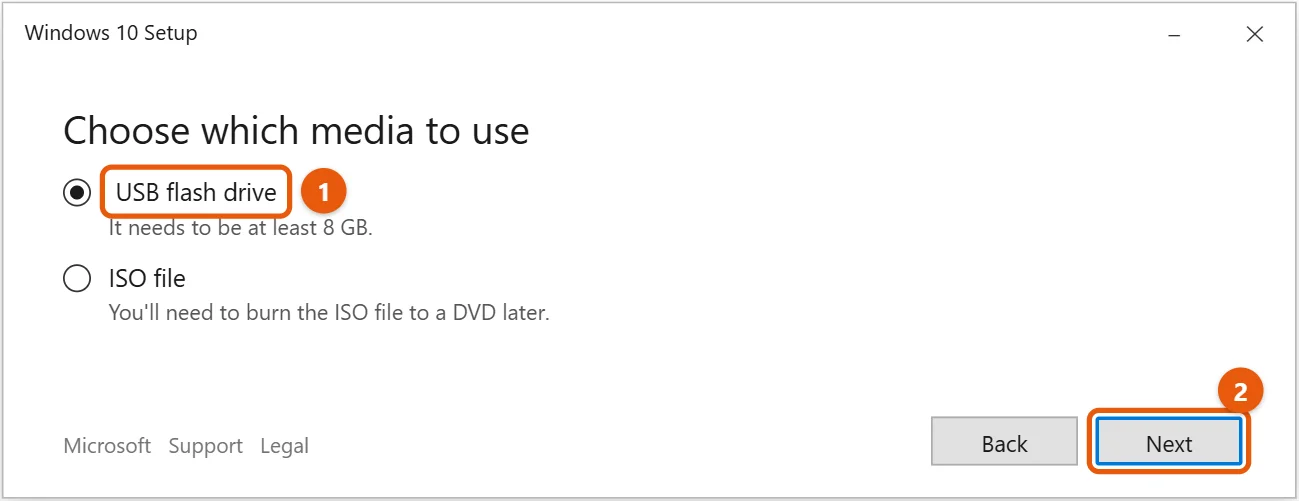
- On Choose which media to use, select USB flash drive, then Next.
- Plug in the USB drive if you haven’t already, select it in the list (select Refresh drive list if it’s missing), then select Next.
- Wait while the tool downloads Windows 10 and builds the drive. When you see Your USB flash drive is ready, select Finish.
Start a PC from the USB drive
- Plug the drive into the PC you want to install Windows 10 on. If you would rather not sign in with a Microsoft account during setup, see how to install Windows 10 without a Microsoft account.
- Restart the PC and open its boot menu. The key is usually F12, F11, F9, or Esc, pressed right after the PC turns on. Your PC’s startup screen or manual shows the exact key.
- Choose the USB drive from the list. If it’s listed twice, pick the one marked UEFI. Windows Setup starts.
From there, follow our guide to installing Windows 10 from a USB drive. Setup offers two choices: Upgrade keeps your files and apps, and Custom does a clean install that erases the drive you install to.
Other ways to make the drive
- You already have a Windows 10 ISO file: use a trusted, free tool such as Rufus, downloaded from its official site, to write it to a USB drive.
- You’re on a Mac: the Media Creation Tool only runs on Windows. Visiting Microsoft’s download page from a Mac offers the ISO file directly. See how to create a Windows 10 bootable USB on a Mac.
- You want to keep an ISO for later: choose ISO file in step 6 and save it. You can make a USB drive from it any time.
Only download Windows from Microsoft’s own site. Copies from other websites can be altered to include malware. If you only need the ISO file and not a USB drive, see how to download Windows 10 on a laptop.
If the tool or the drive doesn’t work
- The tool can’t find your USB drive: unplug it, plug it into a different port, and select Refresh drive list. Drives smaller than 8 GB won’t show up.
- “There was a problem running this tool”: restart your PC, make sure you’re using an administrator account, turn off any VPN, and try again with a stable internet connection.
- The download is very slow or stalls: leave it running, or try again later. The download is several gigabytes.
- The PC boots straight past the USB drive: open the boot menu instead of letting the PC start normally. On some PCs, you need to turn off Fast Boot or enable USB boot in the UEFI/BIOS settings.
- The USB drive won’t boot on an old PC: very old PCs may need Legacy or CSM boot turned on in the BIOS settings.
Frequently asked questions
Can I still download Windows 10?
Yes. Microsoft still offers the Media Creation Tool, even though Windows 10 no longer gets free updates.
Can I use the USB drive for files afterward?
Yes. Reformat it when you no longer need it for installing Windows. Formatting erases the installer.
Do I need a product key?
Not to make the drive. You can install Windows 10 without one and activate it later. A PC that had Windows 10 before usually activates automatically. A PC that’s still on Windows 7 needs a Windows 10 license, as explained in our Windows 7 upgrade guide.
For more on file systems and formatting, see how to format a drive in Windows 10.
To start the PC from the USB drive, see how to change the boot order in Windows 10.
To open an ISO file without burning it to a disc, see how to mount an ISO file in Windows 10.
More Windows help is on our Windows Help & Guides page.
If you only need the ISO file, see how to download a Windows 10 ISO file.
Related: How to download Windows 11 Pro.
Related: how to install Windows 10 step by step.
Related: install Windows 10 on an external hard drive.
Related: reinstall Windows 10 from Windows 11.
Related: how to burn a Windows 10 ISO to a DVD.
Related: how big a USB drive you need for Windows 11.

Matt Jacobs has been working as an IT consultant for small businesses since receiving his Master’s degree in 2003. While he still does some consulting work, his primary focus now is on creating technology support content for SupportYourTech.com.
His work can be found on many websites and focuses on topics such as Microsoft Office, Apple devices, Android devices, Photoshop, and more.