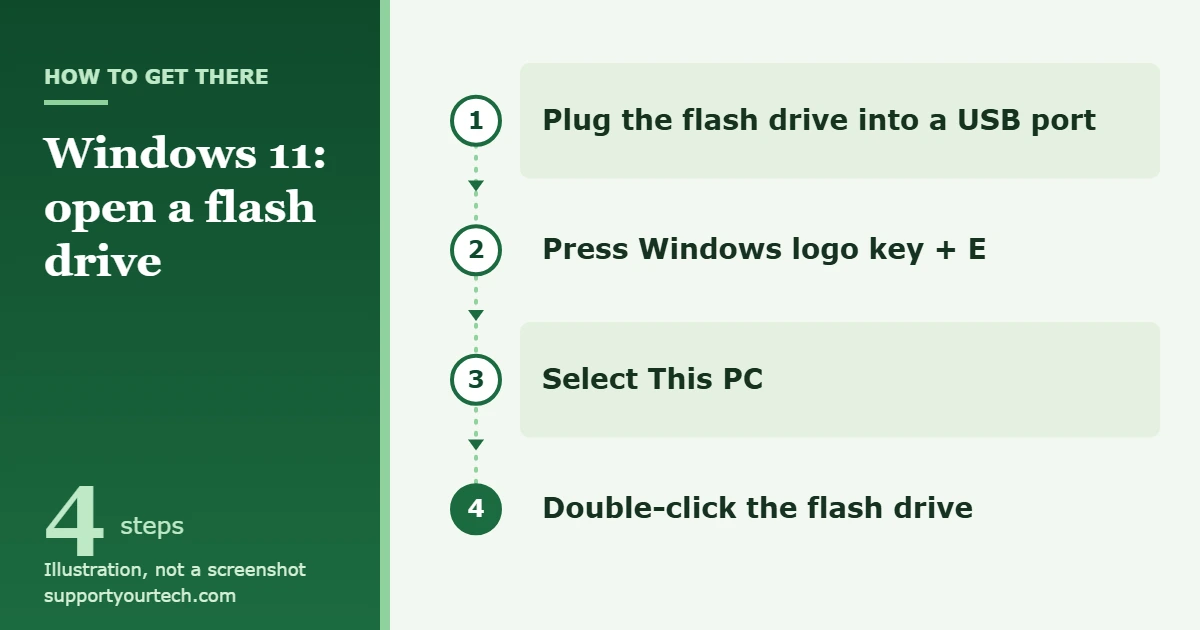
To open a flash drive on Windows 11, plug it into a USB port, open File Explorer (press the Windows logo key + E), select This PC in the left pane, and double-click the flash drive. Its folders and files open in the same window, ready to view, copy or edit. If the drive is not listed, try another USB port, then right-click Start and open Disk Management to see whether it is only missing a drive letter.
Applies to: Windows 11, with USB flash drives (also called thumb drives, USB sticks, pen drives or memory sticks). Checked against Microsoft Support on October 6, 2026.
Before you start
- Find a port that fits the drive. Most flash drives have a flat, rectangular USB-A plug. Newer ones have the small oval USB-C plug, and some have both. The plug only goes in one way on USB-A, so flip it over instead of forcing it.
- Plug straight into the computer. Microsoft notes that USB disks sometimes don’t get enough power from certain ports, and that this is especially common with USB hubs. Use a port on the PC itself while you get the drive working.
- Be careful with a drive you don’t recognize. A flash drive you found or were handed by a stranger can carry malware. Don’t open files from it on a PC you care about, and scan it first (the steps are further down).
- You don’t need to install anything. Windows 11 sets up a standard USB flash drive on its own when you connect it, and File Explorer, the file manager built into Windows, is all you need to open it.
Open the flash drive in File Explorer
- Plug in the flash drive. Push it into a USB port until it is seated. Give Windows a few seconds to set it up. Many drives have a small light that comes on or blinks when they have power.
- Open File Explorer. Press the Windows logo key + E, or select the File Explorer folder icon on the taskbar or in the Start menu. File Explorer opens on its Home page.
- Select This PC. In the navigation pane on the left side of the window, select This PC. The main part of the window now lists the drives Windows can open, each with a name and a letter such as D: or E:.
- Double-click the flash drive. The window changes to show the folders and files stored on the drive. A brand-new drive may show no files at all, which is normal.
- Open or copy your files. Double-click a file to open it in its usual app. To copy a file to the PC, right-click it and select Copy at the top of the menu, go to a folder on the computer such as Documents, right-click an empty area and select Paste. The same menu has Cut, Rename, Share and Delete, and Show more options opens the longer classic menu.
Copying works the same way in the other direction. Copy a file on the PC, open the flash drive, and paste it there. You can also drag files between two File Explorer windows.
How to tell which drive is the flash drive
This PC lists every drive on the computer, so a flash drive can be hard to spot on a PC with several disks. Three clues help:
- The name. Many flash drives show the manufacturer’s name or a label someone gave them. A drive with no label is listed under a generic name.
- The size. Under each drive, Windows shows how much space is free out of the total. A flash drive is normally far smaller than the computer’s own disk, so a drive showing a total of a few dozen gigabytes next to a system disk of several hundred is the flash drive.
- The unplug test. Keep This PC open, pull the flash drive out and watch which entry disappears. Plug it back in and the same entry returns.
The drive that contains Windows is almost always C:. The flash drive gets the next free letter, so its letter can be different on another computer.
Open the flash drive automatically with AutoPlay
AutoPlay is the Windows feature that asks what to do when you connect a drive, or does it for you. With it turned on, a notification appears when you plug in the flash drive; select it and choose the option that opens the drive’s folder in File Explorer.
- Select Start, then Settings > Bluetooth & devices > AutoPlay.
- Turn on Use AutoPlay for all media and devices.
- In the setting for removable drives, choose what Windows should do when one is connected, for example open the folder so you can view the files, ask you each time, or do nothing.
If nothing at all happens when you plug in a drive, AutoPlay may simply be off or set to take no action. That is a preference, not a fault. The drive is still available under This PC.
Scan the flash drive before you open files on it
Windows Security, the antivirus built into Windows 11, can check a flash drive on request. This is worth doing for any drive that has been used on computers you don’t control, such as a print shop or school PC.
- Open File Explorer and select This PC.
- Right-click the flash drive, or a single file or folder on it, and select Show more options.
- Select Scan with Microsoft Defender.
When the scan finishes, Windows Security opens its Scan options page with the results and tells you if it found any threats. Microsoft describes the same steps in Scan an item with Windows Security.
If the flash drive does not show up in This PC
Work through these in order. The first checks take a minute and need no tools.
Check the connection
- Unplug the flash drive, wait a few seconds and plug it back in firmly.
- Move it to a different USB port on the PC itself, not on a hub, dock or keyboard.
- Restart the computer with the drive unplugged, then connect it again.
- Plug the drive into a different computer. If it does not appear there either, the drive itself has most likely failed.
Watch for a notification as you connect the drive. USB device not recognized points to a driver or device problem, which the Device Manager steps below address. USB device might need more power means the port can’t supply enough power; Microsoft’s advice is to plug the PC into wall power and disconnect USB devices you are not using. If you never see any USB messages, select Search, type usb, open USB settings and turn on Connection notifications.
Give the drive a letter in Disk Management
File Explorer only lists a drive that has a drive letter. Disk Management, the Windows tool that shows every disk attached to the PC, can add one without touching your files. You need an administrator account for this.
- Right-click Start and select Disk Management.
- Find the disk whose size matches your flash drive. If you just plugged it in and don’t see it, select Action > Rescan Disks.
- Right-click the drive’s volume (the block next to the disk label) and select Change Drive Letter and Paths.
- Select Add. If the drive already has a letter and you want a different one, select Change.
- Leave Assign the following drive letter selected, pick a letter from the list and select OK. Select Yes if Windows asks you to confirm.
Go back to This PC and the flash drive should be listed under its new letter. Microsoft documents this procedure in Change a drive letter.
Disk Management may show something other than a healthy volume with no letter. A disk marked Offline can be brought back by right-clicking it and selecting Online. A volume listed as RAW, or space shown as Unallocated, means Windows cannot find a file system it understands on the drive. The fixes Windows offers for those two cases erase the drive, so read the warning in the next section before you go further. Our guide on how to access an external hard drive on Windows 11 explains each Disk Management status and how to set up an empty drive from scratch.
Reinstall the drive in Device Manager
- Right-click Start and select Device Manager.
- Look through the list for a device marked with an exclamation point.
- Right-click that device and select Uninstall device.
- Select Action > Scan for hardware changes. Windows finds the flash drive again and reinstalls its driver.
You can also right-click the device and select Update driver to have Windows look for a newer driver.
If Windows asks you to format the flash drive
A message that you need to format the disk before you can use it means Windows can’t read the drive’s file system. Formatting erases everything on the drive. Microsoft’s Disk Management documentation states plainly that formatting a volume destroys any data on the partition.
- If the drive holds files you need, cancel the message. Try the drive in another port and on another computer, especially the kind of device that last wrote to it. A drive prepared on a Mac, a camera or a game console may use a format that Windows does not read.
- If the drive is new, empty, or you don’t need what is on it, formatting is the right fix. In Disk Management, right-click the volume and select Format. FAT32 and exFAT are the usual choices for flash drives because many devices read them. FAT32 cannot hold a single file larger than 4 GB, so pick exFAT for a drive that will carry large videos.
If the drive opens but the files won’t
- The drive looks empty but should not be. The files may be hidden. In File Explorer, select View > Show, then select Hidden items.
- Windows asks for a password. The drive is encrypted with BitLocker. Enter the password that was set for it, or its recovery key, a 48-digit number created when the encryption was turned on. Microsoft lists where a saved key can be: your Microsoft account at aka.ms/myrecoverykey, a work or school account at aka.ms/aadrecoverykey, a printout, or a file saved on another USB drive. Microsoft Support cannot retrieve or recreate a lost key, so there is no legitimate way into the drive without the password or the key.
- Files open with errors or won’t copy. Copy what you can to the PC first. Then right-click Command prompt in the Start menu, select Run as administrator, and run chkdsk e: with your flash drive’s letter in place of e. On its own the command only reports the state of the drive. Adding /f, as in chkdsk e: /f, tells it to fix the errors it finds.
- You can read files but can’t save or delete anything. Some flash drives have a small lock switch on the side that makes them read-only. Slide it to the other position and plug the drive back in.
- A work or school PC ignores every flash drive. Organizations can block removable storage on the computers they manage. There is no setting for you to change; ask the IT help desk.
- You deleted a file from the flash drive by mistake. Stop saving anything to the drive. Microsoft offers a command-line app in the Microsoft Store called Windows File Recovery that works with USB drives. For drives formatted as FAT or exFAT it has to be run in its extensive mode, and the recovered files must be saved to a different drive than the one being scanned.
Confirm it worked and remove the drive safely
You are done when the flash drive appears in This PC with a letter, double-clicking it shows your files, and a file opens normally.
Before you pull the drive out, make sure every copy has finished and close any file you opened from it. Then eject it:
- In the system tray area of the taskbar, right-click the Safely Remove Hardware and Eject Media icon. If you can’t see it, open the hidden icons with the small arrow beside the system tray.
- Select Eject for your flash drive.
- Unplug the drive when Windows shows the notification that it is safe to remove.
Microsoft also documents a second route: Start > Settings > Bluetooth & devices > Devices, select the drive under Other devices, and select Remove. For more ways to do it, and what to do when Windows says the drive is in use, see how to safely eject an external hard drive or USB in Windows 11.
Frequently asked questions
Why doesn’t anything pop up when I plug in my flash drive?
AutoPlay is turned off or set to take no action for removable drives. The drive is still connected. Open File Explorer, select This PC and double-click the drive, or turn AutoPlay on under Settings > Bluetooth & devices > AutoPlay.
What drive letter is a flash drive on Windows 11?
There is no fixed letter. Windows gives the flash drive the next letter that is free, often D:, E: or F:, and it can differ from one PC to the next. You can assign a specific letter in Disk Management with Change Drive Letter and Paths.
Will opening a flash drive delete or change my files?
No. Opening the drive and viewing or copying files leaves everything as it was. Files change only when you edit, move or delete them, and the whole drive is erased only if you format it.
Should I open documents directly from the flash drive?
You can, but copying the file to the PC first and working on that copy is safer. If the drive is bumped or pulled out while a document is open, the file can be damaged. Copy the finished version back to the flash drive when you are done.
Is a flash drive opened the same way as an external hard drive?
Yes. Both appear under This PC and open with a double-click. External hard drives are more likely to need their own power or to be set up in Disk Management before first use, which the external hard drive guide linked above covers.
Once the drive opens reliably, copy the files you care about to the PC as well, so the flash drive is never the only place they are stored.

Matt Jacobs has been working as an IT consultant for small businesses since receiving his Master’s degree in 2003. While he still does some consulting work, his primary focus now is on creating technology support content for SupportYourTech.com.
His work can be found on many websites and focuses on topics such as Microsoft Office, Apple devices, Android devices, Photoshop, and more.