To turn off BitLocker in Windows 10, select Start, type BitLocker, and open Manage BitLocker. Next to the drive, select Turn off BitLocker, then confirm. Windows decrypts the drive, which can take a while, but you can keep using your PC.
Applies to: Windows 10 Pro, Enterprise, and Education. For Windows 10 Home, see the Device encryption section. Checked against Microsoft Support and Microsoft Learn on September 27, 2026.
You need an administrator account. Before you start, back up the drive’s recovery key in case something goes wrong. If your PC belongs to a school or workplace, BitLocker may be required, so check with your IT department first.
Turn off BitLocker in Control Panel
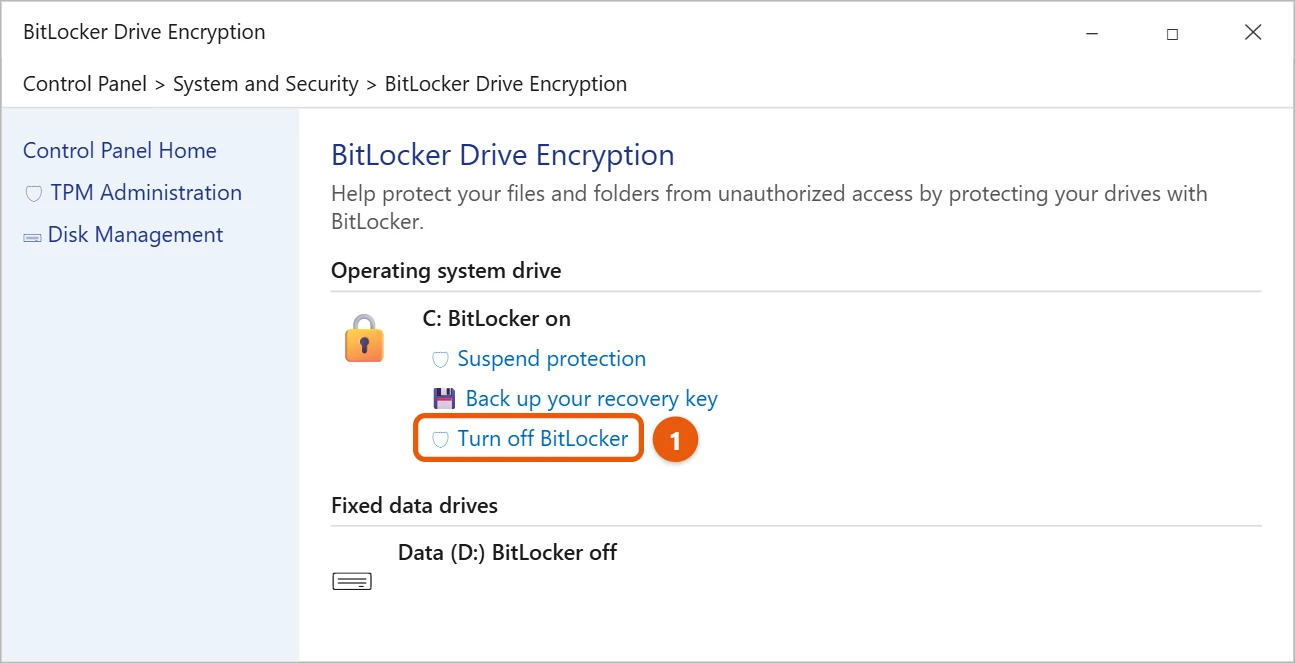
- Select Start, type BitLocker, and select Manage BitLocker. You can also go to Control Panel > System and Security > BitLocker Drive Encryption.
- Find the drive. C: is under Operating system drive, other internal drives are under Fixed data drives, and USB drives are under Removable data drives.
- Select Turn off BitLocker next to that drive.
- Select Turn off BitLocker again to confirm.
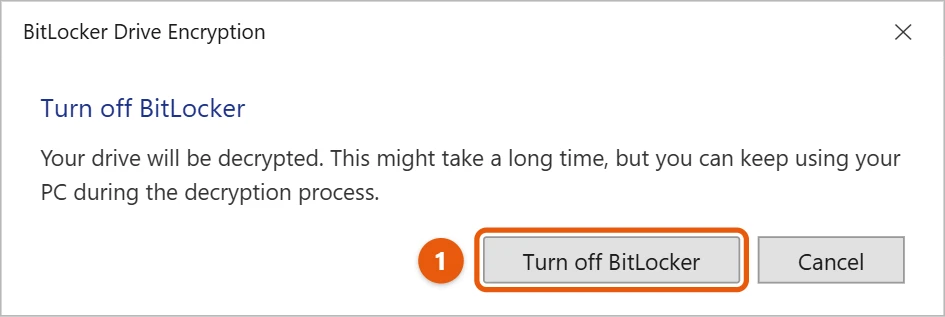
- Wait while the drive decrypts. You can check progress in the same window. When it’s done, the drive shows BitLocker off.
If you only need BitLocker out of the way for a short time, such as for a BIOS update, select Suspend protection instead. It turns back on after you restart. On a newer PC, the steps are in our guide on how to remove BitLocker in Windows 11.
Turn off BitLocker with a command
- Right-click Start and select Command Prompt (Admin) or Windows PowerShell (Admin).
- Type
manage-bde -off C:and press Enter. Use the letter of the drive you want to decrypt. - To check progress, type
manage-bde -status.
For more on opening an admin window, see how to run as administrator in Windows 10.
Turn off Device encryption (Windows 10 Home)
Windows 10 Home doesn’t have BitLocker Drive Encryption, but some PCs use Device encryption, which is built on BitLocker. Go to Start > Settings > Update & Security > Device encryption and select Turn off. If you don’t see Device encryption, your PC doesn’t have it.
Frequently asked questions
Will turning off BitLocker delete my files?
No. It decrypts the drive and leaves your files where they are. Keep a backup anyway; see how to back up Windows 10.
Why can’t I find Manage BitLocker?
It’s only in Windows 10 Pro, Enterprise, and Education. On Home, look for Device encryption instead.
Can I protect just a few files instead?
Yes. See how to encrypt a file or folder in Windows 10.
Microsoft’s guides are BitLocker Drive Encryption, Device Encryption in Windows, and manage-bde off. More help is on our Windows Help & Guides page.

Matt Jacobs has been working as an IT consultant for small businesses since receiving his Master’s degree in 2003. While he still does some consulting work, his primary focus now is on creating technology support content for SupportYourTech.com.
His work can be found on many websites and focuses on topics such as Microsoft Office, Apple devices, Android devices, Photoshop, and more.