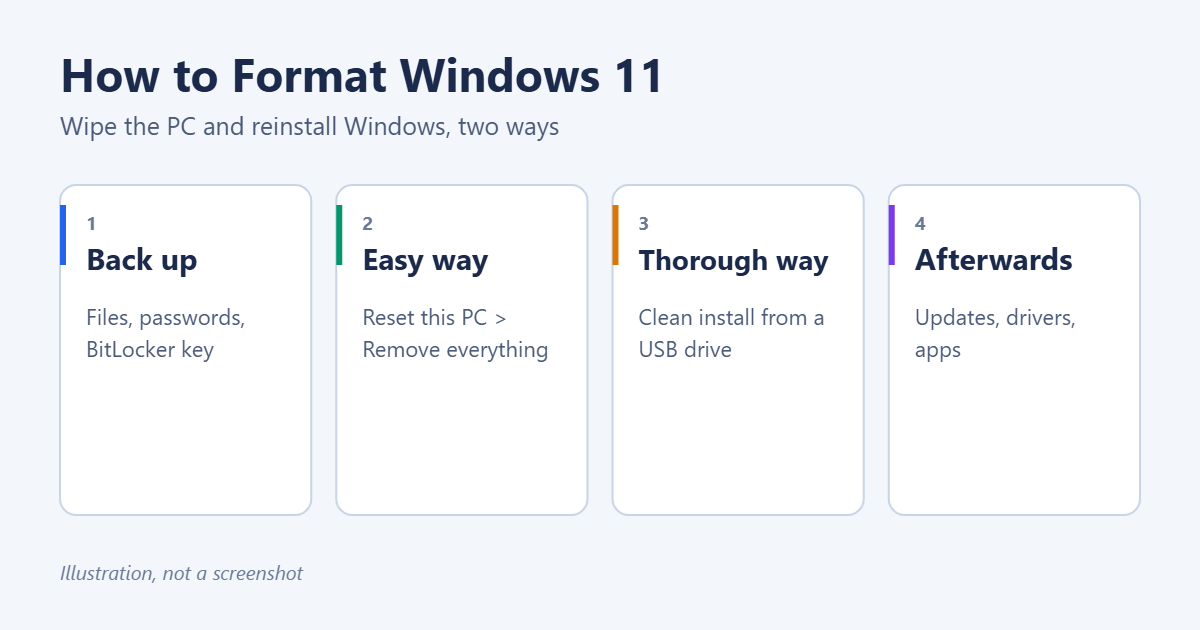
To format Windows 11, meaning erase everything and reinstall Windows, go to Settings > System > Recovery, click Reset PC, and choose Remove everything. Windows deletes your files, apps and settings and reinstalls itself, which usually takes 30 minutes to two hours. For the most thorough wipe, for example before selling the PC or after a serious problem, do a clean install from a bootable USB drive instead.
Either way, back up everything you want to keep first. Here’s how to prepare, both methods step by step, and what to do afterwards.
Before you start: back up and prepare
- Back up your files to an external drive or OneDrive: Documents, Desktop, Pictures, Videos, Downloads and anything stored elsewhere.
- Save your passwords. Make sure browser passwords sync to your account, or export them.
- Find your BitLocker recovery key if the drive is encrypted. It’s usually saved in your Microsoft account, under your devices.
- Note your apps and license keys for software you’ll need to reinstall, such as Office or paid programs.
- Plug in a laptop. Never let a reset run on battery power.
Windows 11 itself reactivates automatically on the same PC through its digital license, so you don’t need a product key.
Which method should you choose?
| Situation | Best method |
|---|---|
| PC is slow or cluttered | Reset this PC, Remove everything |
| Selling or giving the PC away | Reset this PC with Clean data turned on |
| Malware, or Windows badly broken | Clean install from USB |
| New or replaced drive | Clean install from USB |
Method 1: Reset this PC (easiest)
- Open Settings > System > Recovery.
- Next to Reset this PC, click Reset PC.
- Choose Remove everything.
- Choose how to reinstall Windows:
- Cloud download gets a fresh copy from Microsoft (about 4 GB or more). It’s the best choice if Windows has been unstable.
- Local reinstall uses files already on the PC, so it doesn’t need a download.
- On the Additional settings screen, click Change settings and turn on Clean data? if you’re giving the PC away. This overwrites the drive so files are much harder to recover, but it takes longer.
- Click Next, then Reset. The PC restarts several times.
When it’s done, Windows starts the setup screens as if the PC were new. If you’d rather keep your files, that option is covered in resetting Windows 11.
If Windows won’t start
Turn the PC on and off during startup twice to open the recovery screen, or boot from a recovery drive. Then choose Troubleshoot > Reset this PC > Remove everything. You can also factory reset Windows 11 from Command Prompt.
Method 2: Clean install from a USB drive (most thorough)
A clean install deletes every partition and installs Windows from scratch. It also removes any manufacturer software that Reset this PC would restore.
- On any working PC, make a bootable USB for Windows 11.
- Plug the USB drive into the PC and boot from it using the boot menu key (often F12, F9, F11 or Esc).
- Choose your language and keyboard, then click Install Windows 11 (or Install now).
- When asked, choose to skip the product key if the PC had Windows 11 before.
- Choose the custom option to install Windows only.
- Select each partition on the main drive and delete it, until only Unallocated Space remains. This erases everything on that drive.
- Select the unallocated space and click Next. Windows creates the partitions it needs and installs.
More detail on each screen is in doing a clean install of Windows 11. If you only want to wipe a second drive or a USB drive, not Windows itself, you just need to format a hard drive on Windows 11.
After formatting
- Finish setup and sign in with your Microsoft account.
- Run Windows Update under Settings > Windows Update several times, until no more updates are found. This installs most drivers too.
- Install any remaining drivers, such as graphics drivers, from the PC or component maker’s website.
- Reinstall your apps from their official sources, then restore your files from your backup.
Troubleshooting
“There was a problem resetting your PC”
Try Cloud download instead of Local reinstall, or use Method 2.
Windows isn’t activated after formatting
Connect to the internet and wait a while. If it still isn’t activated, go to Settings > System > Activation > Troubleshoot.
Frequently asked questions
Does formatting remove viruses?
A full reset or clean install removes almost all malware. A clean install from a USB drive created on a different, clean PC is the safest choice.
Will I lose Windows or Office?
Windows reactivates automatically. Microsoft 365 reinstalls when you sign in at the Microsoft 365 website with the same account. Older Office versions need their product key.
How long does it take?
Usually 30 minutes to two hours. Turning on Clean data, or doing a clean install with updates, can take longer.
Summary
- Back up your files and find your BitLocker key.
- Go to Settings > System > Recovery > Reset PC > Remove everything.
- For a full wipe, clean install from a USB drive and delete all partitions.
- Run Windows Update and reinstall your apps afterwards.

Matt Jacobs has been working as an IT consultant for small businesses since receiving his Master’s degree in 2003. While he still does some consulting work, his primary focus now is on creating technology support content for SupportYourTech.com.
His work can be found on many websites and focuses on topics such as Microsoft Office, Apple devices, Android devices, Photoshop, and more.