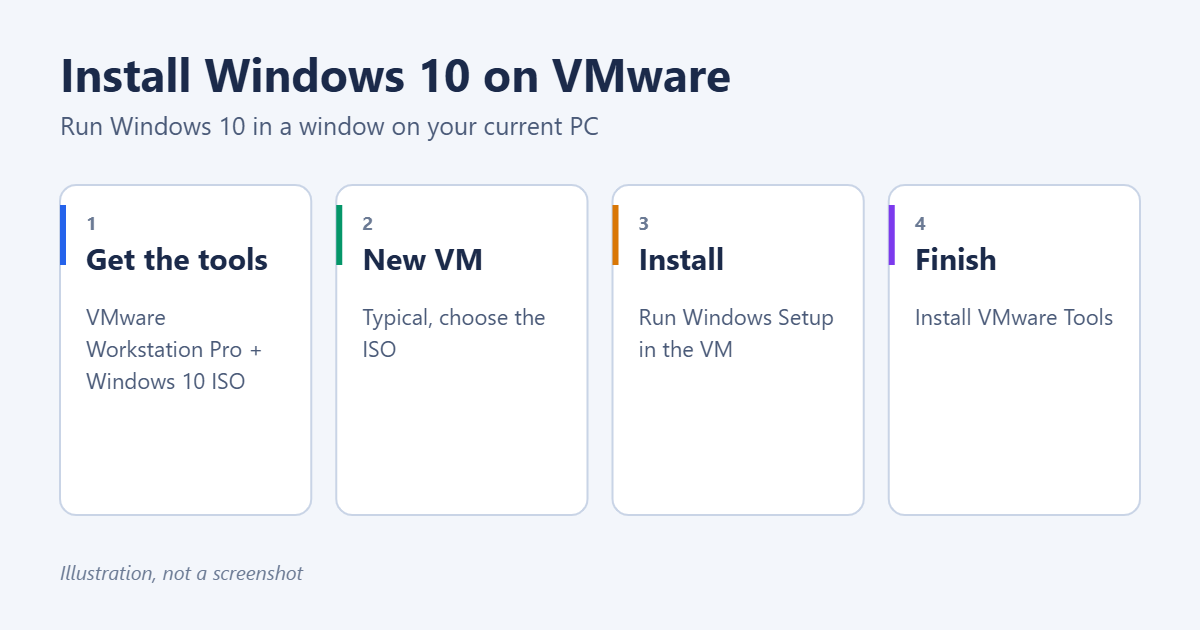
To install Windows 10 on VMware, download VMware Workstation Pro (free since Broadcom changed its licensing in 2024) and the Windows 10 ISO from Microsoft. Then create a new virtual machine with File > New Virtual Machine > Typical, point it at the ISO, give it at least 4 GB of RAM and 64 GB of disk space, and power it on to run Windows Setup. Once Windows is installed, add VMware Tools for proper screen resolution, copy and paste, and better performance. Here’s each step.
Note: Windows 10 reached end of support in October 2025. A Windows 10 virtual machine is fine for testing older software, but keep it off the internet when you can, or enroll it in Extended Security Updates. See how to enroll in Windows 10 Extended Security Updates.
What you need
- A 64-bit PC with virtualization turned on in the BIOS/UEFI (Intel VT-x or AMD-V). See how to enable virtualization on Windows 10.
- At least 8 GB of RAM on the host, so you can give 4 GB to the virtual machine.
- About 64 GB of free disk space, ideally on an SSD.
- A Windows 10 license for the virtual machine. You can install without one, but Windows will remind you to activate.
Step 1: Download VMware Workstation Pro
VMware is now owned by Broadcom, and Workstation Pro is free to download. You’ll need to create a free Broadcom account and download it from Broadcom’s support portal. Check the current license terms when you install. The older free edition, Workstation Player, has been discontinued, and its features are part of Workstation Pro. On a Mac, the equivalent is VMware Fusion.
Install it like any program, and restart if asked.
Step 2: Download the Windows 10 ISO
- Go to Microsoft’s Download Windows 10 page and download the Media Creation Tool.
- Run it, choose Create installation media for another PC, pick your language and 64-bit, then choose ISO file.
- Save the ISO somewhere easy to find.
Step 3: Create the virtual machine
- Open VMware Workstation and choose File > New Virtual Machine.
- Choose Typical and click Next.
- Choose Installer disc image file (iso), browse to the Windows 10 ISO, and click Next. VMware should detect Windows 10.
- Name the virtual machine (for example, Windows 10) and choose where to store it.
- Set the disk size to at least 64 GB. Store virtual disk as a single file performs slightly better.
- Click Customize Hardware. Set Memory to 4 GB or more and Processors to 2 or more cores, then click Close.
- Click Finish.
Step 4: Install Windows 10
- Click Power on this virtual machine. If you see “Press any key to boot from CD or DVD”, click inside the window and press a key.
- Choose your language and click Install now.
- Enter a product key, or click I don’t have a product key.
- Choose the edition, accept the license, and pick Custom: Install Windows only.
- Select the unallocated drive and click Next. Windows installs and restarts a few times.
- Complete the setup screens to create your account.
To release the mouse from the virtual machine at any time, press Ctrl + Alt.
Step 5: Install VMware Tools
- With Windows running in the VM, choose VM > Install VMware Tools from the VMware menu.
- In the VM, open File Explorer > This PC, double-click the VMware Tools DVD, and run setup.
- Choose Typical, finish the installation, and restart the VM.
VMware Tools adds automatic screen resizing, shared clipboard, drag and drop, and faster graphics.
Useful tips
- Snapshots: Use VM > Snapshot > Take Snapshot before testing risky software. You can roll back in seconds.
- Shared folders: Under VM > Settings > Options > Shared Folders, share a folder from your PC with the VM.
- Full screen: Press Ctrl + Alt + Enter.
Troubleshooting
“This host supports Intel VT-x, but Intel VT-x is disabled”
Turn on virtualization in your PC’s BIOS/UEFI settings, then restart.
VMware and Hyper-V conflict
Recent VMware versions can run alongside Hyper-V and WSL 2, but performance may be lower. If the VM won’t start, update VMware to the latest version.
The VM is very slow
Give it more RAM and CPU cores, store it on an SSD, and install VMware Tools.
Alternatives
VirtualBox and Hyper-V are other free options. See how to install Windows 10 on VirtualBox and how to set up a virtual machine on Windows 10. For the newer system, see how to install Windows 11 on VMware.
Summary
- Download VMware Workstation Pro and the Windows 10 ISO.
- Create a new virtual machine with the ISO, 4 GB of RAM and a 64 GB disk.
- Power it on and install Windows 10.
- Install VMware Tools.

Matt Jacobs has been working as an IT consultant for small businesses since receiving his Master’s degree in 2003. While he still does some consulting work, his primary focus now is on creating technology support content for SupportYourTech.com.
His work can be found on many websites and focuses on topics such as Microsoft Office, Apple devices, Android devices, Photoshop, and more.