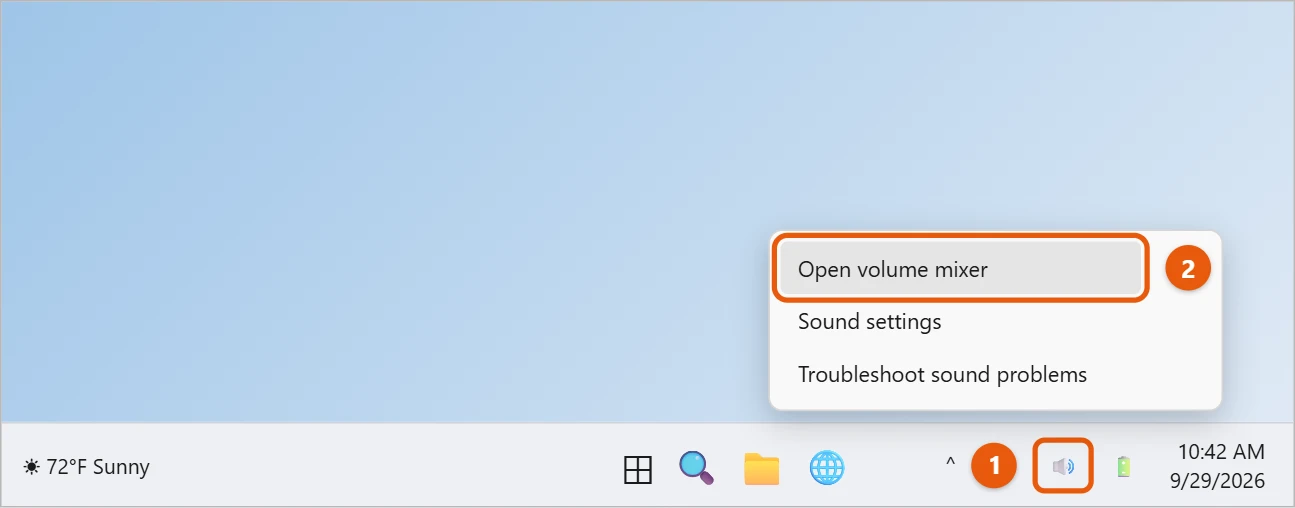
Right-click the speaker icon on the taskbar and select Open volume mixer. You can also go to Start > Settings > System > Sound > Volume mixer. Drag the slider next to each app to make it louder or quieter.
Applies to: Windows 11. Checked against Microsoft Support on September 29, 2026.
Open the volume mixer from the taskbar
- Right-click the speaker icon near the clock.
- Select Open volume mixer.
Change the volume for each app
The volume mixer lists System sounds and every app that’s playing sound.
- Drag the System slider to set the overall volume.
- Under Apps, drag an app’s slider to change just that app.
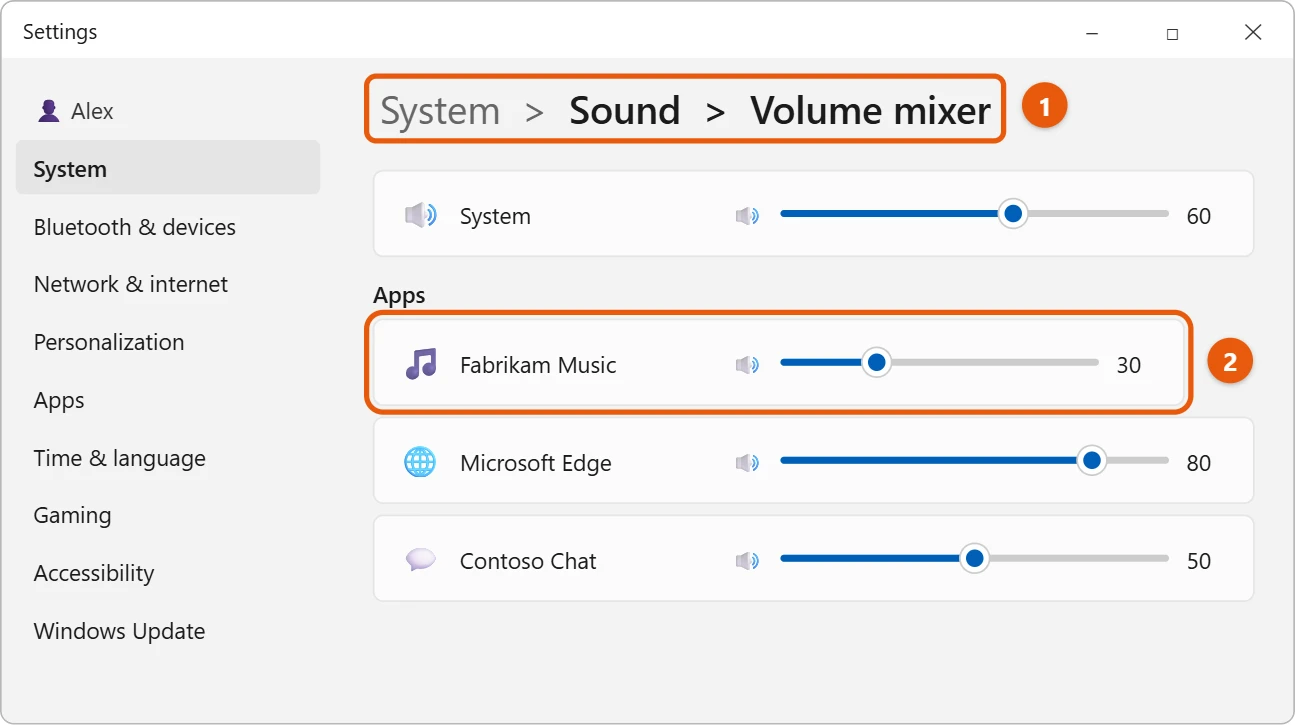
To mute an app, select the speaker icon next to its slider. An app only shows up in the list while it’s open and making sound.
Other ways to open it
- Keyboard shortcut: press Windows logo key + Ctrl + V to open the volume mixer in Quick Settings.
- The classic mixer: press Windows logo key + R, type
sndvol, and press Enter. This opens the older mixer from earlier versions of Windows.
Send an app to a different speaker or headset
In Settings > System > Sound > Volume mixer, select the arrow next to an app and choose its Output device. For example, play music through speakers while a video call uses your headset.
To undo all your changes, select Reset next to Reset sound devices and volumes for all apps to the recommended defaults at the bottom of the page.
Quick volume changes
Select the speaker icon on the taskbar (or press Windows logo key + A) to open Quick Settings. Drag the volume slider there, or select the arrow next to it to pick an app or output device.
If the volume mixer doesn’t work as expected
- An app isn’t listed: it only appears while it’s open and playing sound. Start a video or song in it, then check again.
- A slider moves back by itself: the app may control its own volume. Check the volume inside the app, such as a video player’s slider or a call app’s audio settings.
- The volume changes when you plug in headphones: Windows remembers a separate volume for each output device. Set it once for each one.
Frequently asked questions
Why is one app too quiet?
Check its slider in the volume mixer, and make sure it isn’t muted. See how to fix no sound in Windows 10 for more fixes that also apply to Windows 11.
Can I make everything louder?
Turn up System and the app’s own volume. See how to make sound louder in Windows 10; most steps are the same in Windows 11.
Does Windows remember each app’s volume?
Yes. Windows saves the volume for each app on each output device, so your settings stay after you restart.
Can I mute one app?
Yes. Drag its slider all the way to the left, or select the speaker icon next to its name in the volume mixer. Other apps keep playing.
Why is the system sound so loud compared with apps?
System sounds, like notifications, have their own slider. Lower System sounds in the volume mixer, or turn off sounds you don’t need in Settings > System > Sound > More sound settings > Sounds.
Is there a volume mixer in Windows 10 too?
Yes. Right-click the speaker icon and select Open Volume mixer. The sndvol shortcut works there as well.
Can I set a maximum volume limit?
Windows 11 doesn’t have a volume limit setting. Some headphones and laptop audio apps do, so check your device maker’s software.
How do I change the volume with the keyboard?
Use the volume keys on your keyboard. On many laptops, hold Fn and press the keys with speaker icons, often on the top row.
If no sound comes out at all, see how to turn on computer speakers in Windows 11.
If your laptop is still too quiet, see how to increase the volume on a laptop in Windows 11.
Microsoft’s reference is Fix low or quiet sound in Windows. More help is on our Windows Help & Guides page.

Matt Jacobs has been working as an IT consultant for small businesses since receiving his Master’s degree in 2003. While he still does some consulting work, his primary focus now is on creating technology support content for SupportYourTech.com.
His work can be found on many websites and focuses on topics such as Microsoft Office, Apple devices, Android devices, Photoshop, and more.