To partition a hard drive in Windows 10, right-click Start and select Disk Management. Right-click the drive you want to split, select Shrink Volume, and enter how much space to free up. Then right-click the new Unallocated space, select New Simple Volume, and follow the wizard to create and format the partition.
The same steps work for internal hard drives, SSDs, laptop drives, external drives, and USB flash drives.
Applies to: Windows 10. You need an administrator account. Checked against Microsoft Support on September 25, 2026.
Before you start
- Back up your files. Shrinking is usually safe, but a power cut or disk error could cause data loss.
- Check free space. You can only shrink a drive by the amount of free space it has, and sometimes less.
- Leave system partitions alone. Don’t change partitions labeled EFI System Partition, Recovery, or anything without a drive letter that you don’t recognize.
Step 1: Open Disk Management
Right-click Start and select Disk Management. You can also press Windows + R, type diskmgmt.msc, and press Enter.
Step 2: Make space by shrinking a volume
- Right-click the partition you want to split, such as (C:), and select Shrink Volume.
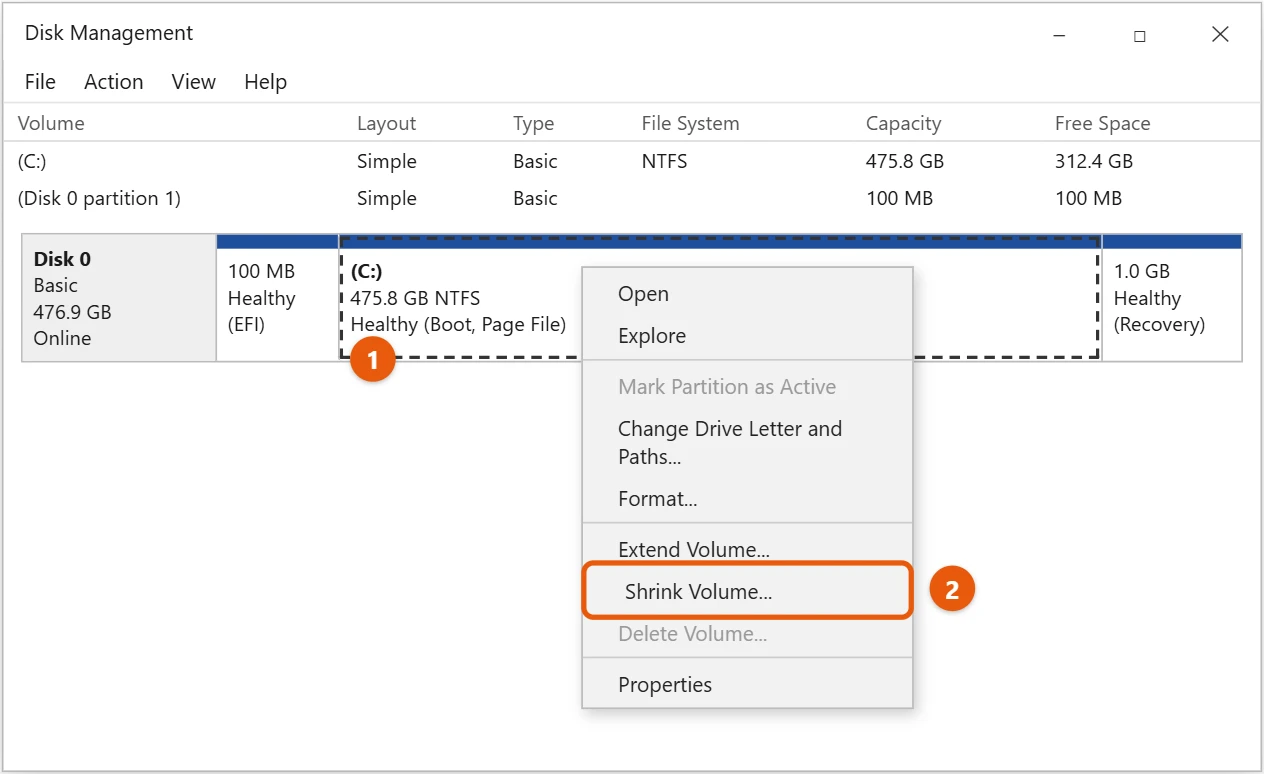
- In Enter the amount of space to shrink in MB, type the size of the new partition. For example, 102400 MB is 100 GB.
- Select Shrink. A black bar labeled Unallocated appears.
A new or empty drive may already show Unallocated space. If so, skip to step 3.
Step 3: Create the new partition
- Right-click the Unallocated space and select New Simple Volume.
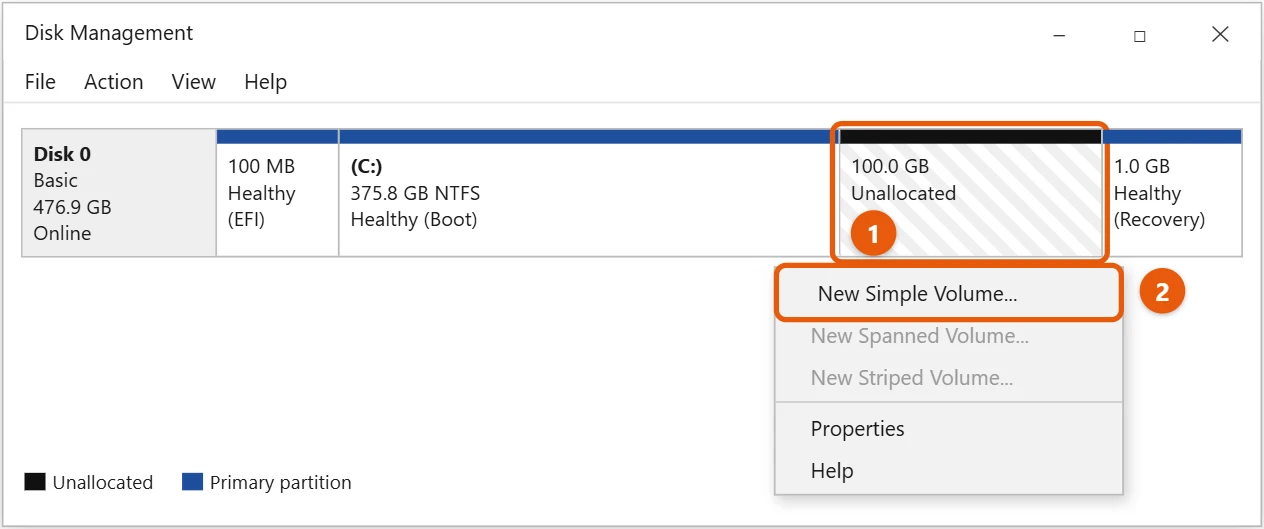
- Select Next, keep the size or enter a smaller one, and select Next.
- Choose a drive letter and select Next.
- Choose NTFS as the file system, type a Volume label such as
Data, and keep Perform a quick format checked. - Select Next > Finish. The new drive appears in File Explorer.
Partition an external drive or USB flash drive
Connect the drive, open Disk Management, and find it by its size. It’s usually Disk 1 or higher. Then follow steps 2 and 3.
- Use exFAT instead of NTFS if you’ll also use the drive on a Mac.
- A new drive may ask to initialize. Choose GPT for drives over 2 TB or on newer PCs, and MBR for older ones.
- Repartitioning a drive erases it if you delete its existing partitions. Copy your files off first.
If Shrink Volume won’t give you enough space
Windows can’t move some system files, so it may offer less than your free space. Try these:
- Run Disk Cleanup and empty the Recycle Bin.
- Turn off hibernation temporarily with
powercfg /h offin an admin Command Prompt, then turn it back on withpowercfg /h onafterward. - Restart and try again.
Frequently asked questions
Will partitioning delete my files?
Shrinking a volume and creating a new partition doesn’t delete files. Deleting or formatting a partition does.
How many partitions can I make?
On a GPT disk, up to 128. On an MBR disk, up to four primary partitions, or three plus an extended partition.
Should I partition an SSD?
You can, but it doesn’t make an SSD faster. Partition it only if you want to keep files organized separately.
Can I undo a partition?
Yes. Right-click the new partition in Disk Management and select Delete Volume, which erases anything on it. Then right-click the original partition, such as C:, and select Extend Volume to take the space back. Extend only works when the free space sits directly to the right of that partition.
To erase and set up a whole drive, see how to format a drive in Windows 10.
To add unallocated space back to a drive, see how to extend the C drive in Windows 10.
To combine two partitions into one, see how to merge partitions in Windows 10.
For all the ways to open Disk Management, see how to open Disk Management in Windows 10.
To change the letter of a drive after you make it, see how to change a drive letter in Windows 10.
To see the partitions you already have, see how to view partitions in Windows 10.
To find your new drive later, see how to access the C drive in Windows 10. Microsoft’s guide is Disk Management in Windows. More help is on our Windows Help & Guides page.
Related: how to delete a recovery partition in Windows 11.

Matt Jacobs has been working as an IT consultant for small businesses since receiving his Master’s degree in 2003. While he still does some consulting work, his primary focus now is on creating technology support content for SupportYourTech.com.
His work can be found on many websites and focuses on topics such as Microsoft Office, Apple devices, Android devices, Photoshop, and more.