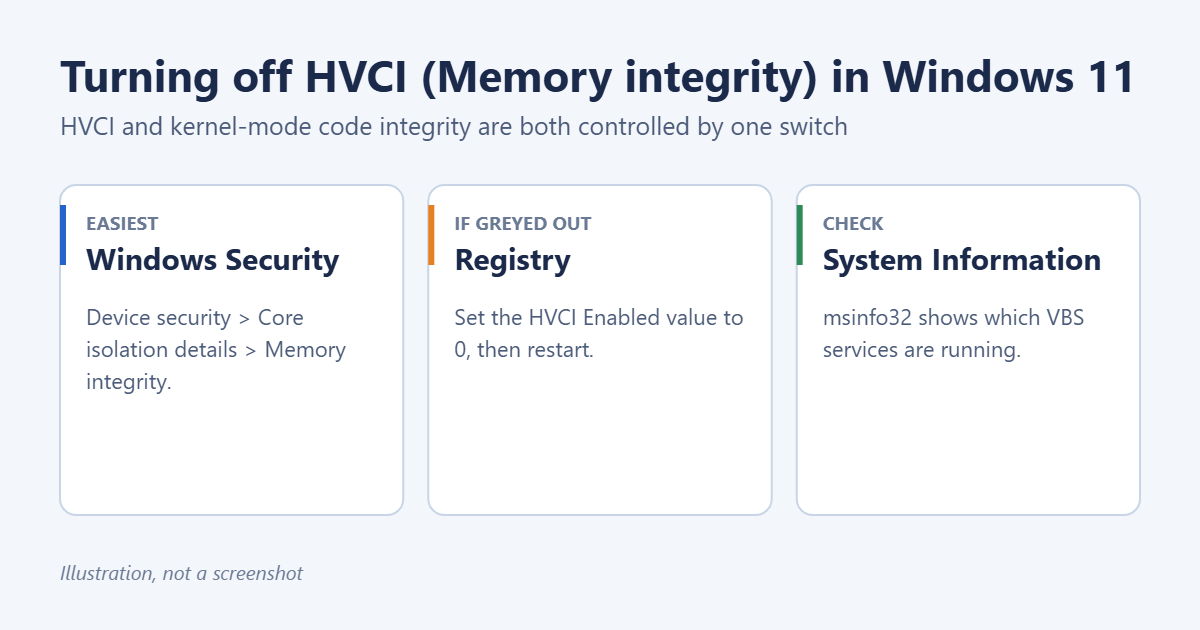
In Windows 11, HVCI (hypervisor-protected code integrity) and KMCI (kernel-mode code integrity) are controlled by one setting called Memory integrity. To turn them off, open Windows Security > Device security > Core isolation details, switch Memory integrity off, and restart.
If the switch is greyed out or keeps turning itself back on, you can disable it in the registry instead. People usually do this to fix an incompatible driver or to gain a little gaming performance. Since it lowers your PC’s protection against kernel-level malware, only turn it off if you have a specific reason.
What HVCI and KMCI do
Kernel-mode code integrity checks that drivers and other code running in the Windows kernel are signed and trusted. HVCI, which Windows calls Memory integrity, moves that check into an isolated environment created by virtualization-based security (VBS), so malware that reaches the kernel can’t just switch it off. Microsoft turns it on by default on many new Windows 11 PCs.
Reasons people turn it off:
- An older driver, often for an audio interface, game controller, anti-cheat tool, or hardware monitoring app, won’t load with it on.
- Some games run a few percent faster without it, mostly on older CPUs.
- Certain virtualization or debugging tools conflict with it.
Method 1: Turn off Memory integrity in Windows Security
- Click Start, type Windows Security, and open it.
- Click Device security.
- Under Core isolation, click Core isolation details.
- Switch Memory integrity to Off. Click Yes if Windows asks for permission.
- Restart your PC.
Windows Security will show a warning that memory integrity is off. You can click Dismiss to hide it.
Method 2: Use the registry
Use this if the switch is greyed out or “managed by your administrator.” Create a restore point first by searching the Start menu for Create a restore point.
- Press Windows + R, type regedit, and press Enter.
- Go to:
HKEY_LOCAL_MACHINE\SYSTEM\CurrentControlSet\Control\DeviceGuard\Scenarios\HypervisorEnforcedCodeIntegrity - Double-click Enabled and change its value to 0. If it doesn’t exist, right-click in the right pane, choose New > DWORD (32-bit) Value, name it Enabled, and leave it at 0.
- Close Registry Editor and restart.
Or run this single command in Terminal as administrator, then restart:
reg add "HKLM\SYSTEM\CurrentControlSet\Control\DeviceGuard\Scenarios\HypervisorEnforcedCodeIntegrity" /v "Enabled" /t REG_DWORD /d 0 /f
Method 3: Group Policy (Pro, Enterprise, Education)
If Group Policy turned it on, the registry change may be reversed. On a work PC, ask your IT department first.
- Open gpedit.msc.
- Go to Computer Configuration > Administrative Templates > System > Device Guard.
- Open Turn On Virtualization Based Security.
- Either set it to Disabled, or keep it enabled and set Virtualization Based Protection of Code Integrity to Disabled.
Check that it’s off
- Press Windows + R, type msinfo32, and press Enter.
- In System Summary, scroll to the bottom and look at the virtualization-based security entries.
- If Hypervisor enforced Code Integrity no longer appears among the running services, HVCI is off.
If it keeps turning back on
- Check the Group Policy setting above.
- If it was enabled with a UEFI lock, which is mostly on managed business PCs, it’s stored in firmware. Removing it involves turning off Secure Boot. Ask your IT department rather than doing this yourself.
Turn it back on
Go back to Core isolation details and switch Memory integrity on, or set the registry value to 1, and restart. If Windows says incompatible drivers are blocking it, click Review incompatible drivers, then update them or remove the incompatible drivers.
Frequently asked questions
Is it safe to turn off HVCI?
It’s not dangerous on its own, but it removes a layer of protection. Keep Windows and your antivirus up to date, and turn it back on once you no longer need it off.
Does turning off Memory integrity turn off VBS?
Not necessarily. Other VBS features, such as Credential Guard on some PCs, can keep VBS running. Memory integrity is the part that affects drivers.
Does this affect Hyper-V or virtual machines?
No. Hyper-V, WSL, and virtual machines keep working. If you haven’t set them up yet, start by enabling Hyper-V in Windows 11 and turning on virtualization.
Summary
Open Windows Security, go to Device security > Core isolation details, turn Memory integrity off, and restart. If the switch is locked, set the HypervisorEnforcedCodeIntegrity Enabled value to 0 in the registry. Turn it back on when you can.
Related: How to Open Group Policy Editor in Windows 11.

Matt Jacobs has been working as an IT consultant for small businesses since receiving his Master’s degree in 2003. While he still does some consulting work, his primary focus now is on creating technology support content for SupportYourTech.com.
His work can be found on many websites and focuses on topics such as Microsoft Office, Apple devices, Android devices, Photoshop, and more.