The quickest way is a USB cable: plug the controller into your PC and Windows 10 sets it up by itself. To go wireless, pair it over Bluetooth in Settings > Devices, or use an Xbox Wireless Adapter.
Applies to: Windows 10. Checked against Microsoft on September 28, 2026.
Connect with a USB cable
- Plug a USB cable into the controller and into your PC. Newer controllers use USB-C. Older ones use micro-USB.
- Wait a few seconds. Windows installs the driver and the Xbox button lights up.
The controller now works in games that support it.
Connect with Bluetooth
Bluetooth works with newer Xbox Wireless Controllers. If the plastic around the Xbox button is part of the front of the controller, it has Bluetooth. If that plastic is part of the top edge, where the bumpers are, it doesn’t. Your PC also needs Bluetooth.
- Press the Xbox button to turn the controller on.
- Press and hold the Pair button on the top of the controller for 3 seconds, until the Xbox button flashes quickly.
- On your PC, select Start > Settings > Devices > Bluetooth & other devices.
- Make sure Bluetooth is On, then select Add Bluetooth or other device.
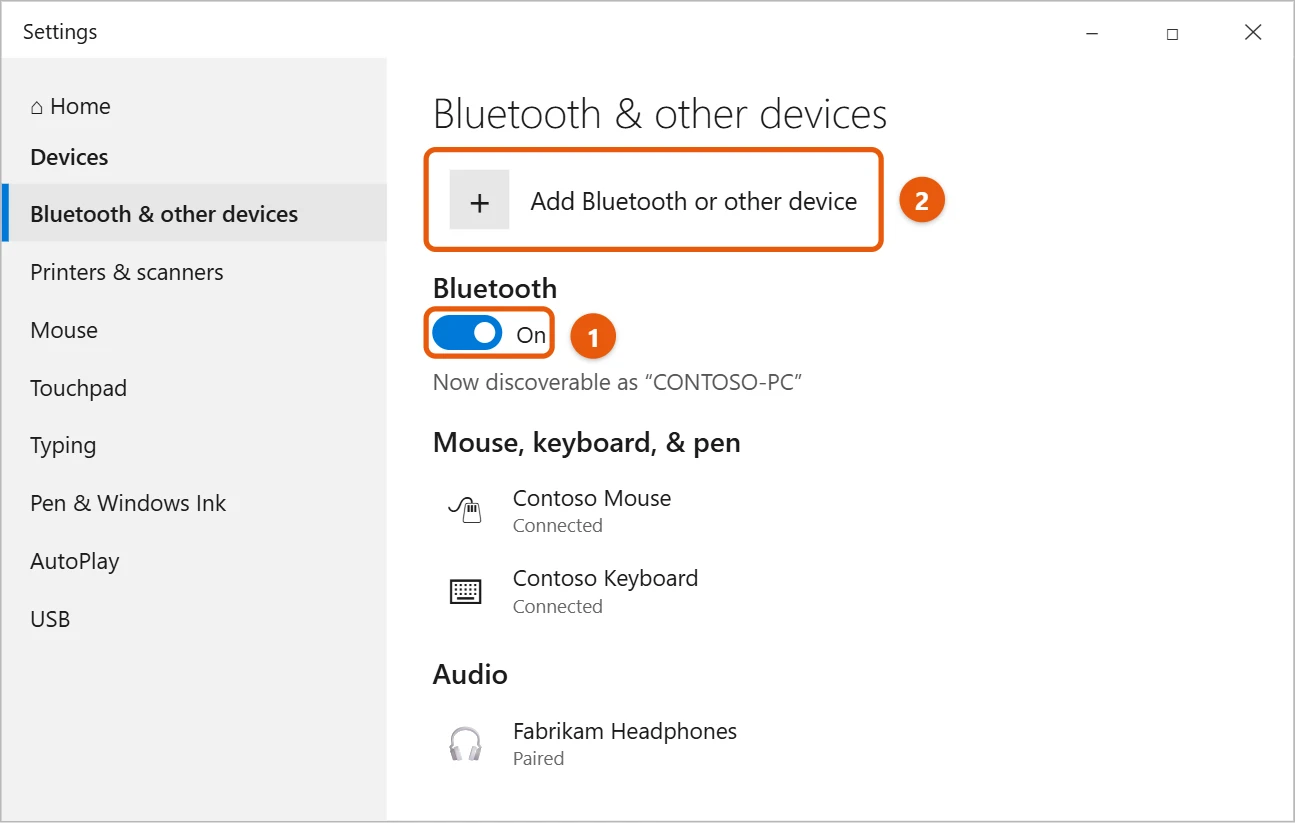
- Select Bluetooth, then select Xbox Wireless Controller in the list.
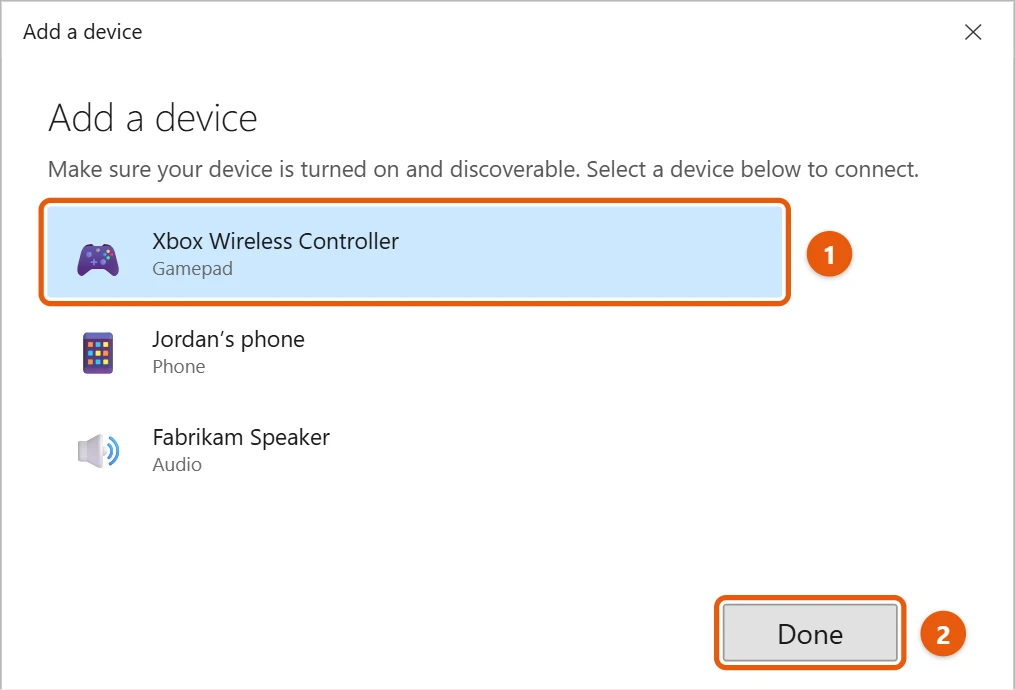
- When the Xbox button stays lit, the controller is connected.
If Bluetooth is missing or won’t turn on, see how to turn on Bluetooth in Windows 10.
Connect with an Xbox Wireless Adapter
- Plug the adapter into a USB port on your PC.
- Press the button on the adapter until its light flashes.
- Press and hold the Pair button on the controller until the Xbox button flashes. Both lights stay on when they’re connected.
If it won’t connect
- Restart the PC and the controller, then try again.
- Move closer to the PC, and keep the controller away from other wireless devices.
- Remove the controller in Bluetooth & other devices, then pair it again.
- Connect it with a USB cable once so Windows can update it.
For more help, see how to fix Bluetooth problems in Windows 10.
Which controllers support Bluetooth?
- Xbox Series X|S controllers and Xbox One controllers sold since 2016 (the ones where the plastic around the Xbox button is part of the front, not the top) have Bluetooth.
- Original Xbox One controllers don’t. Use a USB cable or an Xbox Wireless Adapter.
- Xbox 360 wireless controllers need the Xbox 360 Wireless Gaming Receiver for Windows. Wired Xbox 360 controllers just plug into USB.
Update and test the controller
Install the free Xbox Accessories app from the Microsoft Store. Connect the controller with a USB cable, open the app, and select Update if it offers one. Firmware updates fix many Bluetooth connection problems. The app also lets you remap buttons and test them.
To check every button and stick works, press Windows + R, type joy.cpl, and press Enter. Select the controller, choose Properties, and press buttons to see them light up on screen.
More fixes if it keeps disconnecting
- The Xbox button blinks slowly and never stays lit. It isn’t paired. Hold the small Pair button on the top until the Xbox button flashes quickly, then pair it again in Settings.
- It disconnects when batteries are low. Fresh AA batteries or a charged battery pack usually fix random drops.
- It pairs with an Xbox console instead. Turn off the console fully, or unplug it, while you use the controller on your PC.
Frequently asked questions
Can I connect more than one controller?
Yes. With Bluetooth, one at a time works best. An Xbox Wireless Adapter can connect up to eight.
Does my controller need batteries when it’s plugged in?
No. A USB cable powers the controller.
Using a PlayStation controller on Windows 11 instead? See how to connect a PS5 controller to Windows 11.
To use your controller to play your console’s games on a laptop, see how to connect an Xbox to a laptop with remote play.
Microsoft’s reference is Connect your game controller to your Windows PC. More help is on our Windows Help & Guides page.

Matt Jacobs has been working as an IT consultant for small businesses since receiving his Master’s degree in 2003. While he still does some consulting work, his primary focus now is on creating technology support content for SupportYourTech.com.
His work can be found on many websites and focuses on topics such as Microsoft Office, Apple devices, Android devices, Photoshop, and more.