To create a contact group in Outlook, open People. In new Outlook for Windows, Outlook on the web and Outlook.com, select the arrow next to New contact > New contact list, type a name, add email addresses and select Create. In classic Outlook, select Home > New Contact Group, type a name, use Add Members to add people, then select Save & Close. After that, type the group’s name in the To box of a new email to send to everyone at once.
Applies to: new Outlook for Windows, classic Outlook for Windows (Microsoft 365, Outlook 2024, 2021, 2019 and 2016), Outlook on the web (work or school accounts) and Outlook.com. The steps follow Microsoft’s contact list help page.
Contact group, contact list, distribution list or Microsoft 365 group?
Outlook uses several names for things that look alike, and searching for the wrong one sends you to the wrong steps. Here is what each one is:
- Contact group is the name classic Outlook uses for a saved set of email addresses under one name. It lives in your own Contacts folder and only you can see it.
- Contact list is the same personal feature in new Outlook, Outlook on the web and Outlook.com. A contact list in new Outlook is what classic Outlook calls a contact group.
- Distribution list has two meanings. It is the old name for a personal contact group (Outlook’s help still uses the phrase “formerly called a distribution list”). In a company, it usually means a distribution group: a shared email address such as [email protected] that your IT admin creates, which appears in the company address book for everyone.
- Microsoft 365 group is much more than an address list. Each one gets its own shared inbox, calendar, files and planner, and it can be linked to a team in Microsoft Teams. It needs a work or school account with a Microsoft 365 subscription (personal Outlook.com accounts can also create groups).
| Type | Who creates it | Who can use it | Best for |
|---|---|---|---|
| Contact group / contact list | You | Only you | A club, a family, a small project team you email often |
| Distribution group | Your IT admin | Everyone in the organization (and outsiders, if allowed) | Department-wide or company-wide announcements |
| Microsoft 365 group | You or your admin, if your organization allows it | Group members | A team that needs a shared inbox, calendar and files |
If you just want to stop typing the same five or ten addresses every week, a contact group (or contact list) is the right choice, and the rest of this guide shows you how to make one.
Which Outlook do you have?
The steps depend on your version, so check this first:
- Classic Outlook has a File tab in the top-left corner and a full ribbon with many buttons.
- New Outlook for Windows has no File tab, a slimmer ribbon, and usually a New Outlook toggle near the top-right corner.
- Outlook on the web is Outlook in a browser at outlook.office.com (work or school) or outlook.com (personal). It looks almost the same as new Outlook.
Still not sure? Setting up classic and new Outlook shows both versions side by side.
Create a contact list in new Outlook
In new Outlook for Windows, a contact group is called a contact list. The example below creates a list called Book Club with three members.
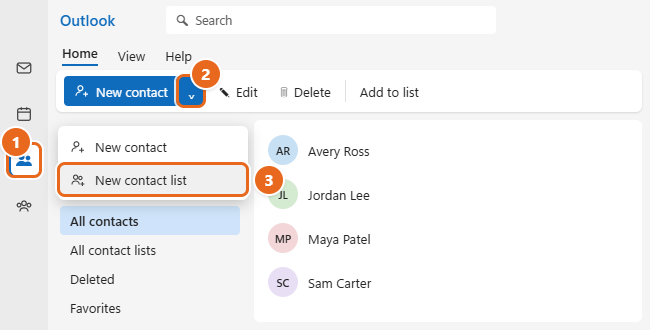
- Open People. In new Outlook, select the People icon on the bar down the left side of the window. Your contacts appear in the middle.
- Open the New contact menu. On the Home tab, select the small arrow on the right side of the New contact button. Selecting the main part of the button creates a single contact instead, so aim for the arrow.
- Choose New contact list. A New contact list window opens.

In new Outlook, select People (1), select the arrow next to New contact (2), then choose New contact list (3). - Name the list. Type a name in the Contact list name box. Pick something you’ll recognize when you start typing it in an email, such as Book Club or Smith Project Team.
- Add members. Under Add email addresses, start typing a person’s name or email address. Pick the right match from the suggestions, or type a full address for someone who isn’t in your contacts, then select Add. Repeat for each person. Each member appears in a list below the box, with an X you can use to remove someone you added by mistake.
- Add a description (optional). Use the Description box for a note such as “Monthly book club, meets first Tuesday”.
- Select Create. The list is saved under All contact lists in People.

Name the list (1), add each person by name or email address (2), then select Create (3).
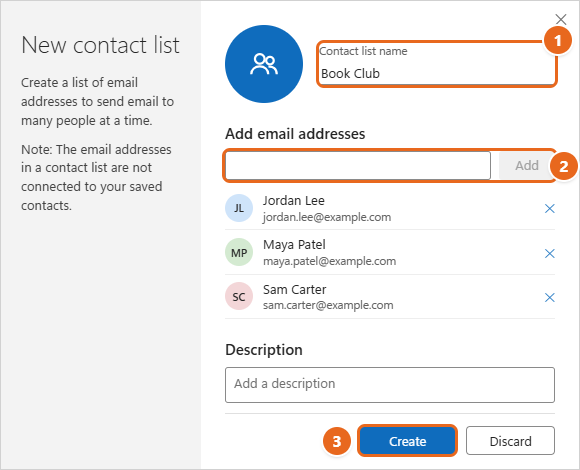
Good to know: the New contact list window points out that the addresses in a contact list are not connected to your saved contacts. If Jordan Lee changes email address and you update Jordan’s contact card, the old address stays in the list until you edit the list too.
Faster: build a list from people you already have
There’s also a shortcut that starts from an existing contact:
- In People, select a contact you want in the new list.
- Right-click the contact, or use the ribbon, and select Add to list.
- Select New contact list, give the list a name, add anyone else you need, and save it.
You can use the same Add to list command later to drop another contact into a list you already made.
Create a contact list in Outlook on the web or Outlook.com
Outlook on the web (work or school accounts) and Outlook.com (personal Microsoft accounts) use the same People page as new Outlook, so the steps match.
- Sign in at outlook.office.com or outlook.com in your browser.
- Select People on the left side of the page.
- Select the arrow next to New contact, then select New contact list. Or select an existing contact, then Add to list > New contact list.
- Type a Contact list name, add each member’s name or email address, add a description if you like, and select Create.
New Outlook and Outlook on the web read the same mailbox, so a list you make in one also shows up in the other when you sign in with the same account. A list you make for one account (for example, your work account) does not appear in a different account (such as a personal Outlook.com address) that you’ve added to the same app.
Create a contact group in classic Outlook
Classic Outlook still uses the name contact group, and it opens the group in its own window with a ribbon.
- Go to People. Select the People icon on the left side (or at the bottom) of the Outlook window. You can also press Ctrl+3.
- Pick the right folder. If you have more than one account or contacts folder, select the one where the group should live under My Contacts. Most people should choose Contacts for their main account.
- Start a new group. On the Home tab, select New Contact Group. A blank window titled Untitled – Contact Group opens.
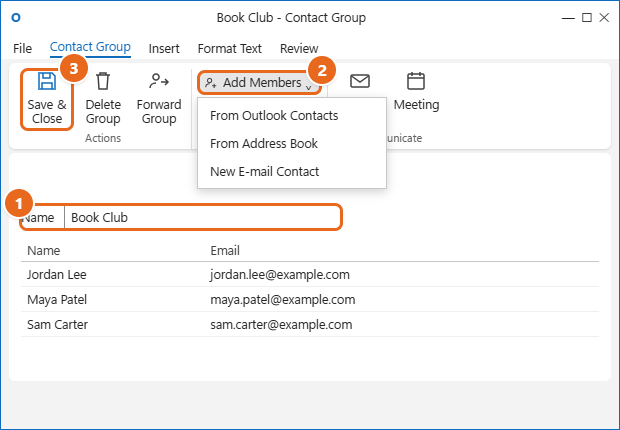
- Type a name. Enter the group name in the Name box, such as Book Club. The window title changes to match.
- Select Add Members. On the Contact Group tab, select Add Members, then pick where the people come from:
- From Outlook Contacts for people saved in your own contacts.
- From Address Book for people in your organization’s directory (the Global Address List on a work account) or any other address book.
- New E-mail Contact for someone who isn’t saved anywhere yet. Type a display name and email address, and leave Add to Contacts checked if you also want a full contact card for them.
- Choose the people. In the Select Members window, double-click each name to add it to the Members box at the bottom. To pick several at once, hold Ctrl while you click names, then select Members. Select OK when you’re done. The people now appear in the group’s Name and Email list.
- Save the group. Select Save & Close. The group appears in your contacts with a group icon, and its name is shown in bold when you browse the address book.

In classic Outlook, type a Name (1), use Add Members to pick where people come from (2), then select Save & Close (3).
Tip: a contact group can include another contact group. For example, a Whole Family group could contain your Parents and Cousins groups, so you only maintain each smaller list once.
Turn the people on an old email into a group
If you already sent a message to everyone who should be in the group, you can reuse those addresses in classic Outlook:
- Open the old message from Sent Items.
- Click in the To line, press Ctrl+A to select every address, and press Ctrl+C to copy them.
- Create a new contact group as described above, then select Add Members > From Outlook Contacts.
- Click in the Members box at the bottom of the Select Members window, press Ctrl+V to paste, and select OK.
- Check the member list, then select Save & Close.
If Outlook can’t match a pasted address, it asks you to check the name. Fix the address or remove it and add that person with New E-mail Contact instead.
Send an email or meeting invite to the group
Once the group exists, you use it like a single person’s address.
In new Outlook or Outlook on the web
- Select New mail.
- In the To box, start typing the list’s name, such as Book. Select the list when it appears in the suggestions.
- Add a subject and message, then select Send.
To invite the group to a meeting, go to Calendar, select New event, and type the list’s name in the Invite attendees box.
In classic Outlook
- Select Home > New Email (or New Meeting in Calendar).
- Type the group’s name in the To box and pick it from the suggestions. If you can’t remember the name, select the To button, type a few letters in the search box, and select Go. Contact groups are shown in bold. Double-click the group and select OK.
- Finish the message and select Send.
In classic Outlook, you can select the plus sign (+) next to the group name in the To box to expand it into individual addresses. Do this when you want to leave one person off a single message without editing the group.
Privacy: when you send to a contact group or contact list, every member receives the message with all the members’ addresses visible, just as if you had typed them yourself. If the people in the group don’t know each other, for example parents from a school team, put the group in the Bcc box instead and your own address in To. Who can see To, Cc and Bcc recipients is explained in sending email from a Windows computer.
For a newsletter-style message where each person should get a personal copy with their own name in it, a contact group isn’t the right tool. Use a mail merge in Outlook from an Excel list instead.
Add or remove people later
New Outlook, Outlook on the web and Outlook.com
- Open People and select All contact lists.
- Right-click the list and select Edit, or select the list and choose Edit on the ribbon.
- Add new members in the address box, remove anyone with the X next to their name, rename the list, or change the description.
- Select Save.
Classic Outlook
- Open People and double-click the contact group to open it.
- To add people, select Add Members and choose a source, the same way you did when you created the group.
- To remove someone, select their name in the list and select Remove Member. This only takes them out of the group. Their contact card stays in your contacts.
- Select Save & Close.
Classic Outlook copies each member’s address into the group when you add them. If someone’s address changes, edit their contact card and then remove and re-add them in the group so the group uses the new address.
Rename: in new Outlook or on the web, use Edit and change the name. In classic Outlook, open the group, change the Name box, and select Save & Close.
Share with a coworker (classic Outlook): contact groups are personal, so a coworker can’t see yours. To give someone a copy, open the group and select Forward Group on the ribbon. Outlook attaches the group to a new email. The copy they save is separate from yours, so later changes you make won’t reach it. If several people need the same up-to-date list, ask your IT admin for a distribution group instead.
Delete: deleting a group removes only the group. The people in it stay in your contacts.
- New Outlook, Outlook on the web and Outlook.com: open People > All contact lists, right-click the list (or select it and use the ribbon), select Delete, then select Delete again to confirm.
- Classic Outlook: in People, right-click the group and select Delete, or select it and select Delete on the ribbon. You can also open the group and select Delete Group.
A deleted classic group goes to Deleted Items, and you can drag it back to Contacts as long as that folder hasn’t been emptied. In new Outlook and on the web, check the Deleted folder in People.
When to use a Microsoft 365 group or distribution list instead
A personal contact group has limits. Only you can use it, it has no shared mailbox, and replies go to whoever was on the message rather than to one shared address. Consider these options instead:
- You need a list the whole department can use: ask your IT admin for a distribution group. Admins create these in the Microsoft 365 admin center or Exchange admin center, and you can’t create one from a regular Outlook account. Distribution groups are the best fit for broadcasting to a set group, such as everyone in one building.
- Your team needs a shared inbox, calendar and files: create a Microsoft 365 group if your organization allows it. In new Outlook or Outlook on the web, select Groups on the left, select New Group > New Group, enter a name and description, and select Create. In classic Outlook, select Home > New Group. A group’s name can’t be changed once you choose it, and new groups are private by default. The full settings are in Microsoft’s guide to creating a group in Outlook.
Microsoft’s comparison of group types in Microsoft 365 explains the admin-side differences, including security groups and shared mailboxes, if you’re helping set this up for a business.
Troubleshooting
I can’t find New contact list in new Outlook
- Make sure you’re in People, not Mail. The New contact button only appears there.
- Select the small arrow on the New contact button, not the main part of the button.
- If the window is narrow, the ribbon may collapse. Maximize Outlook or use the Add to list > New contact list route from an existing contact.
- If the new Outlook steps don’t work, you may still be using classic Outlook. Check for a File tab and follow the classic steps if you see one.
New Contact Group is missing or grayed out in classic Outlook
- Switch to People first. In Mail or Calendar, the Home tab shows different buttons.
- Check which folder is selected under My Contacts. Select your main Contacts folder and try again.
- Don’t confuse it with New Group. That button creates a Microsoft 365 group, not a contact group, and it only appears for qualifying work or school accounts.
The group name doesn’t appear when I type it in the To box
- Check that you’re writing from the same account where you saved the group. Each account in Outlook has its own contacts.
- In classic Outlook, select the To button and look in the address book drop-down for the contacts folder that holds the group. If the folder isn’t listed, right-click it in People, select Properties, open the Outlook Address Book tab, and check Show this folder as an e-mail Address Book.
- If you just created the list in Outlook on the web, give new Outlook or your phone a few minutes to sync.
Some people don’t receive messages sent to the group
- Open the group and check each address for typos or old addresses.
- Ask the missing people to look in their junk or spam folder.
- Very large groups can hit your email provider’s limit on recipients per message. Split the group into two smaller groups, or ask your IT admin about a distribution group.
FAQ
Is a contact group the same as a distribution list?
For your own personal list, yes. Outlook’s help describes a contact group as “formerly called a distribution list.” In a company, though, “distribution list” often means a distribution group your IT admin manages, which everyone in the organization can use.
Can people in the group see each other’s email addresses?
Yes, if you put the group in the To or Cc box. Every recipient sees every address. Put the group in Bcc to keep addresses private.
Will my contact group from classic Outlook show up in new Outlook?
For Microsoft 365 and Outlook.com accounts, contact groups are stored in your mailbox, so they generally appear in new Outlook as contact lists. Groups saved in a contacts folder that only exists on your computer, such as some IMAP or POP accounts, may not move over. Check All contact lists in new Outlook after you switch.
Can I create a contact group on my phone?
Microsoft’s instructions for creating contact lists cover new Outlook, classic Outlook, Outlook on the web and Outlook.com, not the Outlook phone apps. Create the list on a computer or in a browser. After it syncs, you can usually type its name in the To box on your phone.
Can I add people from outside my company?
Yes. A personal contact group or contact list can hold any email address, including Gmail or Yahoo addresses. Microsoft 365 groups are different: outside guests can only be added if your admin allows it.
How do I create a contact group in Outlook for Mac?
Outlook for Mac also calls it a contact list. Open People and look for New Contact List. The exact steps differ between Mac versions, so this guide focuses on Windows and the web.
Does deleting a contact group delete the contacts in it?
No. Only the group or list is deleted. The individual contacts stay in your contacts.
Next step
Create one small list now, such as your household or a project team, and send a short test message to it with the group in Bcc. Once you see it arrive, you’ll know the list works before you need it for something important.

Matt Jacobs has been working as an IT consultant for small businesses since receiving his Master’s degree in 2003. While he still does some consulting work, his primary focus now is on creating technology support content for SupportYourTech.com.
His work can be found on many websites and focuses on topics such as Microsoft Office, Apple devices, Android devices, Photoshop, and more.