Ever wondered how your computer keeps track of all the different programs talking to the internet? It uses something called port numbers, like specific mailboxes for each application. If you need to figure out which program is using a particular port, or simply want to see what ports are open on your Windows 10 machine, it’s actually pretty straightforward. We’re going to dive into using a couple of built-in tools, primarily the Command Prompt with a powerful command called netstat, and also touch upon the Resource Monitor, to uncover this information. You’ll be a port detective in no time, ready to solve any connectivity mystery.
How to Find Port Numbers in Windows 10: A Step-by-Step Tutorial
Understanding which applications are using specific network ports on your Windows 10 computer is a fundamental skill for troubleshooting, security, and network configuration. This tutorial will walk you through the most effective methods to unveil this hidden network activity, giving you clear insights into your system’s connections.
Step 1: Open the Command Prompt as Administrator
First things first, you need to launch the Command Prompt with administrative privileges to get a full view of your network connections. Just type “cmd” into your Windows search bar, right-click on “Command Prompt” when it appears, and then select “Run as administrator” from the menu.
Running Command Prompt as an administrator is crucial because it grants the necessary permissions to access detailed network information that a regular user account might not have access to. Think of it like getting a VIP pass to look behind the scenes of your computer’s networking opera. If you don’t run it as admin, you might get “Access Denied” errors, which is certainly not what we want.
Step 2: Enter the netstat command
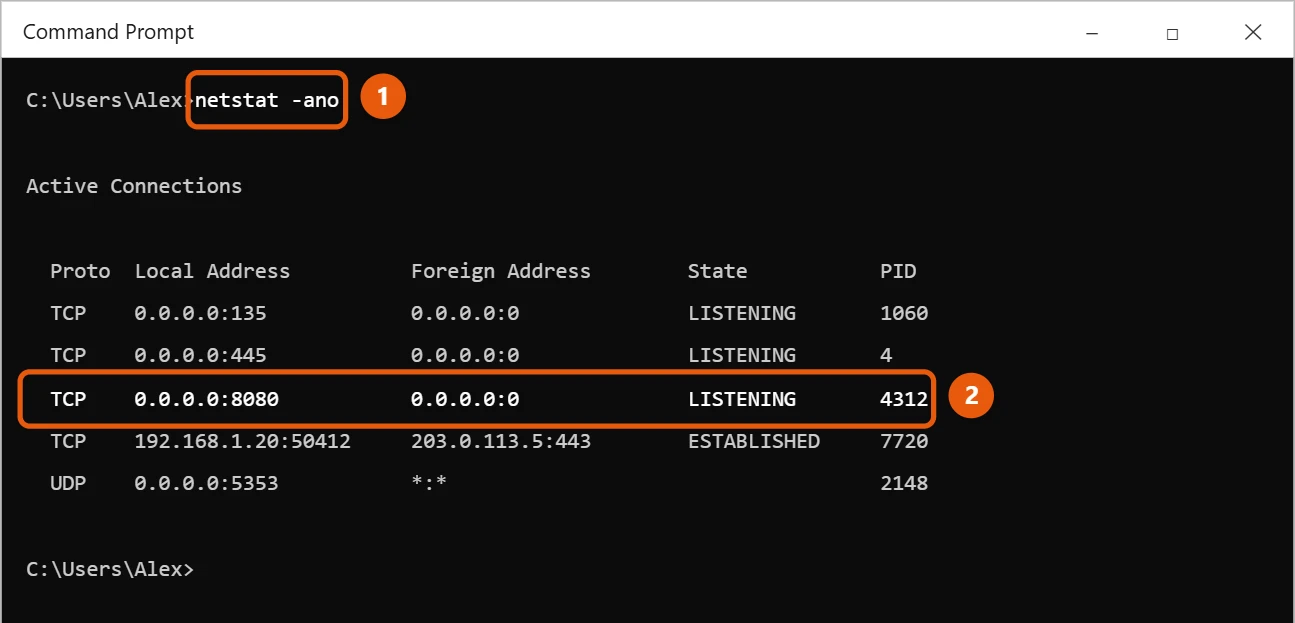
Once the Command Prompt window is open and showing “Administrator” in its title bar, type the following command exactly as you see it: netstat -ano. After you’ve typed it, simply press the Enter key on your keyboard.
The netstat command is a network statistic tool, and those little flags, -a, -n, and -o, are like special instructions for it. -a tells it to display all connections and listening ports, -n makes it show port numbers numerically instead of trying to resolve hostnames, which speeds things up, and -o is the magic flag that shows you the Process ID, PID, for each connection. This PID is what we’ll use to identify the exact program.
Step 3: Analyze the netstat Output
You’ll see a list populate in the Command Prompt window, showing “Proto,” “Local Address,” “Foreign Address,” “State,” and “PID.” Look at the “Local Address” column for entries like 0.0.0.0:80 or 127.0.0.1:443, where the number after the colon is the port number.
This output can look a bit overwhelming at first, almost like a secret code, but it’s really quite informative. Each row represents a network connection or a port that your computer is listening on. The “Local Address” shows your computer’s IP address and the port it’s using, while “Foreign Address” indicates the remote computer’s IP and port it’s connected to. The “State” column indicates whether the connection is established, listening, or otherwise. Our goal here is to find the specific port number you’re interested in, then note the corresponding PID in the last column.
Step 4: Identify the Process Using Task Manager
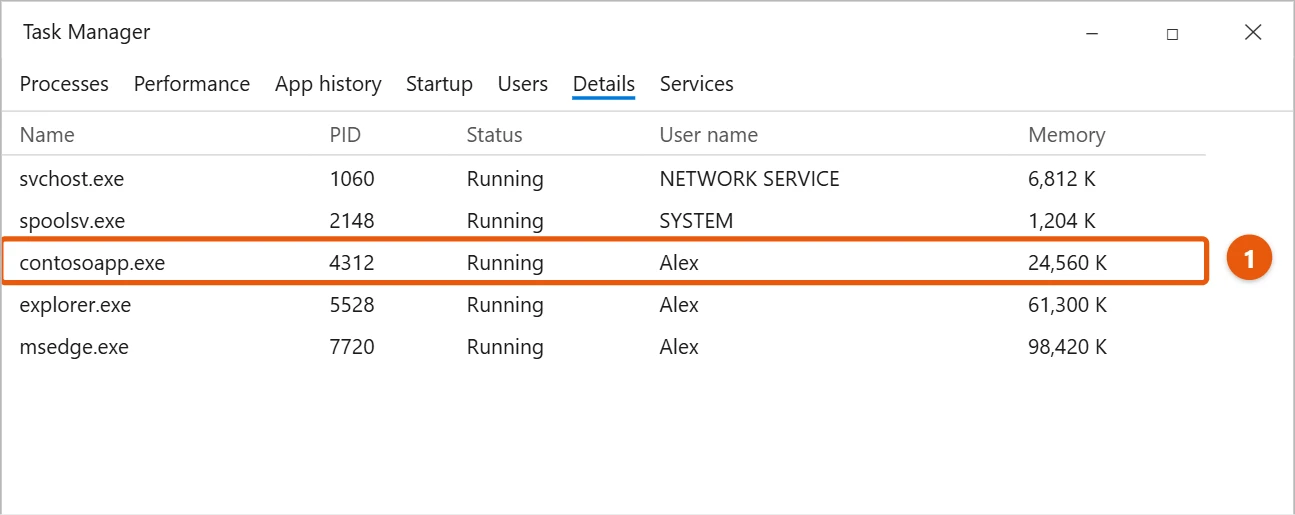
Once you have the PID for the port you’re interested in, open Task Manager by pressing Ctrl + Shift + Esc or by right-clicking on your taskbar and selecting “Task Manager.” Go to the “Details” tab, and then locate the process with the PID that matches the one you found in the netstat output.
The “Details” tab in Task Manager is where you can see all running processes, including their PIDs, which is exactly what we need. If you don’t see the “PID” column, right-click on any column header, choose “Select columns,” and then check the box next to “PID.” This step effectively acts as a bridge, connecting a seemingly random number to an actual, identifiable program running on your system.
After you’ve identified the process by its PID in Task Manager, you’ll know exactly which application or service is using that port number. This newfound knowledge empowers you to troubleshoot network issues, configure firewalls, or simply understand your system’s network activity better.
Tips for Finding Port Numbers in Windows 10
- Filter
netstatoutput: If thenetstatoutput is too long, you can filter it usingfindstr. For example, to find all connections related to port 80, you would typenetstat -ano | findstr ":80". This acts like a quick search filter, showing only the lines that contain the text “:80”. - Use Resource Monitor: For a more graphical interface, type “Resource Monitor” into your Windows search bar and open it. Navigate to the “Network” tab, and you’ll see “Listening Ports” and “Network Activity” sections where you can easily view port usage and associated processes without needing the command line.
- Understand common port numbers: Familiarize yourself with well-known ports like 80 for HTTP, 443 for HTTPS, 21 for FTP, 22 for SSH, and 3389 for Remote Desktop. Knowing these helps you quickly identify services.
- Check firewall rules: If you’re having trouble with a specific port, ensure your Windows Firewall isn’t blocking it. Sometimes an application might try to use a port, but the firewall silently prevents it from establishing a connection.
- Consider third-party tools: While built-in tools are powerful, advanced users might find network monitoring tools like Wireshark or TCPView, from Sysinternals, offer even more granular detail and real-time insights into network traffic and port usage.
Frequently Asked Questions About Finding Port Numbers
What is a port number, and why do I need to find it?
A port number is a numerical identifier used to distinguish between different services or applications running on a single network device, like your computer. Think of your computer’s IP address as the street address of an apartment building, and the port numbers as the individual apartment numbers within that building. You might need to find a port number to troubleshoot connectivity issues, configure firewall rules, ensure an application is listening correctly, or even to identify malicious activity. It’s all about directing network traffic to the right place.
Can I change a port number being used by an application?
Sometimes, yes, you can. It largely depends on the specific application. Many applications, especially servers or custom software, allow you to configure which port they use through their settings or configuration files. However, some system services or well-known applications might be hard-coded to use specific ports, and changing them could break functionality. Always check the application’s documentation before attempting to change its default port.
What does “LISTENING” mean in the netstat output?
When netstat shows a port as “LISTENING,” it means that an application or service on your computer is actively waiting for incoming connections on that specific port. It’s like a shop door being open, ready for customers to walk in. For example, a web server would be listening on port 80 or 443, waiting for web browsers to connect and request web pages. If a port is “ESTABLISHED,” it means an active connection is already in place.
Why do I need to run Command Prompt as an administrator?
You need to run Command Prompt as an administrator because accessing detailed network statistics, especially those involving other user accounts or system processes, requires elevated permissions. Without administrator rights, the netstat -ano command might only show you connections related to your current user session or could even display an “Access Denied” message for crucial information. It’s a security measure to prevent unauthorized access to sensitive system data.
Is it normal to have many open ports?
Having many open ports isn’t necessarily abnormal, but it does depend on what you’re doing with your computer. If you run server applications, peer-to-peer software, or have many programs communicating over the network, you’ll naturally see more listening ports and established connections. However, a surprisingly high number of open ports without clear reasons could indicate unwanted software or even malware, so it’s always good to be aware of what’s active. Regularly reviewing your network activity is a smart habit to cultivate.
Summary
- Open Command Prompt as administrator.
- Type
netstat -anoand press Enter. - Analyze output for local addresses and PIDs.
- Open Task Manager and go to “Details.”
- Find the process matching the PID.
Conclusion
So, there you have it, folks! Delving into the network underbelly of your Windows 10 machine to unearth those elusive port numbers isn’t some dark art reserved for IT wizards. It’s a perfectly accessible skill, and one that gives you a surprising amount of control and understanding over what your computer is actually doing. We’ve explored the power of the netstat command, your trusty sidekick in the Command Prompt, which, when coupled with a quick peek in the Task Manager, lets you pinpoint exactly which application is staking its claim on a particular port. It’s like having X-ray vision for your network connections, letting you see beyond the surface to the intricate dance of data.
Remember, knowing how to find a port number in Windows 10 is more than just a party trick. It’s a foundational piece of knowledge that proves incredibly useful in myriad situations. Are you troubleshooting why a specific online game isn’t connecting? Is a new application failing to communicate with its server? Or perhaps you’re simply curious about what background processes are busy sending and receiving data? Identifying the port and the associated process is often the first, most crucial step in solving these puzzles. It helps you understand whether a program isn’t running, is blocked by a firewall, or something else entirely is hogging the port it needs.
We also touched on the graphical convenience of the Resource Monitor, which offers a visual alternative for those who prefer clicking to typing. And let’s not forget the crucial tips, like filtering netstat output or understanding common port assignments, which can save you a ton of time and head-scratching. This journey into network forensics shouldn’t just end here. Keep experimenting, keep asking questions, and keep building your knowledge. The more you understand about how your computer communicates, the better equipped you’ll be to manage its performance, enhance its security, and troubleshoot any hiccups that come your way. Your Windows 10 machine is a powerful tool, and now you’re one step closer to mastering its hidden network language. Go forth and connect with confidence!

Matt Jacobs has been working as an IT consultant for small businesses since receiving his Master’s degree in 2003. While he still does some consulting work, his primary focus now is on creating technology support content for SupportYourTech.com.
His work can be found on many websites and focuses on topics such as Microsoft Office, Apple devices, Android devices, Photoshop, and more.