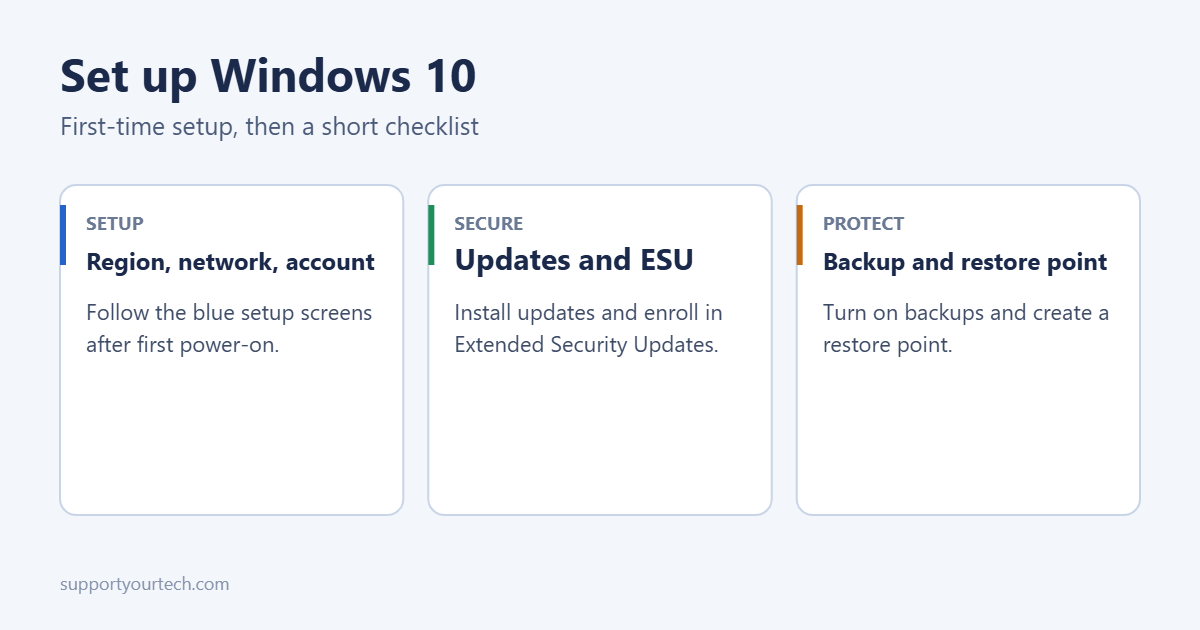
To set up Windows 10, turn on the PC and follow the blue setup screens: choose your region and keyboard, connect to Wi-Fi, sign in with a Microsoft account or create a local account, set a PIN, and pick your privacy settings. It takes 15 to 30 minutes. Afterwards, install all updates and enroll in Extended Security Updates, because free security updates for Windows 10 ended on October 14, 2025.
Before you start
- Plug in the charger if it’s a laptop.
- Have your Wi-Fi password ready.
- Know your Microsoft account email and password, or decide to use a local account.
- If this PC can run Windows 11, consider upgrading instead, since Windows 11 still gets free updates. The process is in upgrading Windows 10 to Windows 11.
Part 1: The setup screens
- Region: choose your country and click Yes.
- Keyboard layout: confirm it, and skip the second layout unless you need one.
- Network: pick your Wi-Fi network and enter the password. Windows may download updates at this point.
- License agreement: click Accept.
- Personal or work: on Windows 10 Pro, choose Set up for personal use unless your organization manages the PC.
- Account: sign in with your Microsoft account, or create a local account (see below).
- PIN: create a PIN for quick sign-in. It only works on this PC.
- Privacy settings: review each switch. Turning off tailored experiences and advertising ID reduces data sharing without affecting how Windows works.
- Optional extras: OneDrive backup, phone linking and Cortana can be skipped and set up later.
Windows finishes with “Hi” and “This might take several minutes” screens. Don’t turn the PC off during this stage.
Use a local account instead of a Microsoft account
On Windows 10 Pro, choose Offline account or Domain join instead on the sign-in screen. On Windows 10 Home, the offline option usually only appears if the PC isn’t connected to the internet, so skip the Wi-Fi step and choose I don’t have internet, then Continue with limited setup. You can link a Microsoft account later in Settings.
Part 2: After setup checklist
| Task | Where |
|---|---|
| Install all updates | Settings > Update & Security > Windows Update > Check for updates (repeat until none are left) |
| Keep getting security fixes | Enroll in Extended Security Updates |
| Check drivers | Windows Update > View optional updates, or your PC maker’s support app |
| Antivirus | Windows Security is on by default; check it shows green ticks |
| Backups | Turn on OneDrive folder backup or File History to an external drive |
| Restore point | Create a restore point once everything works |
| Browser | Install your preferred browser and sign in |
| Remove extras | Settings > Apps > Apps & features: uninstall trial software you don’t want |
Make Windows 10 yours
- Display: Settings > System > Display for resolution and scaling.
- Theme: Settings > Personalization for wallpaper, dark mode and accent colors.
- Default apps: Settings > Apps > Default apps for browser, email and photos.
- Other users: add family members or a second account by making another account on Windows 10.
- Password: set or change it in Sign-in options, as shown in setting a password in Windows 10.
Speed and storage tips
New PCs often start apps at sign-in that you don’t need. Open Task Manager with Ctrl + Shift + Esc, go to Startup, and disable the extras. Speeding up a Windows 10 computer has more tips.
Troubleshooting
Setup is stuck on “Just a moment” or a spinning circle
Wait at least 30 minutes, since updates may be installing. If nothing changes, hold the power button for 10 seconds, turn the PC on again, and setup usually resumes.
No Wi-Fi networks appear
The Wi-Fi driver isn’t loaded yet. Connect an Ethernet cable, or choose I don’t have internet and install drivers after setup.
Windows asks for a product key
Click I don’t have a product key. A PC that had Windows 10 before activates automatically once online.
Frequently asked questions
Is it still safe to set up Windows 10?
Only with Extended Security Updates, and only as a short-term choice. Without them, the PC gets no security fixes. Plan to move to Windows 11 or a new PC.
Can I redo setup later?
Yes. Settings > Update & Security > Recovery > Reset this PC reinstalls Windows and shows the setup screens again.
Summary
- Turn on the PC and follow the setup screens.
- Sign in with a Microsoft account or create a local one.
- Install all updates and enroll in Extended Security Updates.
- Turn on backups, create a restore point, and remove unwanted apps.

Matt Jacobs has been working as an IT consultant for small businesses since receiving his Master’s degree in 2003. While he still does some consulting work, his primary focus now is on creating technology support content for SupportYourTech.com.
His work can be found on many websites and focuses on topics such as Microsoft Office, Apple devices, Android devices, Photoshop, and more.