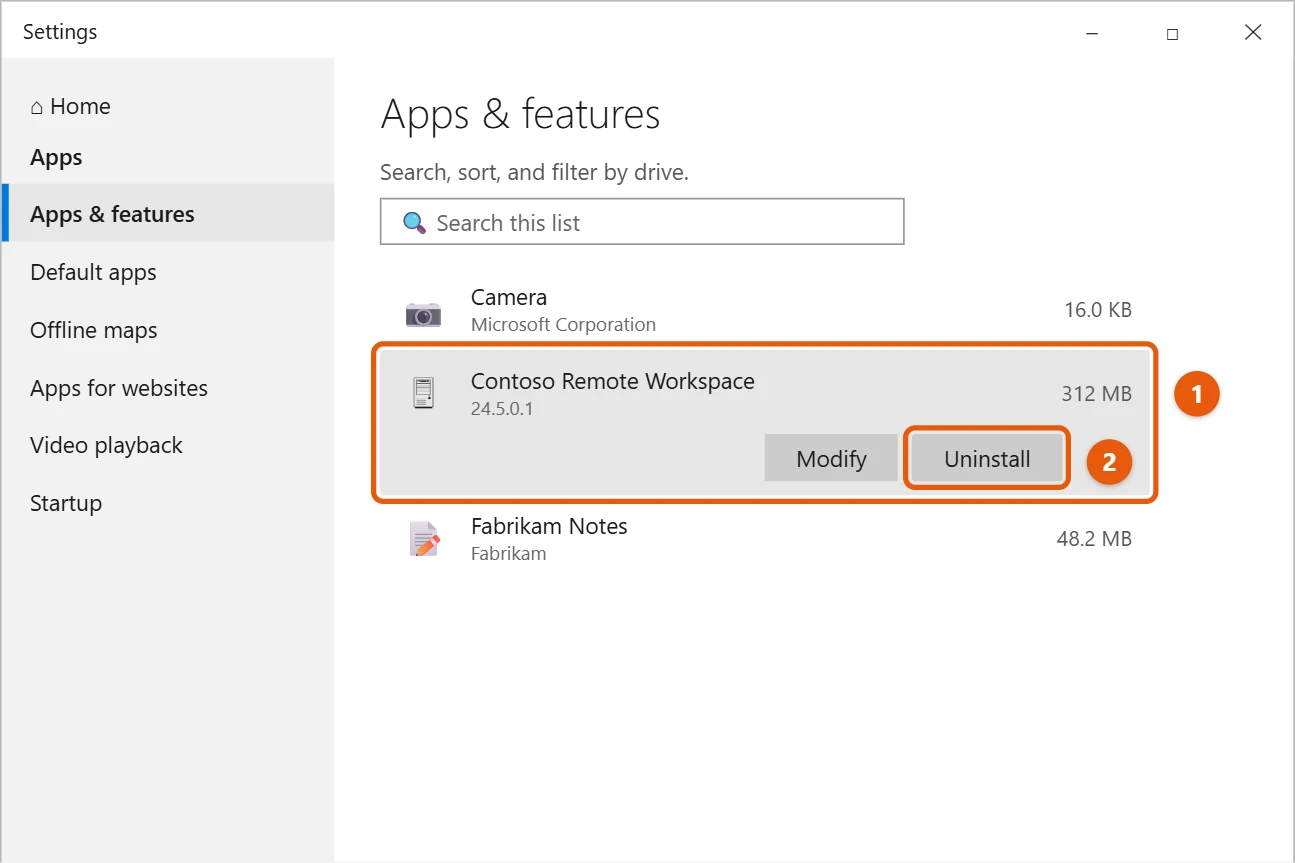
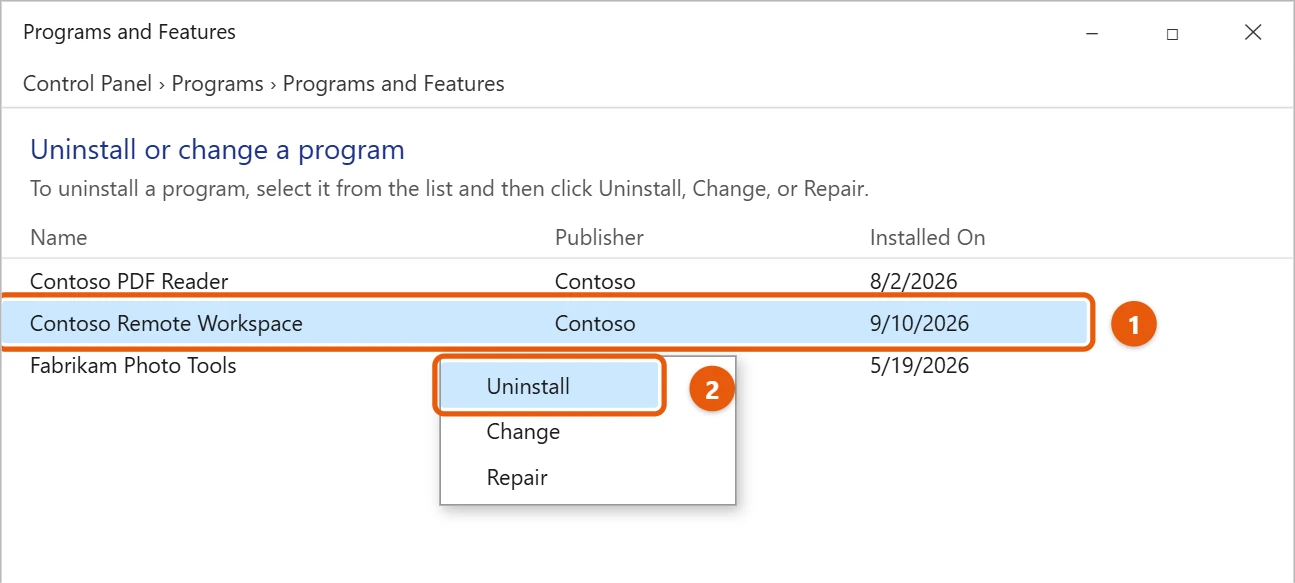
Uninstalling Citrix Workspace on Windows 10 is a straightforward process. First, you need to access the Control Panel and navigate to the “Programs and Features” section. From there, locate Citrix Workspace in the list of installed programs and select “Uninstall.” Follow the on-screen instructions to complete the process. After the uninstallation, ensure that all related files are removed to prevent any potential conflicts with future software installations.
How to Uninstall Citrix Workspace on Windows 10
Uninstalling Citrix Workspace on Windows 10 ensures that the software is completely removed from your computer, freeing up space and preventing any software conflicts. Here’s how you can do it:
Step 1: Open Control Panel
First, click the Start button and type “Control Panel” into the search bar, then hit Enter.
Opening the Control Panel is the gateway to managing software on your computer. It’s like the command center for uninstalling any programs.
Step 2: Go to Programs and Features
Once in Control Panel, click on “Programs” and then “Programs and Features.”
This section lists all the programs installed on your system. It’s like browsing through a digital library of your software collection.
Step 3: Locate Citrix Workspace
Scroll through the list to find Citrix Workspace.
Finding the program is crucial. If you have many programs, you might want to sort them alphabetically to make it easier.
Step 4: Select Uninstall
Click on Citrix Workspace and select “Uninstall” at the top of the list.
This action begins the removal process. It’s like telling your computer, “I’m done with this, let’s part ways.”
Step 5: Follow On-Screen Instructions
Follow the prompts that appear to complete the uninstallation process.
These instructions are straightforward. It’s as if the computer is walking you through a checklist to ensure everything goes smoothly.
After completing these steps, Citrix Workspace will be removed from your system. You might need to restart your computer to finalize the uninstallation. This ensures any remaining files are cleared, giving you a clean slate for future installations.
Tips for Uninstalling Citrix Workspace on Windows 10
- Restart your computer after uninstalling to ensure all changes take effect.
- Check for any leftover files in the Program Files folder and delete them if necessary.
- Use a third-party uninstaller for a more thorough removal if the built-in method doesn’t work.
- Regularly review installed programs to manage storage efficiently.
- Keep your software updated to avoid compatibility issues.
Frequently Asked Questions
Why should I uninstall Citrix Workspace?
If you no longer use it or it’s causing issues, uninstalling can free up space and resolve conflicts.
Can I reinstall Citrix Workspace later?
Yes, you can always download and reinstall it if you need it again.
Will uninstalling Citrix Workspace delete my files?
No, uninstalling the software won’t affect your personal files.
What if Citrix Workspace won’t uninstall?
Try using a third-party uninstaller or contact Citrix support for assistance.
Do I need to back up anything before uninstalling?
Backing up is generally a good practice, but not necessary for this process.
Summary
- Open Control Panel.
- Go to Programs and Features.
- Locate Citrix Workspace.
- Select Uninstall.
- Follow On-Screen Instructions.
Conclusion
Uninstalling Citrix Workspace from Windows 10 is a liberating experience, like clearing out a closet full of clothes you no longer wear. It’s a simple process when broken down into manageable steps, ensuring your computer runs smoothly and efficiently. Whether you’re making room for new software or just cleaning up, removing unused programs is always a good move.
By following this guide, you’ve taken control of your digital space. If you ever find yourself needing Citrix Workspace again, reinstalling it is just as easy. Remember, keeping your system organized not only boosts performance but also enhances your overall computing experience.
For further reading, explore more on software management tips or check out guides on optimizing your Windows 10 setup. Keep learning and stay tech-savvy!

Matt Jacobs has been working as an IT consultant for small businesses since receiving his Master’s degree in 2003. While he still does some consulting work, his primary focus now is on creating technology support content for SupportYourTech.com.
His work can be found on many websites and focuses on topics such as Microsoft Office, Apple devices, Android devices, Photoshop, and more.