The grey “Page 1” watermark in Excel appears because the sheet is in Page Break Preview. It isn’t a real watermark and never prints. To remove it, go to View > Normal, or click the Normal icon (the small grid) at the bottom right of the window next to the zoom slider.
Applies to: Excel for Microsoft 365, Excel 2024, 2021, 2019 and 2016 on Windows and Mac. Last reviewed October 8, 2026.
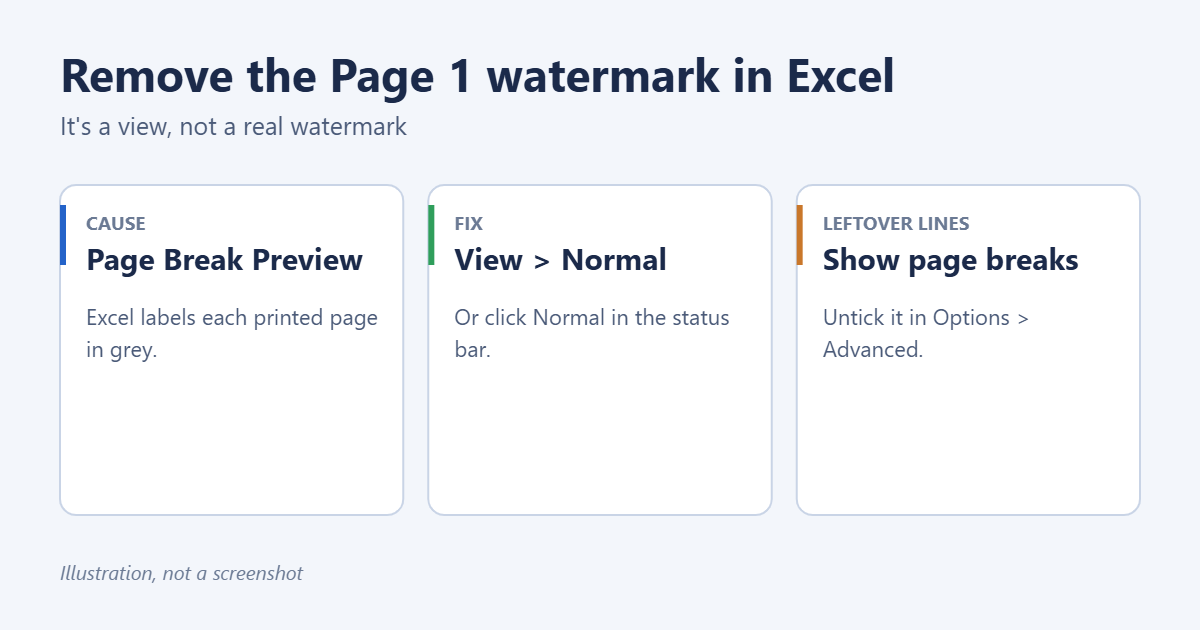
Switch back to Normal view
- Go to the View tab.
- In the Workbook Views group, select Normal.
Or use the three view buttons in the status bar at the bottom right: Normal, Page Layout and Page Break Preview. The first one turns the watermark off.
Views are saved per sheet. If other tabs show Page 1 too, switch each one to Normal and save the workbook so it opens that way next time.
Why Excel shows “Page 1”
Page Break Preview shows how the sheet will be split across printed pages. Each page is labeled in large grey text, with blue lines marking where pages end. It’s useful for adjusting what prints on each page, but the labels only appear on screen.
When Page Break Preview is worth using
Before switching back, it can help to use the view to fix printing problems:
- Only part of the sheet prints: the area outside the blue border is greyed out and won’t print. Drag the solid blue border outward to include more, or go to Page Layout > Print Area > Clear Print Area.
- One column spills onto a second page: drag the dashed blue line to the right edge of the data. Excel shrinks the printout so it fits.
- A table splits awkwardly: right-click the row where a new page should start and choose Insert Page Break.
For a quick fit, Page Layout > Width set to 1 page keeps all columns on one page across.
Remove the dotted lines left behind
After you leave Page Break Preview, Excel may keep showing faint dotted lines where pages break. To hide them:
- Go to File > Options > Advanced.
- Scroll to Display options for this worksheet.
- Untick Show page breaks and select OK.
Closing and reopening the workbook also clears them. Manual page breaks you added stay in place; to remove those, see how to remove all page breaks in Excel.
If the watermark prints
A watermark that shows up on paper or in Page Layout view is a real one: a picture in the header. To remove it:
- Go to Insert > Header & Footer.
- Click in each header section (left, center, right) and look for &[Picture].
- Select it and press Delete, then click any cell.
To add your own watermark on purpose, see how to put a watermark in Excel.
Make new workbooks open in Normal view
Go to File > Options > General and set Default view for new sheets to Normal View.
Troubleshooting
Page 1 comes back every time I open the file
The file was saved in Page Break Preview. Switch to Normal and save it.
The View tab is missing Normal
You may be in Excel for the web, which doesn’t have Page Break Preview; the label you see is probably a real header picture. Use the steps in “If the watermark prints”.
Page numbers appear instead of Page 1
Those come from the footer.
Frequently asked questions
Will “Page 1” print?
No. Only real header or footer content prints. Check File > Print to see exactly what will print.
Can I keep Page Break Preview without the labels?
No, the labels are part of that view. Use Page Layout view if you want to see page edges without them.

Matt Jacobs has been working as an IT consultant for small businesses since receiving his Master’s degree in 2003. While he still does some consulting work, his primary focus now is on creating technology support content for SupportYourTech.com.
His work can be found on many websites and focuses on topics such as Microsoft Office, Apple devices, Android devices, Photoshop, and more.