To use INDEX and MATCH in Excel, click an empty cell and type =INDEX(return_range,MATCH(lookup_value,lookup_range,0)), then press Enter. MATCH finds the row where your lookup value sits, and INDEX returns the value from that same row in the column you want. For example, =INDEX(D2:D9,MATCH(H1,B2:B9,0)) looks for the product typed in H1 in column B and returns its price from column D.
Applies to: Excel for Microsoft 365 (Windows, Mac and the web), Excel 2024, Excel 2021, Excel 2019 and Excel 2016. XMATCH and XLOOKUP need Microsoft 365, Excel 2024 or Excel 2021. Checked against Microsoft Support on October 12, 2026.
How INDEX and MATCH work together
INDEX and MATCH are two separate functions. Each one does half of a lookup, and together they do the whole job.
| Function | What it does | Syntax |
|---|---|---|
| MATCH | Searches a single row or column for a value and returns its position as a number, such as 3 for the third item. | =MATCH(lookup_value, lookup_array, [match_type]) |
| INDEX | Returns the value at a given position in a range. You tell it the range and the row number (and, for a block of cells, the column number). | =INDEX(array, row_num, [column_num]) |
On its own, INDEX isn’t very useful, because you rarely know that the answer is “the fifth row down.” MATCH works that number out for you. When you put MATCH inside INDEX, in the spot where the row number goes, you get a formula that finds a value by name and returns whatever sits beside it.
The pattern to remember is:
=INDEX(column with the answer, MATCH(what you're looking for, column to search, 0))
Always use 0 for match_type
MATCH’s third argument, match_type, decides how it compares values. According to Microsoft’s MATCH function page:
- 0 finds the first value that is exactly equal to the lookup value. The list can be in any order. This is what you want for names, IDs, codes and most everyday lookups.
- 1 finds the largest value that is less than or equal to the lookup value. The list must be sorted in ascending order. This is also what MATCH uses when you leave the argument out.
- -1 finds the smallest value that is greater than or equal to the lookup value. The list must be sorted in descending order.
Because 1 is the default, a formula such as =MATCH(H1,B2:B9) doesn’t do an exact match. On an unsorted list it can quietly return the wrong row. Type the ,0 every time unless you specifically want an approximate match, which is covered later in this guide.
The sample data used in this guide
Every example below uses this small product list in A1:E9. Type it into a blank sheet if you want to follow along and check your answers.
| Row | A: Product ID | B: Product | C: Category | D: Price | E: Stock |
|---|---|---|---|---|---|
| 2 | P-101 | Desk Lamp | Lighting | $34.99 | 52 |
| 3 | P-102 | Office Chair | Furniture | $189.00 | 14 |
| 4 | P-103 | Monitor Stand | Accessories | $45.50 | 31 |
| 5 | P-104 | Floor Lamp | Lighting | $79.00 | 8 |
| 6 | P-105 | Standing Desk | Furniture | $429.00 | 6 |
| 7 | P-106 | Keyboard Tray | Accessories | $62.25 | 19 |
| 8 | P-107 | Bookshelf | Furniture | $149.99 | 11 |
| 9 | P-108 | Cable Organizer | Accessories | $12.75 | 87 |
Row 1 holds the headings. Columns F, G and H are used for the lookup cells and results.
How to write an INDEX MATCH formula
The easiest way to get the formula right the first time is to build it in two stages: write the MATCH part, check that it returns the position you expect, then wrap INDEX around it. This example finds the price of whatever product you type in H1.
- Set up a lookup cell. In G1, type Find product as a label. In H1, type Monitor Stand. Using a cell for the lookup value means you can change the product later without editing the formula.
- Write the MATCH part first. In G2, type Position. Click H2, type
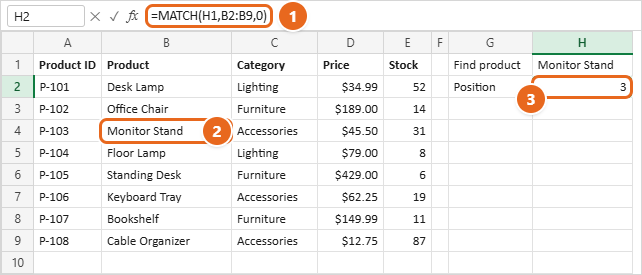
=MATCH(H1,B2:B9,0)and press Enter. Excel shows 3, because Monitor Stand is the third item in B2:B9.

The MATCH formula (1) finds Monitor Stand (2) and returns its position in the range, 3 (3). That is the third item in B2:B9, even though it sits in row 4. - Notice that the position isn’t the row number. Monitor Stand is in row 4 of the worksheet, but it’s item 3 of the range because the range starts at row 2. INDEX counts the same way, which is why the two ranges must start on the same row.
- Wrap INDEX around MATCH. Change G2 to Price. Click H2 and replace the formula with
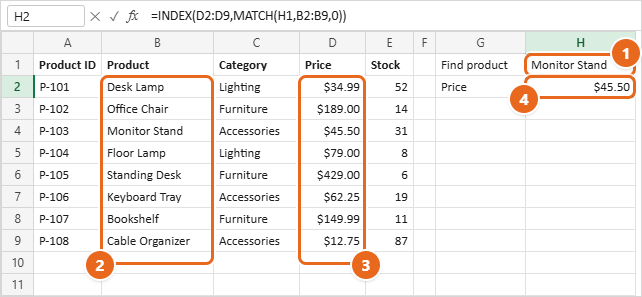
=INDEX(D2:D9,MATCH(H1,B2:B9,0)), then press Enter. INDEX takes the position 3 from MATCH and returns the third value in D2:D9, which is $45.50.

Type the product to find in H1 (1). MATCH searches the Product column (2), INDEX returns the matching value from the Price column (3), and the result appears in H2 (4). - Format the result if needed. If H2 shows 45.5 instead of $45.50, select H2 and choose Currency or Accounting from the number format box on the Home tab. INDEX returns the value, not the formatting of the source cell.
- Test it. Type Bookshelf in H1 and press Enter. H2 changes to $149.99. Type a product that isn’t on the list, and H2 shows #N/A, which means MATCH couldn’t find it. See Troubleshooting for how to show a friendlier message.
To return a different piece of information about the same product, change only the first range. =INDEX(E2:E9,MATCH(H1,B2:B9,0)) returns the stock level, which is 31 for Monitor Stand, and =INDEX(C2:C9,MATCH(H1,B2:B9,0)) returns its category, Accessories.
Tip: You can type the lookup value straight into the formula instead of using a cell. Text goes in double quotation marks, as in =INDEX(D2:D9,MATCH("Monitor Stand",B2:B9,0)). Numbers don’t need quotes.
Rules for the two ranges
- Same size, same starting row. If the lookup range is B2:B9, the return range should be D2:D9, not D1:D8 or D2:D20. A range that starts one row higher returns the value from the wrong record.
- One column (or one row) for MATCH. MATCH searches a single row or a single column. Give it B2:B9, not A2:E9.
- Leave out the headings unless you deliberately include them in both ranges.
- Not case-sensitive. MATCH treats monitor stand and Monitor Stand as the same. A case-sensitive version is in the more examples section.
Use it in a list and copy it down
Most of the time you’ll want to fill in a whole column, for example the price of every product on an order sheet. The main thing to get right is locking the ranges so they don’t move when you copy the formula.
- Suppose the product list is on a sheet named Products, and a second sheet named Orders has product names in A2:A20.
- On the Orders sheet, click B2 and type
=INDEX(Products!$D$2:$D$9,MATCH(A2,Products!$B$2:$B$9,0)). TheProducts!part tells Excel the ranges are on the other sheet. You can also type=INDEX(, click the Products tab and drag across the cells, and Excel fills in the sheet name for you. - Press Enter. B2 shows the price of the product named in A2.
- Select B2 and drag the fill handle (the small square at the bottom-right corner of the cell) down to B20. Each row looks up its own product.
The dollar signs make the two ranges absolute, so every copy still points at D2:D9 and B2:B9. A2 has no dollar signs, so it changes to A3, A4 and so on as you copy down. Without the dollar signs, the ranges slide down one row at a time and the results go wrong or turn into #N/A. On Windows, you can press F4 while the cursor is in a reference to add the dollar signs. Our guide to absolute cell references in Excel explains this in more detail, and how to reference a cell from another sheet covers sheet names with spaces.
Tip: If your product list is formatted as an Excel table (select it and press Ctrl+T), you can use column names instead of addresses, such as =INDEX(Products[Price],MATCH(A2,Products[Product],0)) for a table named Products. Table references grow automatically when you add products, so you don’t need dollar signs or to update the ranges.
Look up a value to the left
VLOOKUP can only return values from columns to the right of the column it searches. INDEX MATCH has no such limit, because the range INDEX returns from and the range MATCH searches are completely separate.
To find the Product ID (column A) for a product name (column B), type the product in H1 and use:
=INDEX(A2:A9,MATCH(H1,B2:B9,0))
With Bookshelf in H1, the formula returns P-107, even though column A is to the left of column B. The reverse works too: =INDEX(B2:B9,MATCH("P-106",A2:A9,0)) returns Keyboard Tray.
Two-way lookup with INDEX MATCH MATCH
INDEX can take both a row number and a column number. If you use one MATCH to find the row and a second MATCH to find the column, you can look up any value in a grid by its row label and column heading. This is often called INDEX MATCH MATCH.
- In G1 type Product, and in H1 type Floor Lamp.
- In G2 type Field, and in H2 type Stock. This must match a heading in row 1 exactly, apart from capitalization.
- In G3 type Result. Click H3 and type
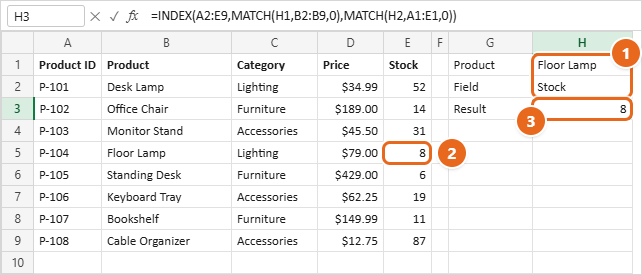
=INDEX(A2:E9,MATCH(H1,B2:B9,0),MATCH(H2,A1:E1,0)), then press Enter. - H3 shows 8. The first MATCH finds Floor Lamp at position 4 of B2:B9, and the second finds Stock at position 5 of A1:E1, so INDEX returns row 4, column 5 of A2:E9, which is cell E5.
Enter the row item and the column heading (1). The two MATCH functions find row 4 and column 5 of A2:E9, which is cell E5 (2), and the result appears in H3 (3). - Change H2 to Price and H3 changes to $79.00. Change it to Category and you get Lighting.
The ranges must line up in both directions. The data range A2:E9 starts in column A, so the heading range must also start in column A (A1:E1). If you used B2:E9 with A1:E1, Stock would be position 5 in the headings but B2:E9 only has 4 columns, and INDEX would return #REF!.
Tip: To avoid typos in H1 and H2, turn them into drop-down lists with Data > Data Validation, set Allow to List, and point the source at B2:B9 for H1 and B1:E1 for H2. Our guide to drop-down lists in Excel walks through the dialog box.
Look up with more than one condition
Sometimes one column isn’t enough to identify the row you want. For example, you might want the first Furniture item with fewer than 10 in stock. You can do this by multiplying conditions together inside MATCH:
=INDEX(B2:B9,MATCH(1,(C2:C9="Furniture")*(E2:E9<10),0))
This returns Standing Desk. Here’s how it works:
(C2:C9="Furniture")checks every row and produces TRUE or FALSE for each one.(E2:E9<10)does the same for the stock condition.- Multiplying the two turns TRUE into 1 and FALSE into 0, so a row only ends up as 1 when both conditions are true. Office Chair (14) and Bookshelf (11) are Furniture but fail the stock test, so they become 0.
MATCH(1,...,0)finds the first 1, which is position 5, and INDEX returns the fifth product.
You can add more conditions by multiplying more brackets, and you can point them at cells instead of typing the values, for example =INDEX(B2:B9,MATCH(1,(C2:C9=H1)*(D2:D9>H2),0)). With Lighting in H1 and 50 in H2, that returns Floor Lamp, the first Lighting product that costs more than $50.
Older versions: In Microsoft 365, Excel 2024 and Excel 2021, press Enter as usual. In Excel 2019 and earlier, this is an array formula: press Ctrl+Shift+Enter instead, and Excel adds curly braces around it. If you press only Enter in those versions, the formula usually returns #VALUE!, #N/A or a wrong answer.
Another way to match on two columns is to join them with an ampersand, as in =INDEX(D2:D9,MATCH(H1&"|"&H2,C2:C9&"|"&B2:B9,0)) with a category in H1 and a product in H2. The "|" separator stops two different pairs of values from running together into the same text. The multiplication method is easier to extend and also handles comparisons such as “less than 10,” which joining text can’t.
More useful INDEX MATCH formulas
Each formula below uses the sample data, so you can check the result.
| To do this… | Formula | Result |
|---|---|---|
| Find the product with the highest price | =INDEX(B2:B9,MATCH(MAX(D2:D9),D2:D9,0)) |
Standing Desk |
| Find the product with the lowest price | =INDEX(B2:B9,MATCH(MIN(D2:D9),D2:D9,0)) |
Cable Organizer |
| Look up by the start of a name (wildcard) | =INDEX(D2:D9,MATCH("Stand*",B2:B9,0)) |
$429.00 |
| Look up a name that contains a word | =INDEX(B2:B9,MATCH("*Lamp*",B2:B9,0)) |
Desk Lamp |
| Check whether a product exists | =ISNUMBER(MATCH(H1,B2:B9,0)) |
TRUE or FALSE |
| Show a message instead of #N/A | =IFERROR(INDEX(D2:D9,MATCH(H1,B2:B9,0)),"Not found") |
Price, or Not found |
| Return the whole row for a product | =INDEX(A2:E9,MATCH(H1,B2:B9,0),0) |
All five values for the product in H1 |
| Case-sensitive lookup | =INDEX(D2:D9,MATCH(TRUE,EXACT(H1,B2:B9),0)) |
Price only if the capitalization matches |
A few notes on these:
- Wildcards work when match_type is 0 and the lookup value is text. An asterisk (*) stands for any number of characters and a question mark (?) for exactly one. To find a real asterisk or question mark, put a tilde (~) in front of it.
"*Lamp*"returns Desk Lamp rather than Floor Lamp because MATCH always stops at the first match. To use a cell, join the wildcard to it:MATCH(H1&"*",B2:B9,0). - Whole-row results spill across five cells in Microsoft 365, Excel 2024 and Excel 2021, so leave room to the right of the formula or you’ll see #SPILL!. Microsoft notes that setting the row or column number to 0 returns the entire column or row. In older versions, select five blank cells in a row, type the formula and press Ctrl+Shift+Enter.
- Case-sensitive lookups use EXACT, which compares each cell with H1 including capital letters. Like the multiple-criteria formula, it needs Ctrl+Shift+Enter in Excel 2019 and earlier.
- Ties: if two products share the highest price, the MAX formula returns the first one in the list.
Approximate match: look up a value in a band
Approximate match is for tables of thresholds, such as discount levels, shipping rates or grade boundaries. Say you have a discount table with order totals in K2:K5 (0, 100, 250 and 500) and discounts in L2:L5 (0%, 5%, 10% and 15%). To find the discount for an order of $320:
=INDEX(L2:L5,MATCH(320,K2:K5,1))
MATCH with 1 looks for the largest threshold that is less than or equal to 320, which is 250 at position 3, so the formula returns 10%. An order of $99.99 returns 0%, and an order of exactly $500 returns 15%. This only works when the thresholds are sorted from smallest to largest, and the first threshold should be the lowest possible value (0 here) or smaller amounts return #N/A.
Find the last match instead of the first
MATCH always returns the first match from the top. In Microsoft 365, Excel 2024 and Excel 2021, you can swap MATCH for XMATCH, which can search from the bottom up. This formula returns the last Furniture product in the list, Bookshelf:
=INDEX(B2:B9,XMATCH("Furniture",C2:C9,0,-1))
The 0 asks for an exact match and the -1 tells XMATCH to search from last to first. XMATCH uses exact match by default, so for ordinary lookups you can simply write =INDEX(D2:D9,XMATCH(H1,B2:B9)). Microsoft documents the options on its XMATCH function page.
INDEX MATCH vs VLOOKUP and XLOOKUP
All three can return the price of Monitor Stand from the sample data:
- VLOOKUP:
=VLOOKUP(H1,B2:E9,3,FALSE) - INDEX MATCH:
=INDEX(D2:D9,MATCH(H1,B2:B9,0)) - XLOOKUP:
=XLOOKUP(H1,B2:B9,D2:D9)
| Question | VLOOKUP | INDEX MATCH | XLOOKUP |
|---|---|---|---|
| Can it return a value to the left? | No | Yes | Yes |
| Does inserting a column inside the table break it? | It can, because the column number (3) is typed in and doesn’t update | No | No |
| Exact match by default? | No (needs FALSE) | No (needs 0) | Yes |
| Built-in “not found” message? | No (use IFERROR) | No (use IFERROR) | Yes, fourth argument |
| Two-way lookups? | With a nested MATCH | Yes, INDEX MATCH MATCH | Yes, by nesting XLOOKUP |
| Works in Excel 2019 and older? | Yes | Yes | No |
Microsoft’s own advice is to use INDEX and MATCH instead of VLOOKUP when the value you search for isn’t in the leftmost column, and it now suggests trying XLOOKUP and XMATCH as improved versions. A good rule of thumb:
- Use XLOOKUP if everyone who opens the file has Microsoft 365, Excel 2024 or Excel 2021. It’s shorter and harder to get wrong. See our guide on how to do an XLOOKUP in Excel.
- Use INDEX MATCH if the workbook will be opened in Excel 2019 or earlier, where XLOOKUP shows #NAME?, or if you already know the pattern and want one approach that works everywhere.
- Use VLOOKUP for quick lookups where the answer is to the right and the table layout won’t change. Our VLOOKUP guide covers it step by step.
Troubleshooting
#N/A: the value isn’t found
MATCH returns #N/A when it can’t find the lookup value, and INDEX passes the error along. Check these causes in order:
- The value really isn’t there, or it’s spelled differently. Copy a value from the list into the lookup cell to test.
- Extra spaces. Monitor Stand with a trailing space doesn’t match Monitor Stand. Use
=TRIM(H1)in the formula, as inMATCH(TRIM(H1),B2:B9,0), or clean the list with TRIM in a helper column. - Numbers stored as text. An ID of 1045 typed as a number doesn’t match “1045” stored as text. Text numbers are usually left-aligned and may show a small green triangle. Select the cells, select the warning icon and choose Convert to Number, or make both sides the same type.
- The range moved when copied. Click a copied formula and check that the ranges still cover all the data. Add dollar signs if they don’t.
To show something friendlier than #N/A, wrap the whole formula in IFERROR: =IFERROR(INDEX(D2:D9,MATCH(H1,B2:B9,0)),"Not found"). Fix the real cause first, though, because IFERROR also hides mistakes in the formula itself.
The formula returns the wrong value
- match_type is missing. Without
,0, MATCH does an approximate match, which can return a neighboring row on unsorted data. Add the 0. - The ranges don’t start on the same row.
=INDEX(D1:D8,MATCH(H1,B2:B9,0))with Monitor Stand in H1 returns $189.00, the price of Office Chair, because position 3 of D1:D8 is D3. Make both ranges start on row 2. - There’s more than one match. MATCH returns the first one. Use the multiple-criteria formula to narrow it down, or XMATCH with -1 to get the last one.
#REF!
The row or column number is larger than the INDEX range. Microsoft notes that row_num and column_num must point to a cell within the array. It usually happens when a heading range for a second MATCH starts in a different column from the INDEX range, or when you give a column number to a one-column range, as in =INDEX(D2:D9,3,2).
#VALUE! or a wrong result with multiple conditions
In Excel 2019 and earlier, formulas that compare whole ranges, such as the multiple-criteria and EXACT examples, must be entered with Ctrl+Shift+Enter. Click the cell, click in the formula bar and press Ctrl+Shift+Enter. Also check that every range in the conditions has the same number of rows.
#NAME?
A function name is misspelled, or the formula uses XMATCH or XLOOKUP in a version of Excel that doesn’t have them. Check the spelling, or switch back to MATCH.
Excel says there’s a problem with the formula
Look for a missing closing parenthesis (the basic formula ends with 0))), a missing comma, or curly quotation marks copied from a web page or document. Retype the quotes from your keyboard. In some regions Excel uses semicolons between arguments, as in =INDEX(D2:D9;MATCH(H1;B2:B9;0)).
See what each part returns
To check a long formula on Windows, click the cell, then in the formula bar select just the MATCH part, such as MATCH(H1,B2:B9,0), and press F9. Excel shows its result in place, for example 3. Press Esc afterward so the formula isn’t changed. You can also select Formulas > Evaluate Formula to step through the calculation one part at a time.
FAQ
Why does MATCH return 3 when the item is in row 4?
MATCH returns the position within the range you give it, not the worksheet row number. B2:B9 starts at row 2, so row 4 is the third item. INDEX counts positions the same way, so as long as both ranges start on the same row, the result is correct.
Is INDEX MATCH faster than VLOOKUP?
For typical workbooks you won’t notice a difference. INDEX MATCH only refers to the two columns it uses, while VLOOKUP refers to the whole table, so INDEX MATCH can help in very large or formula-heavy workbooks. Limiting ranges to the rows you need, rather than whole columns, usually matters more.
Can INDEX MATCH return more than one result?
No. MATCH stops at the first match, so INDEX MATCH returns one value. To return every matching row in Microsoft 365, Excel 2024 or Excel 2021, use the FILTER function, for example =FILTER(B2:B9,C2:C9="Furniture"), which lists Office Chair, Standing Desk and Bookshelf.
Can I use INDEX MATCH with data on another sheet or workbook?
Yes. Put the sheet name in front of each range, as in =INDEX(Products!D2:D9,MATCH(H1,Products!B2:B9,0)). For another workbook, it’s easiest to have both files open and click the cells while building the formula, and Excel adds the workbook name for you.
Does INDEX MATCH work in Excel for Mac, Excel for the web and Google Sheets?
Yes. INDEX and MATCH work the same way in Excel for Windows, Excel for Mac and Excel for the web, and Google Sheets has both functions with the same arguments. The F9 and F4 shortcuts in this guide are for Excel for Windows.
Do I need to sort my data?
Not for exact matches. With match_type 0, the list can be in any order. Sorting only matters for approximate matches (1 or -1).
What does the 0 at the end of MATCH mean?
It’s the match_type argument, and 0 means “exact match.” Leaving it out makes MATCH use 1, approximate match, which expects sorted data and is the most common reason an INDEX MATCH formula returns the wrong value.
Once the basic pattern feels comfortable, try replacing a few VLOOKUP formulas in one of your own workbooks with INDEX MATCH, starting with any lookup that needs a column to the left. If you mainly look up values across several columns, our guide to VLOOKUP for multiple columns shows the matching techniques for VLOOKUP as well.

Matt Jacobs has been working as an IT consultant for small businesses since receiving his Master’s degree in 2003. While he still does some consulting work, his primary focus now is on creating technology support content for SupportYourTech.com.
His work can be found on many websites and focuses on topics such as Microsoft Office, Apple devices, Android devices, Photoshop, and more.