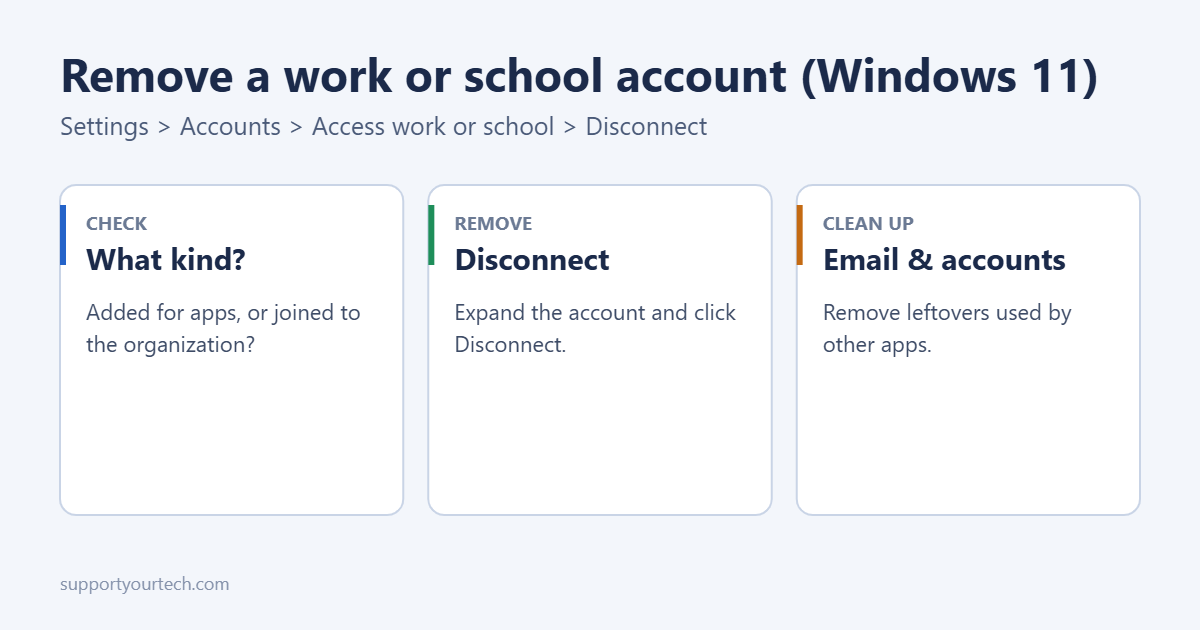
To remove a work or school account from Windows 11, open Settings > Accounts > Access work or school, click the account to expand it, choose Disconnect, and confirm. Restart the PC to finish. If the account also appears under Settings > Accounts > Email & accounts, remove it there too. On a PC owned and managed by your organization, Disconnect may be missing or blocked, and you’ll need your IT team.
Before you start
- Is it your PC or your employer’s? If the organization owns it, ask IT before disconnecting. It may break access to company apps or break their policies.
- Back up your files. If the organization manages the device, disconnecting can remove apps, certificates, Wi-Fi profiles and sometimes data they put there.
- Have another way to sign in. If you sign in to Windows with the work account, create a local or personal Microsoft account with admin rights first, or you could lock yourself out.
Check how the account is connected
In Settings > Accounts > Access work or school, the text under the account tells you which kind it is:
| What it says | What it means | How hard to remove |
|---|---|---|
| Connected to [organization]’s Azure AD / Microsoft Entra ID (via an app) | Added when you signed in to Teams or Office | Easy, just Disconnect |
| Connected to [organization]’s Microsoft Entra ID | The whole PC is joined to the organization | Needs a local admin account to sign in afterwards |
| Managed by [organization] (MDM) | The organization controls settings and apps | May be blocked; ask IT |
For more detail, run dsregcmd /status in Terminal. AzureAdJoined : YES means the PC is fully joined. The opposite process is to join Windows 11 to Microsoft Entra ID (Azure AD).
Disconnect the account
- Press Windows key + I to open Settings.
- Go to Accounts > Access work or school.
- Click the account to expand it.
- Click Disconnect, then Yes to confirm.
- If the PC was joined, enter the details of a local administrator account when asked.
- Restart the PC.
Remove leftovers
- Email & accounts: in Settings > Accounts > Email & accounts, click the work account under “Accounts used by other apps” and choose Remove.
- Office apps: open Word, click your name at the top and choose Sign out.
- Teams and OneDrive: sign out of each app, then sign in with your personal account if you use one.
- Credential Manager: search for Credential Manager in Start, open Windows Credentials, and remove entries mentioning the organization.
Stop it coming back
When you sign in to a work app, Windows often shows “Stay signed in to all your apps” with a box ticked for Allow my organization to manage my device. Untick it and choose No, sign in to this app only. That signs you in to the app without registering your PC with the organization.
If Disconnect is missing or greyed out
- The PC is managed by the organization through Intune or another MDM. Contact IT to release it.
- You’re signed in with the work account itself. Sign in with a different admin account and try again.
- On a personal PC you bought second-hand that’s still enrolled, the seller’s organization must release it. A reset may not remove enrollment set up by the manufacturer.
Troubleshooting
“Your organization manages updates on this PC” still shows
Restart, then check Access work or school again. If nothing is listed there, the message can come from leftover policies; running Windows Update and restarting usually clears it.
You can’t sign in after disconnecting
Use the local admin account you set up beforehand. If you skipped that, you’ll need Windows recovery options to reset the PC.
Frequently asked questions
Will removing the account delete my personal files?
Usually not, but if your organization manages the device, it can remove data it put there. Back up first.
How do I remove a personal Microsoft account instead?
Personal accounts are handled differently; follow the steps to remove an account from Windows 11. On an older PC, you can remove a work account from Windows 10 instead.
Can I still use Teams or Outlook with my work account afterwards?
Yes. Sign in to the app again and choose No, sign in to this app only when Windows offers to let your organization manage the device. The app works normally without registering the whole PC.
Summary
- Settings > Accounts > Access work or school.
- Expand the account and click Disconnect.
- Remove leftovers from Email & accounts and sign out of Office apps.
- On company-managed PCs, ask IT first.
Still seeing “managed by your organization” messages? Learn how to remove an organization from Windows 11.

Matt Jacobs has been working as an IT consultant for small businesses since receiving his Master’s degree in 2003. While he still does some consulting work, his primary focus now is on creating technology support content for SupportYourTech.com.
His work can be found on many websites and focuses on topics such as Microsoft Office, Apple devices, Android devices, Photoshop, and more.