To show the desktop in Windows 10, press Windows logo key + D. Press it again to bring your windows back. You can also select the thin Show desktop button at the far right end of the taskbar, past the clock.
Applies to: Windows 10. Checked against Microsoft Support on September 26, 2026.
Use a keyboard shortcut
| Shortcut | What it does |
|---|---|
| Windows logo key + D | Shows the desktop. Press again to restore your windows. |
| Windows logo key + M | Minimizes all windows. |
| Windows logo key + Shift + M | Restores minimized windows. |
| Windows logo key + Comma (,) | Peeks at the desktop while you hold the keys. |
Select the narrow strip at the far right end of the taskbar. Select it again to bring the windows back.
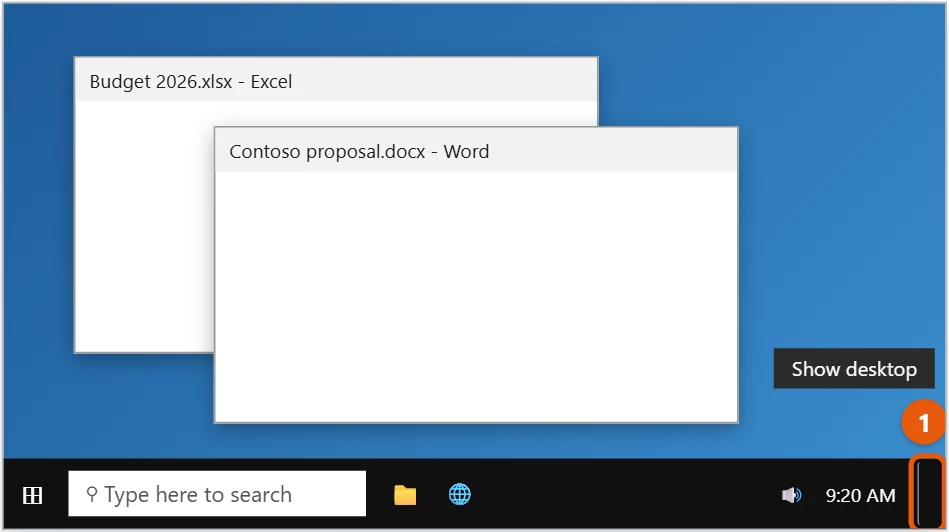
To peek at the desktop when you point at the button, right-click it and select Peek at desktop.
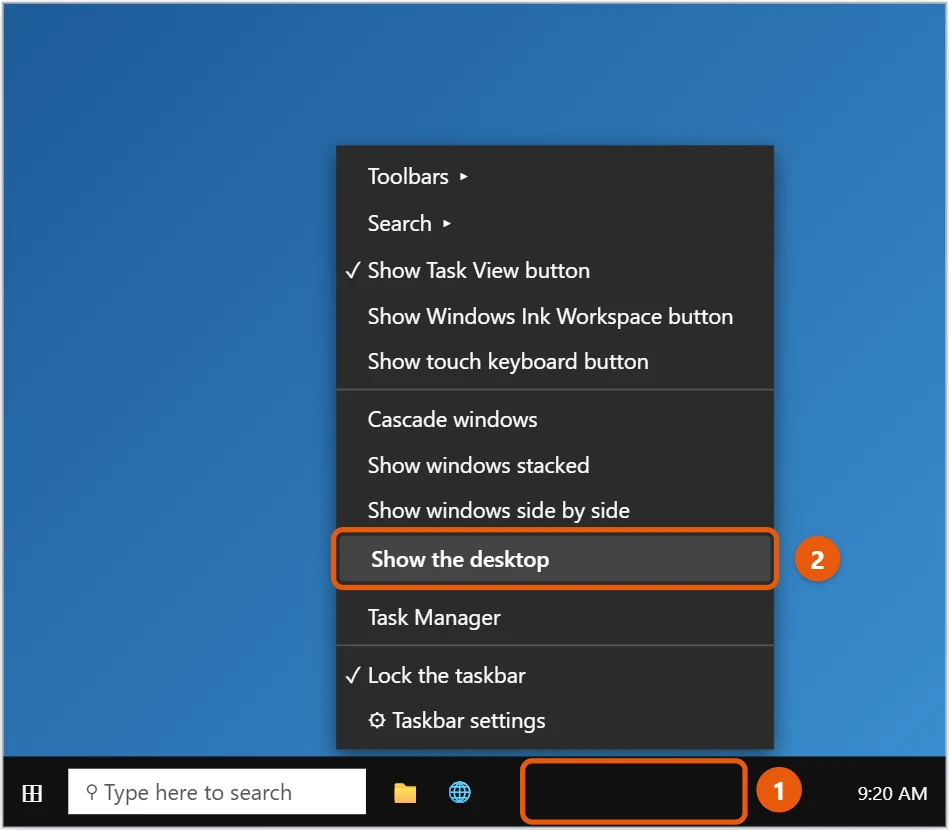
Right-click an empty part of the taskbar and select Show the desktop. The menu then offers Show open windows to bring them back.
Other quick ways
- Touchpad: on a precision touchpad, swipe down with three fingers to show the desktop. Swipe up with three fingers to bring the windows back.
- Shake a window: grab a window’s title bar and shake it quickly. Every other window minimizes. Shake it again to bring them back. This is turned on by default in Windows 10.
- A taskbar button: right-click the desktop, select New > Shortcut, and enter
explorer.exe shell:::{3080F90D-D7AD-11D9-BD98-0000947B0257}. Name it Show desktop, then right-click the shortcut and select Pin to taskbar.
If showing the desktop doesn’t work
- Windows logo key + D does nothing: some gaming keyboards and laptops have a Windows key lock. Look for a lock key or an Fn key combination, or check the keyboard’s software.
- The shortcut stopped working everywhere: open Task Manager, select Windows Explorer, and select Restart.
- You only see the Start screen: tablet mode is on. Turn it off in the action center (Windows logo key + A).
- Windows didn’t come back: if you clicked something on the desktop, the second Windows logo key + D won’t restore them. Press Windows logo key + Shift + M or use Alt + Tab.
If your desktop icons are missing
The desktop can be empty if icons are hidden. Right-click the desktop, select View, and check Show desktop icons. See how to show desktop icons in Windows 10.
Frequently asked questions
What’s the difference between Windows key + D and Windows key + M?
Windows key + D hides everything, including dialog boxes, and brings it all back with a second press. Windows key + M minimizes windows, and Windows key + Shift + M restores them.
How do I switch between open windows instead?
Press Alt + Tab. See how to switch between windows in Windows 10.
Can I show the desktop on just one monitor?
No. Showing the desktop minimizes windows on every screen. To clear one monitor, minimize its windows one by one or drag them to the other screen.
Does showing the desktop close my apps?
No. Your apps keep running in the background, and nothing is lost. They’re just minimized until you bring them back.
Why does one window stay on top?
Some apps are set to stay on top of everything, such as a video player’s mini mode or a sticky note. Minimize them yourself, or turn off their always-on-top option.
How do I open my Desktop folder in File Explorer?
Press Windows logo key + E and select Desktop on the left. This shows the same files as your desktop, without hiding your windows.
Does this work in Windows 11?
Yes. Windows logo key + D and the Show desktop corner of the taskbar work the same way in Windows 11. The touchpad gesture and window shake are there too, though shake is off by default.
If the desktop and taskbar look different after you use a touch screen, see how to turn off tablet mode in Windows 10.
Microsoft’s list is Keyboard shortcuts in Windows. More help is on our Windows Help & Guides page.

Matt Jacobs has been working as an IT consultant for small businesses since receiving his Master’s degree in 2003. While he still does some consulting work, his primary focus now is on creating technology support content for SupportYourTech.com.
His work can be found on many websites and focuses on topics such as Microsoft Office, Apple devices, Android devices, Photoshop, and more.