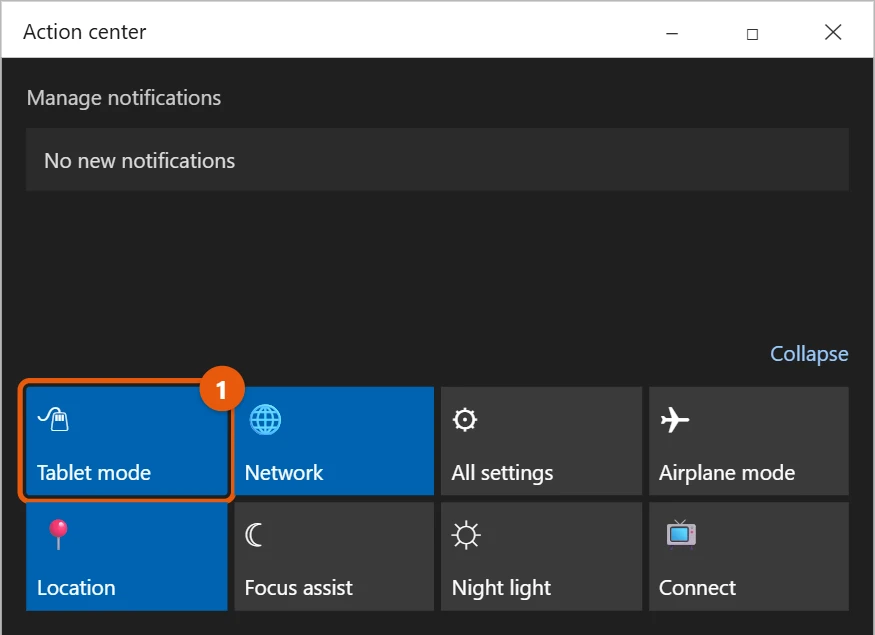
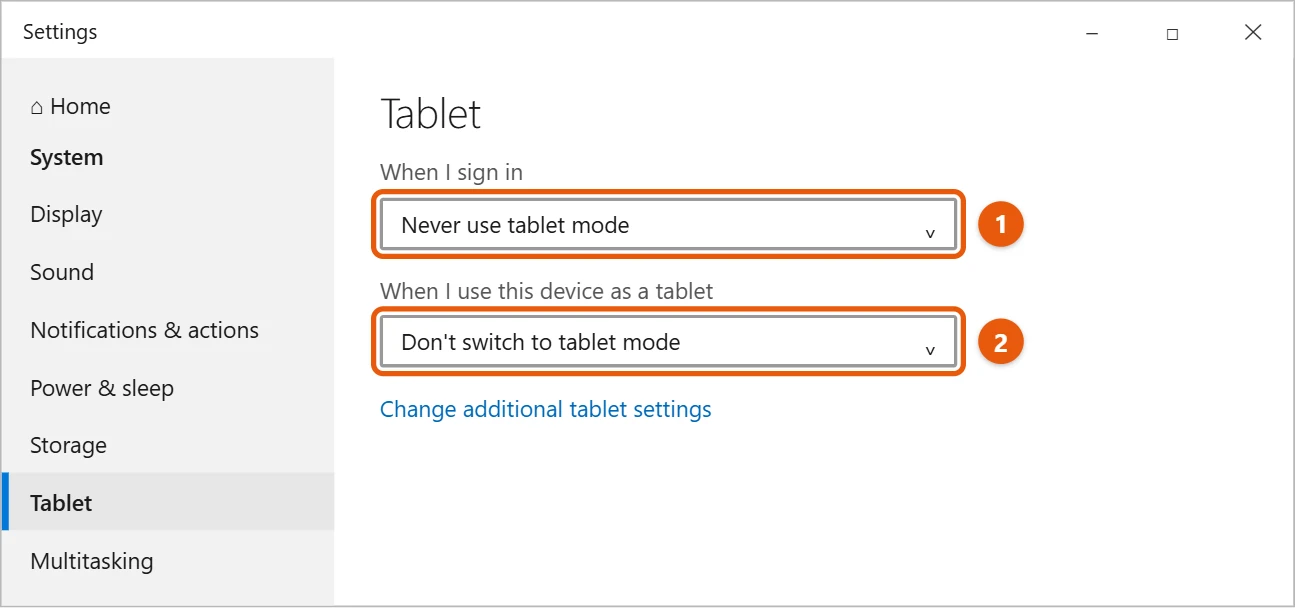
Hey there, ever found your Windows 10 device acting a little weird, with apps taking up the whole screen and no desktop in sight? That is probably tablet mode kicking in, and it can be a bit of a head-scratcher if you are used to the traditional desktop. Luckily, turning it off is super simple. Just open your Action Center (the little chat bubble icon on your taskbar), then click the “Tablet mode” button to toggle it off. If that button is missing, no worries; you can always head into your Settings, navigate to the System section, and find the Tablet mode options there to switch things back to normal.
Tutorial – How to Turn Off Tablet Mode Windows 10
Getting your Windows 10 device back to its familiar desktop view is just a few clicks away. These steps will guide you through disabling tablet mode so you can enjoy your classic Windows experience, complete with a taskbar, resizable windows, and all your desktop icons. We are going to tackle this head-on and give you back control of your screen.
Step 1: Open the Action Center.
Click the Action Center icon, which looks like a speech bubble, located in the bottom right corner of your screen, right next to the clock.
This Action Center is like your Windows 10 notification hub and quick settings panel all rolled into one. It is where you can quickly access common settings without diving deep into the main Settings app, making it a handy spot for things like Wi-Fi, Bluetooth, and, of course, tablet mode.
Step 2: Locate the Tablet mode button.
Once the Action Center is open, look for a square button labeled “Tablet mode” among the various quick action tiles.
Sometimes, you might need to click “Expand” if you only see a few tiles, as the Tablet mode button could be hidden in the expanded view. Think of it as opening a drawer to find what you are looking for; it is usually there, just sometimes tucked away.
Step 3: Click the Tablet mode button to turn it off.
A single click on the “Tablet mode” button will toggle it off, and you should immediately see your desktop reappear.
You will notice a swift change in your display, as applications will revert to windowed mode, and your familiar taskbar and desktop icons will return. It is almost like magic, bringing back the traditional Windows layout you know and love.
Step 4 (Optional): Use the Settings app if the button is missing or you prefer this method.
If you cannot find the Tablet mode button in the Action Center, or if you prefer to do things through Settings, click the Start button, then the gear icon to open Settings.
This alternative path is super useful because sometimes system updates or specific device configurations might alter what shows up in your Action Center. Going through Settings is a reliable backup plan.
Step 5: Navigate to the Tablet mode settings.
In the Settings window, click on “System,” and then select “Tablet mode” from the left-hand menu.
This section gives you more granular control over how tablet mode behaves, not just a simple on/off switch. It is a good place to explore if you want to customize the experience beyond just turning it off right now.
Step 6: Toggle off “Make Windows more touch-friendly when using your device as a tablet.”
Under the “Tablet mode” settings, you will see an option that says “Make Windows more touch-friendly when using your device as a tablet,” with a toggle switch. Click it to turn it off.
This particular setting is the main switch for the tablet mode experience. When it is off, Windows will prioritize the desktop experience, assuming you are using a keyboard and mouse or just prefer the traditional layout.
After you complete these steps, your Windows 10 device will revert to its standard desktop mode. This means your applications will open in resizable windows instead of full-screen, your taskbar will be visible, and your desktop icons will be accessible. Essentially, you will have regained the classic Windows experience you are most likely familiar with, making multitasking much easier.
Tips for Turning Off Tablet Mode Windows 10
- Understand automatic switching: Windows 10 often tries to be smart and might switch to tablet mode automatically if it detects you have detached a keyboard or folded back a 2-in-1 device. If this bothers you, you can adjust these automatic settings within the “Tablet mode” section of the Settings app. Look for the “When I sign in” and “When this device automatically switches tablet mode on or off” options.
- Customize default behavior: In the Tablet mode settings, you can choose what Windows does when it starts up or when it automatically detects a change in your device’s configuration. You can set it to “Always use desktop mode” or “Always use tablet mode,” or let Windows decide, giving you more control over the initial state.
- Quick access via keyboard shortcut: While there is no direct keyboard shortcut to toggle tablet mode, you can quickly open the Action Center by pressing the Windows key + A. This speeds up the process of finding and clicking the Tablet mode button.
- What if the button is missing from Action Center?: If you do not see the “Tablet mode” quick action button, it is possible it has been removed or is hidden. Your best bet is to always go through the Settings app as described in steps 4, 5, and 6. It is the most reliable way to find and adjust the setting.
- Recognize the visual cues: When you are in tablet mode, apps open full screen, the taskbar often looks different, and there might be no desktop icons. When you are in desktop mode, apps open in windows, and your desktop is fully visible with all your shortcuts. Learning these visual differences helps you quickly identify which mode you are in.
Frequently Asked Questions
What exactly is tablet mode in Windows 10?
Tablet mode is a special display setting in Windows 10 that optimizes your device for touch input. When it is active, applications open full screen, the Start menu expands to a full-screen display, and the taskbar might simplify, making it easier to interact with the device using just your fingers or a stylus, much like a traditional tablet.
Why would my computer automatically switch into tablet mode?
Windows 10 is designed to be adaptable, especially for 2-in-1 devices like convertibles or detachables. It often switches to tablet mode automatically when it senses you have disconnected a keyboard, folded the screen back, or removed a detachable display. This is meant to provide a more natural and convenient touch experience.
Can I prevent Windows 10 from automatically turning on tablet mode?
Absolutely, you can. Head into the Settings app, then go to “System,” and select “Tablet mode.” Here, you will find options under “When this device automatically switches tablet mode on or off.” You can choose “Don’t ask me and always switch” or “Don’t ask me and don’t switch,” giving you control over its automatic behavior.
What are the main differences between tablet mode and desktop mode?
The biggest differences are how apps display and how you interact with the system. In tablet mode, apps take up the entire screen, making them easy to tap. The Start menu is full screen, and the taskbar may have fewer icons. In desktop mode, apps open in resizable windows, the Start menu is smaller, and the taskbar is fully functional with all your pinned apps and system tray icons, designed for mouse and keyboard use.
What if I do not see the “Tablet mode” option anywhere?
If you are struggling to find the “Tablet mode” option in either the Action Center or the Settings app, it is possible your device does not support it or has a specialized version of Windows 10. This is rare, but some very basic Windows devices might not include this feature. Double-check that Windows 10 is updated, as updates can sometimes resolve missing options.
Summary
- Open Action Center.
- Find the Tablet mode button.
- Click to turn it off.
- (Optional) Go to Settings > System > Tablet mode.
- Toggle off the touch-friendly option.
Conclusion
Getting your Windows 10 device to behave exactly how you want it to is a big part of having a great user experience, and managing tablet mode is a prime example of that. We have all been there, scratching our heads when our familiar desktop suddenly disappears, replaced by a full-screen, touch-optimized interface. While tablet mode certainly has its place, especially for those with 2-in-1 devices or touchscreens who want a more streamlined, app-focused experience, it is not for everyone, all the time. Sometimes, you just need your desktop back, with all your windows neatly arranged, your taskbar ready for action, and those beloved desktop shortcuts right where you left them.
By following the simple steps we have laid out, whether you are using the quick action button in the Action Center or diving a little deeper into the Settings app, you now have the power to switch between these modes with confidence. Think of it as having a remote control for your Windows experience. You are no longer at the mercy of automatic switches or accidental taps. You are the boss of your device, deciding when it is time for a touch-friendly interface and when it is time to get serious with a keyboard and mouse.
Remember, Windows 10 is designed to be flexible, adapting to how you use it. Understanding features like tablet mode and how to control them empowers you to truly customize your digital workspace. So, go ahead, experiment with these settings, and make your Windows 10 device work perfectly for you. If you ever find yourself wondering how to turn off tablet mode Windows 10 again, you now have all the tools and knowledge you need to get things back to normal in a flash. It is all about making technology serve your needs, not the other way around, and taking control of your device’s display is a fantastic place to start.

Matt Jacobs has been working as an IT consultant for small businesses since receiving his Master’s degree in 2003. While he still does some consulting work, his primary focus now is on creating technology support content for SupportYourTech.com.
His work can be found on many websites and focuses on topics such as Microsoft Office, Apple devices, Android devices, Photoshop, and more.