To toggle between open windows in Windows 10, hold down Alt and press Tab. Keep holding Alt and press Tab again to move through the open windows, then let go of Alt to open the one you want. You can also press Windows + Tab to see all your windows at once in Task View.
Applies to: Windows 10. Keep in mind that Windows 10 support ended on October 14, 2025. Security updates now come only through the Extended Security Updates program, which stops on October 12, 2027.
Switch with Alt + Tab
- Hold down Alt and press Tab once. Thumbnails of your open windows appear.
- Keep holding Alt and press Tab to move to the next window. Press Shift + Tab to go back.
- Let go of Alt to switch to the selected window.
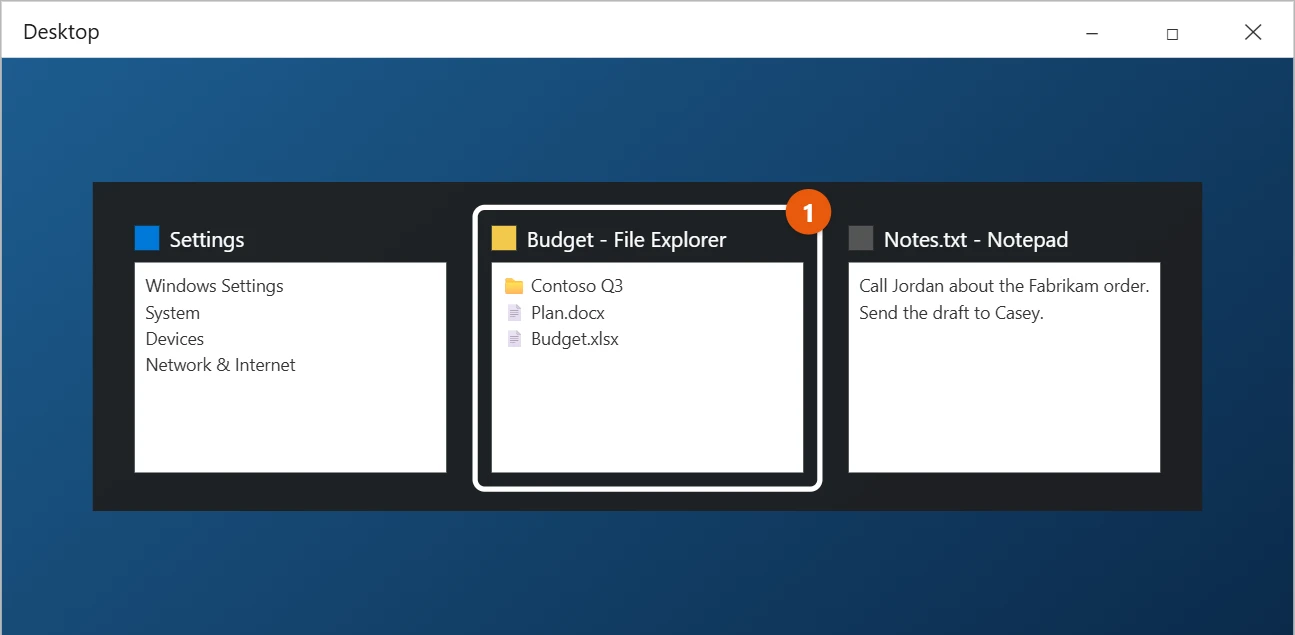
To go straight back to the last window you used, press Alt + Tab once and let go of both keys.
More Alt + Tab tricks
- Keep the switcher open: press Ctrl + Alt + Tab, then let go. Use the arrow keys or mouse to pick a window and press Enter.
- Use the mouse: while holding Alt, click any thumbnail to switch to it, or select the X on a thumbnail to close that window.
- Change your mind: press Esc to close the switcher without switching.
Switch with Task View
- Select the Task View button on the taskbar, next to the search box, or press Windows + Tab.
- Select the window you want.
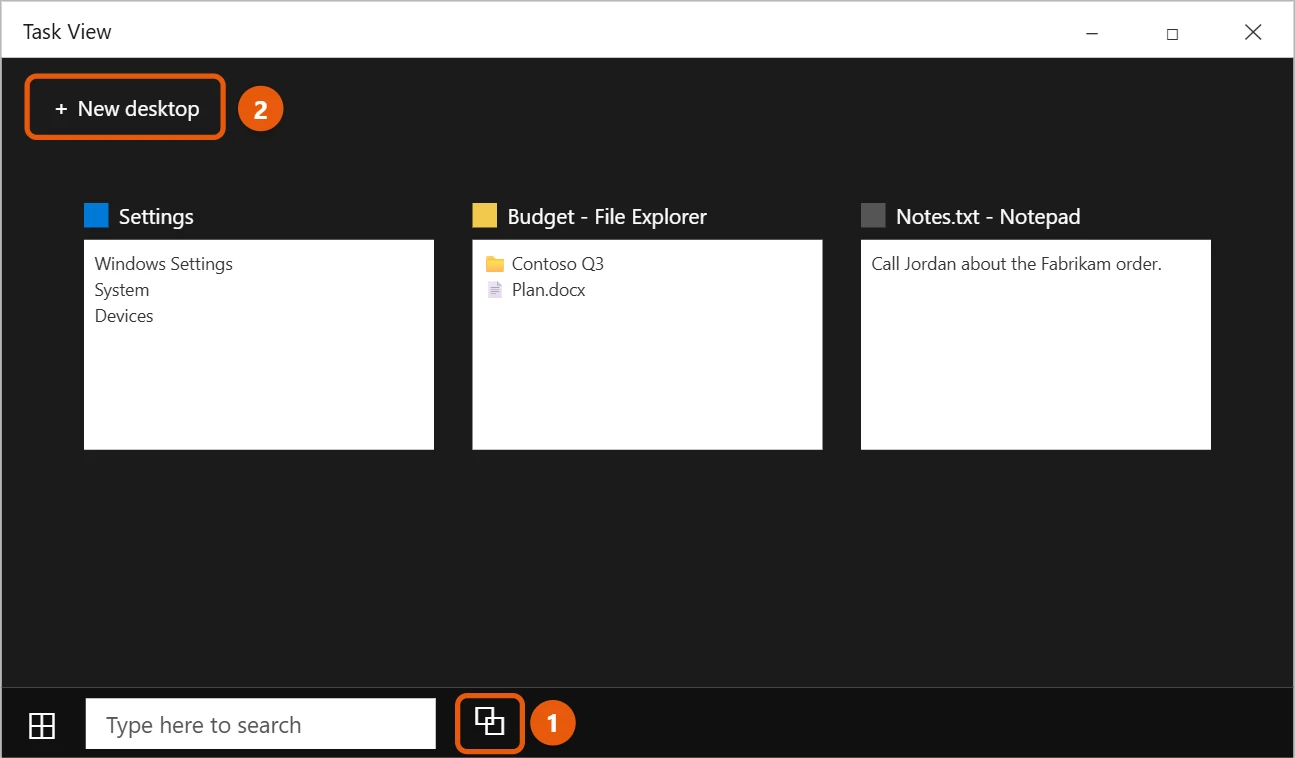
If you don’t see the Task View button, right-click the taskbar and select Show Task View button.
Other quick ways to switch
- Taskbar: Select an app’s icon on the taskbar. If it has more than one window open, hover over the icon and pick a thumbnail.
- Windows + number: Press Windows + 1 to open or switch to the first app pinned on the taskbar, Windows + 2 for the second, and so on.
- Alt + Esc: Moves through open windows in the order you opened them, without showing thumbnails.
- Windows + D: Shows the desktop. Press it again to bring your windows back.
Use virtual desktops
Virtual desktops let you group windows, such as one desktop for work and one for personal apps.
- Press Windows + Tab and select New desktop.
- Press Windows + Ctrl + Right arrow or Windows + Ctrl + Left arrow to switch between desktops.
- To move a window, open Task View, then drag the window onto another desktop.
By default, Alt + Tab only shows windows on the desktop you’re using. You can change this in Settings > System > Multitasking under Virtual desktops.
There’s more to virtual desktops than switching; using virtual desktops in Windows 10 goes further.
If switching doesn’t work properly
- Some windows are missing from Alt + Tab: they may be on another virtual desktop. Change this under Settings > System > Multitasking.
- Alt + Tab looks old or doesn’t show thumbnails: restart Windows Explorer from Task Manager.
- A full-screen game won’t switch: some games take a moment to minimize. Try Windows logo key + D, or switch the game to windowed or borderless mode.
Frequently asked questions
Can I see two windows side by side instead?
Yes. Drag a window to the left or right edge of the screen, or press Windows + Left arrow or Windows + Right arrow. Splitting the screen in Windows 10 goes into more detail.
Why does Alt + Tab show Microsoft Edge tabs?
In newer versions of Windows 10, Alt + Tab can include recent Edge tabs. Go to Settings > System > Multitasking and, under Pressing Alt + Tab shows, select Open windows only.
How do I keep one window in front of the others?
Windows 10 doesn’t have a built-in option for this, but keeping a window on top in Windows 10 covers the other options.
What if a window won’t respond when I switch to it?
Close it in Task Manager (opening Task Manager in Windows 10 shows how to get there).
More shortcuts are in How to multitask in Windows and Keyboard shortcuts in Windows.
Related: multitasking on Windows 10.

Matt Jacobs has been working as an IT consultant for small businesses since receiving his Master’s degree in 2003. While he still does some consulting work, his primary focus now is on creating technology support content for SupportYourTech.com.
His work can be found on many websites and focuses on topics such as Microsoft Office, Apple devices, Android devices, Photoshop, and more.