To view thumbnails in Windows 10, open the folder in File Explorer, select the View tab, and choose Large icons or Extra large icons. If you only see file icons, select Options, then on the View tab clear Always show icons, never thumbnails.
Applies to: Windows 10. Checked against Microsoft Support on September 27, 2026.
Show thumbnails in a folder
- Open the folder in File Explorer.
- Select the View tab.
- Choose Medium icons, Large icons or Extra large icons.
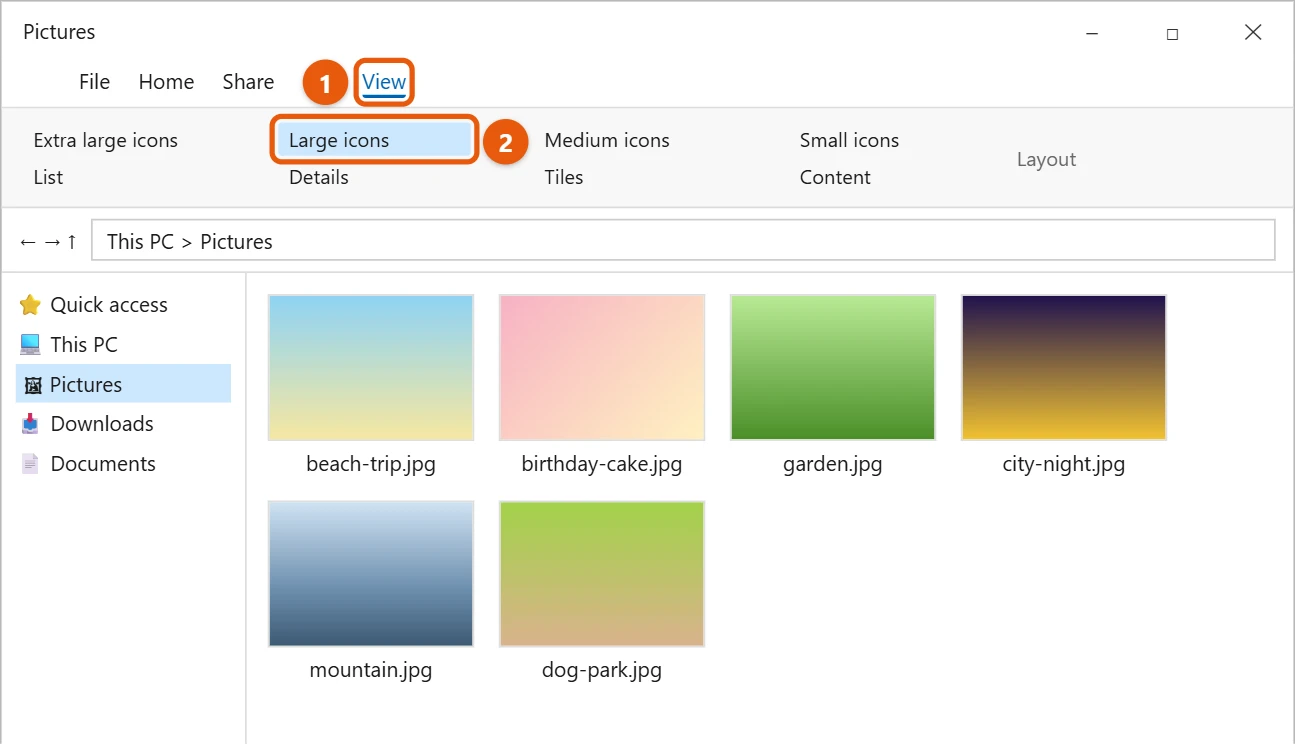
Thumbnails don’t show in List or Details view.
Change thumbnail size quickly
Hold Ctrl and scroll the mouse wheel inside the folder. File Explorer steps through every size, from small icons to extra large thumbnails, so you can pick the size that fits. On a touchpad, pinch with two fingers instead. Windows remembers the size for that folder, and you can apply it everywhere by selecting View > Options > View > Apply to Folders.
If you only see icons
- In File Explorer, select View > Options.
- Select the View tab.
- Clear Always show icons, never thumbnails.
- Select OK.
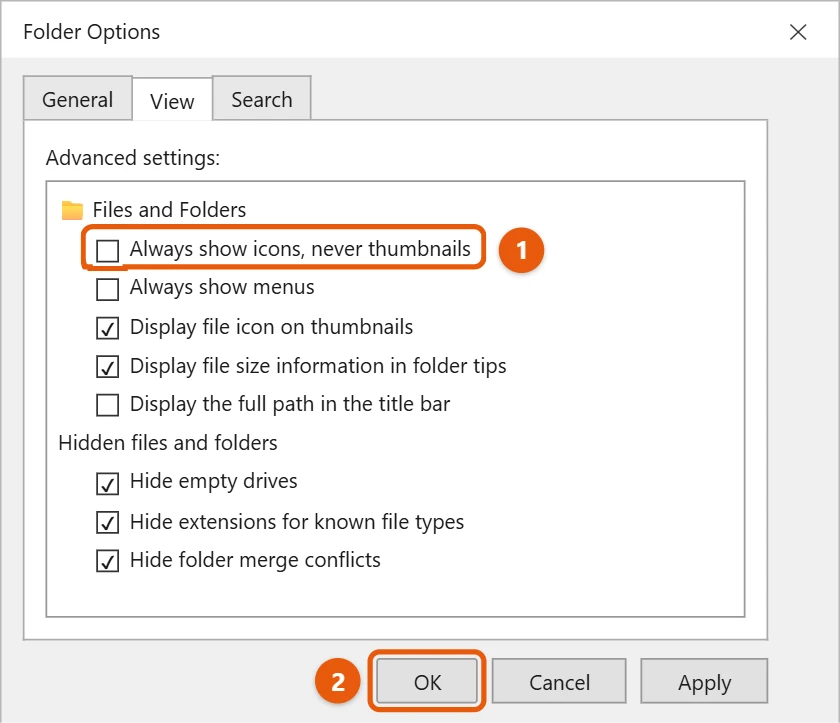
If that doesn’t help, check one more setting:
- Press Windows key + R, type
sysdm.cpl, and press Enter. - Select Advanced, then Settings under Performance.
- Check Show thumbnails instead of icons, then select OK.
If thumbnails look wrong or old
Clear the thumbnail cache:
- Select Start, type Disk Cleanup, and open it.
- Choose the C: drive.
- Check only Thumbnails and select OK.
Windows rebuilds the thumbnails the next time you open the folder. See how to run Disk Cleanup in Windows 10.
Clear the thumbnail cache with commands
If Disk Cleanup doesn’t fix it, delete the cache files directly. Open Command Prompt and run these three commands in order. The taskbar disappears for a moment while File Explorer is closed.
taskkill /f /im explorer.exedel /f /q /a %LocalAppData%\Microsoft\Windows\Explorer\thumbcache_*.dbstart explorer
Optimize a folder for pictures or videos
If one folder keeps showing icons, right-click an empty spot in it, select Properties, and open the Customize tab. Under Optimize this folder for, choose Pictures or Videos, tick Also apply this template to all subfolders, and select OK. To undo odd settings across all folders, go to View > Options > View and select Reset Folders.
Add thumbnails for newer photo and video formats
- iPhone photos (HEIC). Install HEIF Image Extensions from Microsoft Store.
- Some videos (HEVC/H.265). Install HEVC Video Extensions from Microsoft Store. It may cost a small fee.
- Other file types, such as PDFs or design files, get thumbnails only if their app adds a thumbnail handler. Installing or updating that app often fixes it.
Other fixes
- Press Alt + P to open the preview pane, which shows a larger preview of the selected file even when thumbnails don’t work.
- Restart File Explorer from Task Manager: select Windows Explorer and choose Restart.
- If thumbnails are broken everywhere, run
sfc /scannowfrom an administrator Command Prompt to repair system files.
Frequently asked questions
Why don’t some files show thumbnails?
Windows only makes thumbnails for file types it can read, like photos and most videos. Some file types need an app that adds thumbnail support.
How do I see file extensions too?
See how to show file extensions in Windows 10.
How do I open File Explorer?
See how to open File Explorer in Windows 10.
Once your thumbnails show, you can also play the photos as a slideshow. See how to view photos as a slideshow in Windows 10.
Microsoft’s reference is File Explorer in Windows. More help is on our Windows Help & Guides page.
Do thumbnails slow down File Explorer?
Slightly, in folders with thousands of photos or videos, since Windows has to create each preview the first time. After that, they load from the cache quickly.
Why don’t thumbnails show on my network drive?
Windows may skip thumbnails for slow network locations, and some network storage devices don’t allow it. Copy the files to your PC to check whether they appear there.
Why are thumbnails slow for OneDrive files?
Online-only files need their preview fetched from the cloud, so thumbnails can appear late or not at all on a slow connection. Right-click the folder and select Always keep on this device if you want thumbnails offline.
Related: How to Show PDF Thumbnails in Windows 10.

Matt Jacobs has been working as an IT consultant for small businesses since receiving his Master’s degree in 2003. While he still does some consulting work, his primary focus now is on creating technology support content for SupportYourTech.com.
His work can be found on many websites and focuses on topics such as Microsoft Office, Apple devices, Android devices, Photoshop, and more.