To type ñ in Excel, select a cell, hold Alt, and type 0241 on the numeric keypad, then let go of Alt. For a capital Ñ, use Alt + 0209. No numeric keypad? Use Insert > Symbol, or type =UNICHAR(241) in a cell.
These methods also work for the enye in names and place names, such as Peñafrancia or Parañaque, and in Spanish words like año and niño.
Applies to: Excel for Microsoft 365, Excel 2024, 2021, and 2019 on Windows. Mac notes are below.
Use the Alt code
- Select the cell, or double-click it to place the cursor inside the text.
- Make sure Num Lock is on.
- Hold Alt and type
0241on the numeric keypad (not the number row above the letters). Release Alt to get ñ. - For Ñ, hold Alt and type
0209.
The shorter codes Alt + 164 (ñ) and Alt + 165 (Ñ) also work in most apps.
If your laptop has no numeric keypad
Alt codes only work with a numeric keypad. On a laptop without one, try these instead:
- Emoji and symbols panel: press Windows + . (period), select the Symbols tab (Ω), choose Latin symbols, and pick ñ or Ñ.
- Fn keypad: some laptops have a hidden keypad on the letter keys, marked in a different color. Turn it on with Fn + Num Lock (or Fn + ScrLk), then use the Alt code.
- Insert > Symbol or UNICHAR, as shown below.
Use Insert > Symbol
- Select the cell and go to Insert > Symbol (in the Symbols group on the right).
- Set Subset to Latin-1 Supplement, or type
00F1in the Character code box with from set to Unicode (hex). - Select ñ, select Insert, then Close.
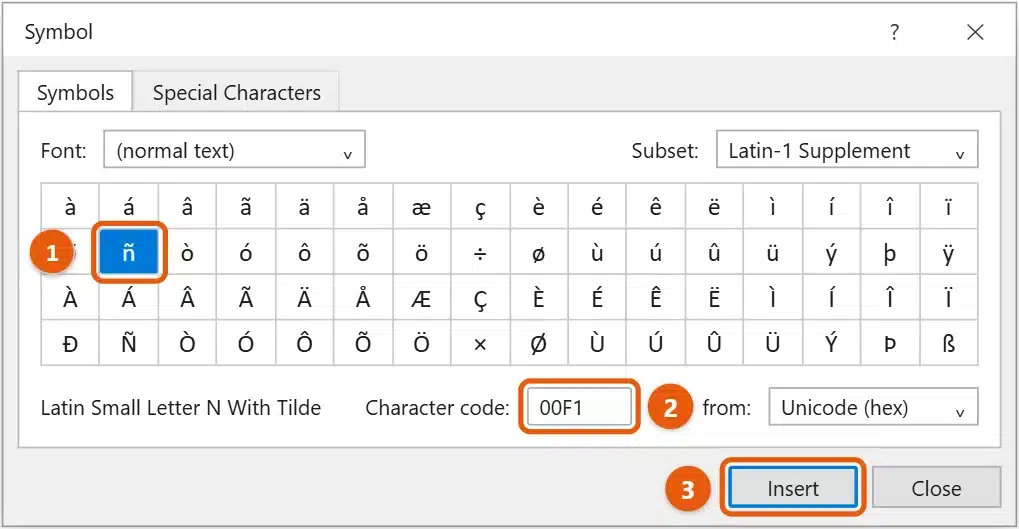
For Ñ, use character code 00D1. After you’ve inserted it once, ñ appears under Recently used symbols in the same dialog.
Use a formula
Type =UNICHAR(241) for ñ or =UNICHAR(209) for Ñ. You can join it to other text. For example, ="Espa"&UNICHAR(241)&"a" gives España.
To turn the formula into plain text, copy the cell, then use Paste > Paste Values.
Make ñ type itself with AutoCorrect
If you type ñ often, set up a shortcut:
- Select File > Options > Proofing > AutoCorrect Options.
- In Replace, type a code you won’t use otherwise, such as
n~~. - In With, paste or type ñ, then select Add > OK.
Now typing n~~ followed by a space changes to ñ. AutoCorrect settings are shared with Word and other Office apps. Add a second entry, such as N~~, for Ñ.
Add a keyboard for Spanish or Filipino typing
If you type ñ every day, add a keyboard that has it:
- United States-International: type
~thennto get ñ. Add it in Settings > Time & Language > Language, under your language’s Options. - Spanish keyboard: has its own Ñ key.
Switch between keyboards with Windows + Spacebar.
On a Mac
Press Option + N, then press N again for ñ. For Ñ, press Option + N, then Shift + N. This works in Excel for Mac and other apps.
Frequently asked questions
Why does Alt + 0241 do nothing?
Num Lock is off, or you used the number row. Alt codes need the numeric keypad. On a laptop, use the emoji panel instead.
Why does ñ show as a strange character when I open a CSV file?
The CSV was saved with a different text encoding. In Excel, use Data > From Text/CSV to import it, and set File Origin to 65001: Unicode (UTF-8). When you save a CSV, choose CSV UTF-8 so ñ stays correct.
Can I type ñ in Excel for the web?
Yes. The Alt code and Windows + . work in the browser too, because they’re typed through Windows.
Will sorting work with names that have ñ?
Yes. Excel sorts ñ as its own letter after n when your Windows region uses Spanish sorting. With English settings, it’s sorted together with n. Check your sort results if the order matters.
Can I find and replace ñ?
Yes. Press Ctrl + H, type ñ in Find what using any method above, and type the replacement. This is handy for fixing names that were typed without the tilde.
Working in Word instead? Use the steps for typing Ñ in Word. Microsoft’s guide is Insert a symbol.

Matt Jacobs has been working as an IT consultant for small businesses since receiving his Master’s degree in 2003. While he still does some consulting work, his primary focus now is on creating technology support content for SupportYourTech.com.
His work can be found on many websites and focuses on topics such as Microsoft Office, Apple devices, Android devices, Photoshop, and more.