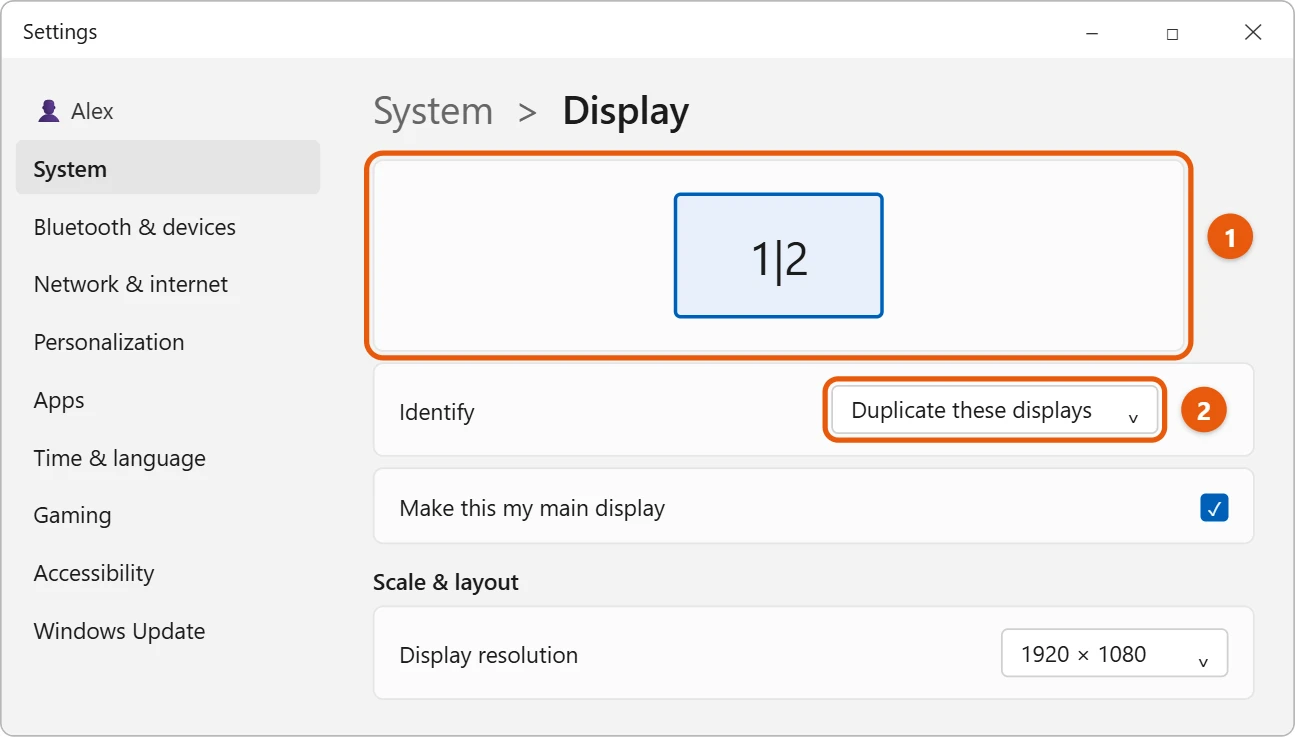
Press Windows logo key + P and select Duplicate. Both screens then show the same thing. You can also go to Start > Settings > System > Display and choose Duplicate these displays.
Applies to: Windows 11. Checked against Microsoft Support on September 29, 2026.
Duplicate with the keyboard
- Connect the second screen, such as a monitor, TV or projector.
- Press Windows logo key + P.
- Select Duplicate.
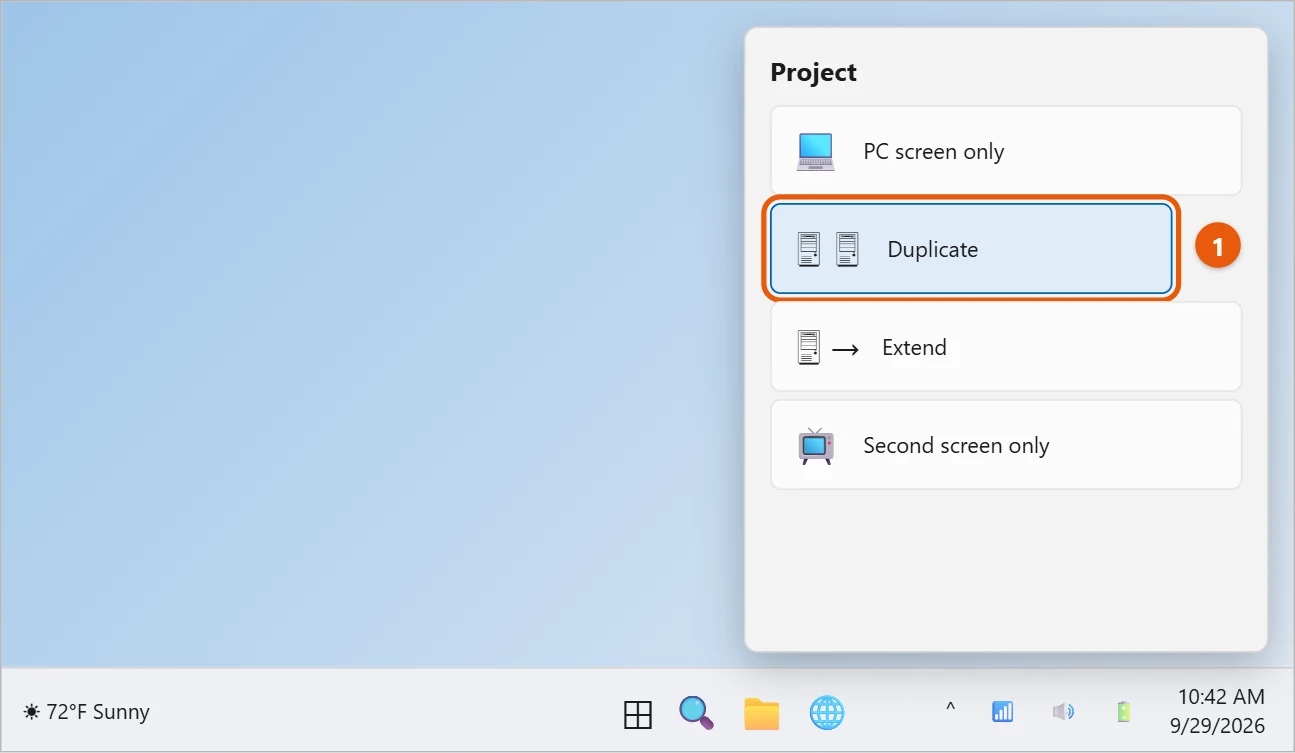
The other choices are PC screen only, Extend (one big desktop across both screens) and Second screen only.
Duplicate in Settings
- Select Start > Settings > System > Display.
- At the top, both screens show as one box marked 1|2 once they’re duplicated.
- In the list next to Identify, choose Duplicate these displays, then select Keep changes.
If the second screen stays blank
- Check the cable at both ends, and choose the right input on the TV or monitor. Our guide on how to switch to HDMI on Windows 11 walks through both checks.
- If the screens have different sizes, the picture can look stretched or have black bars. Setting the same Display resolution on both helps.
Frequently asked questions
What’s the difference between Duplicate and Extend?
Duplicate shows the same picture on both. Extend gives you more room, so you can drag windows from one screen to the other. See how to set up multiple monitors in Windows 11.
Is it the same in Windows 10?
Yes, Windows logo key + P works the same. See how to set up dual monitors in Windows 10.
If a screen looks wrong afterward, see how to reset display settings in Windows 11.
For other ways to show your screen, including in meetings, see how to share your screen on Windows 11.
Microsoft’s reference is How to use multiple monitors in Windows. More help is on our Windows Help & Guides page.

Matt Jacobs has been working as an IT consultant for small businesses since receiving his Master’s degree in 2003. While he still does some consulting work, his primary focus now is on creating technology support content for SupportYourTech.com.
His work can be found on many websites and focuses on topics such as Microsoft Office, Apple devices, Android devices, Photoshop, and more.