To transfer files from one Windows 10 PC to another, turn on Nearby sharing on both PCs in Settings > System > Shared experiences. Then select the file in File Explorer, open the Share tab, select Share, and pick the other PC. For large amounts of data, use a USB drive, an external hard drive, or OneDrive instead.
Applies to: Windows 10 version 1803 and later. Keep in mind that Windows 10 support ended on October 14, 2025. Security updates now come only through the Extended Security Updates program, which stops on October 12, 2027.
Pick a method
- Nearby sharing: a few files between PCs in the same room. Uses Bluetooth or Wi-Fi.
- USB or external drive: lots of files, or no network.
- OneDrive: files you want on both PCs all the time.
- Shared folder: PCs on the same home network that swap files often.
Use Nearby sharing
- On both PCs, select Start > Settings > System > Shared experiences.
- Turn on Nearby sharing and choose Everyone nearby under I can share or receive content from.
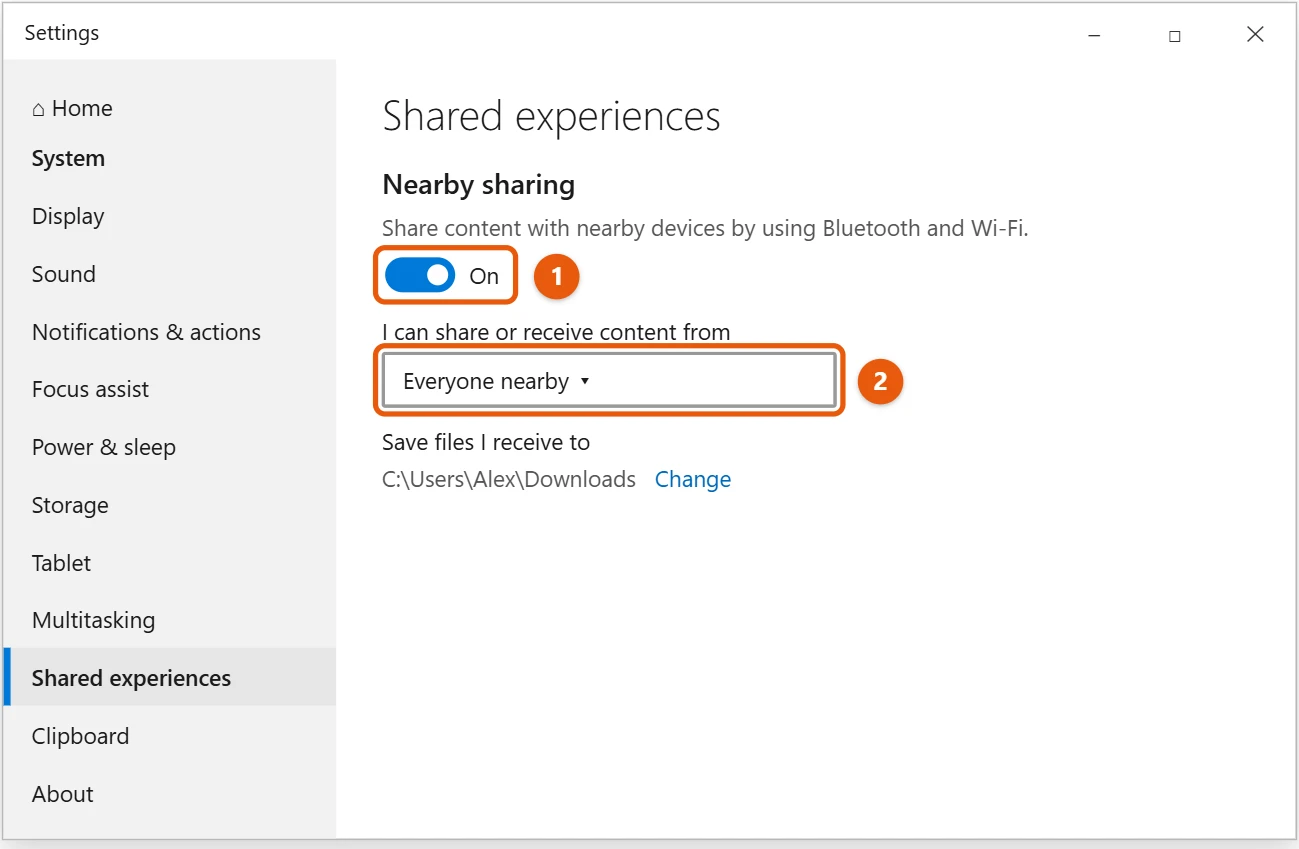
- On the sending PC, select the file in File Explorer, open the Share tab, and select Share.
- Pick the other PC under Nearby sharing.
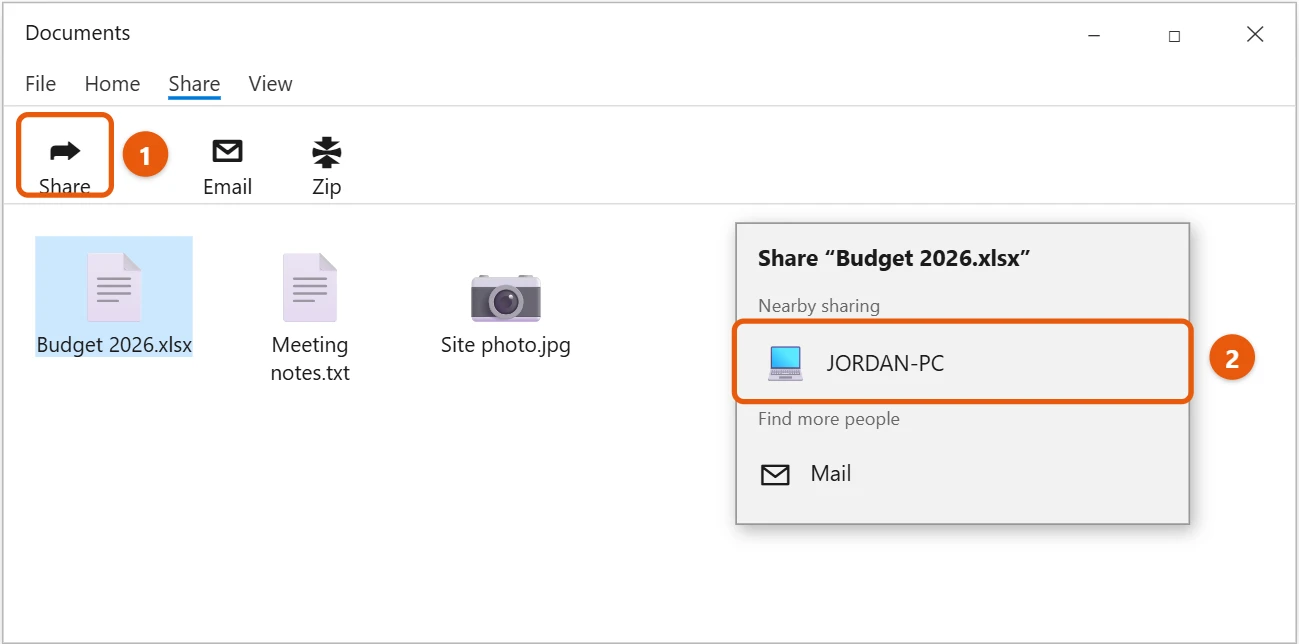
- On the receiving PC, select Save or Save & open in the notification. Files go to Downloads unless you change it.
Both PCs need Bluetooth turned on. Nearby sharing is slow for big files.
Use a USB drive or external drive
- Plug the drive into the first PC.
- Copy the files or folders to the drive in File Explorer.
- Plug it into the second PC and copy the files to where you want them.
Use OneDrive
Save or move the files into the OneDrive folder on the first PC. Sign in to OneDrive with the same Microsoft account on the second PC, and the files appear there after they sync.
Network discovery and file sharing must be turned on for your private network.
- On the PC with the files, right-click the folder and select Give access to > Specific people.
- Add a user and select Share.
- On the other PC, open File Explorer, select Network, and open the first PC.
Copy large folders with Robocopy
For a big folder, Robocopy is more reliable than dragging in File Explorer. It can pick up where it left off if the copy stops. In Command Prompt, type a command like this, with your own folders:
robocopy "C:\Users\Name\Documents" "E:\Documents" /E /Z /R:2 /W:5
/E copies every subfolder, /Z lets it resume, and /R:2 /W:5 tells it to retry twice and wait five seconds before skipping a file it can’t copy. The destination can be a USB drive or a shared folder, such as \\OTHER-PC\Shared.
Connect two PCs with a network cable
If both PCs have Ethernet ports, plug one cable between them. Windows gives each PC a temporary address after a minute or so. Then share a folder as described above and open it from the other PC under Network. This is often faster than Wi-Fi.
Tips for a faster transfer
- Use a USB 3.0 drive and a blue USB port. USB 2.0 is much slower.
- Zip a folder with thousands of small files first. One big file copies faster than many tiny ones.
- Plug in laptops so they don’t go to sleep partway through.
If the transfer doesn’t work
- The other PC doesn’t show under Network: on both PCs, open Control Panel > Network and Sharing Center > Change advanced sharing settings and turn on network discovery and file and printer sharing for the Private profile.
- Access denied when opening a shared folder: sign in with a user name and password from the PC that shares the folder.
- Can’t find a file sent with Nearby sharing: it’s saved in the Downloads folder unless you changed the location.
Frequently asked questions
I’m moving to a new PC. Is there a way to copy everything?
Back up with File History or OneDrive on the old PC and restore on the new one. The ways to back up Windows 10 cover both.
The other PC doesn’t appear in Nearby sharing. What should I check?
Both PCs need Windows 10 version 1803 or later, Bluetooth on, and Nearby sharing turned on. Keep them within Bluetooth range. If the network isn’t connected, turn on Wi-Fi on both PCs.
What’s the fastest way to move a lot of files?
A USB 3.0 external drive or a direct network cable is usually fastest. Wi-Fi and OneDrive are easiest, but slower for large amounts of data.
When the copy is done, safely eject the external drive before you unplug it.
Moving everything to a new Windows 11 PC is a bigger job, covered in moving your data from Windows 10 to Windows 11. For regular swaps on a home network, sharing folders in Windows 10 goes into more detail.
Nearby sharing options and requirements are on Share things with nearby devices in Windows.

Matt Jacobs has been working as an IT consultant for small businesses since receiving his Master’s degree in 2003. While he still does some consulting work, his primary focus now is on creating technology support content for SupportYourTech.com.
His work can be found on many websites and focuses on topics such as Microsoft Office, Apple devices, Android devices, Photoshop, and more.