How to Scan on iPhone 14
You do not need a bulky machine to digitize your paperwork anymore. Your phone has a powerful scanner hidden right inside the Notes app. To… Continue Reading How to Scan on iPhone 14
You do not need a bulky machine to digitize your paperwork anymore. Your phone has a powerful scanner hidden right inside the Notes app. To… Continue Reading How to Scan on iPhone 14
Clearing out your web browser does not have to be a chore. If you have accumulated dozens of open pages, you do not need to… Continue Reading How to Close All Tabs on iPhone 14

Factory reset an iPhone 14: Settings > General > Transfer or Reset iPhone > Erase All Content and Settings. Back up first. Computer and no-passcode steps. Continue Reading How to Factory Reset an iPhone 14
To turn on data roaming on your iPhone 14, open your Settings app. Tap on Cellular or Mobile Data depending on your region. Then, look… Continue Reading How to Turn On Data Roaming on iPhone 14
For years, recording a call on an iPhone meant juggling third-party apps or a second device. That changed with iOS 18.1. Your iPhone 15 can… Continue Reading How To Record Phone Call On iPhone 15
Setting up voicemail on your iPhone 15 is quick. Open the Phone app, tap Voicemail, and follow the on-screen Set Up Now prompts to create… Continue Reading How To Set Up Voicemail On iPhone 15
Setting up Face ID on iPhone 15 is quick and simple. Open Settings, go to Face ID & Passcode, enter your passcode, then tap Set… Continue Reading How To Set Up Face ID On iPhone 15

Select Start > Settings > System > Recovery. Next to Advanced startup, select Restart now. When the blue screen appears, select Troubleshoot > Advanced options… Continue Reading How to Enter BIOS (UEFI) in Windows 11

Clean install Windows 11 from a USB drive: back up, boot from the installer, delete the Disk 0 partitions in Setup, then update and activate Windows. Continue Reading How to Do a Clean Install of Windows 11

To reset Windows 11, go to Settings > System > Recovery and select Reset PC next to Reset this PC. Choose Keep my files to… Continue Reading How to Reset Windows 11

Use Settings > System > Recovery > Advanced startup, hold Shift while clicking Restart, or interrupt startup twice if Windows will not boot. Plus what each option does. Continue Reading How to Enter Recovery Mode in Windows 11

To change the default browser in Windows 11, go to Settings > Apps > Default apps, select the browser you want, such as Google Chrome… Continue Reading How to Change the Default Browser in Windows 11

Check BIOS Mode in msinfo32, restart into UEFI settings, disable CSM and set Secure Boot to Enabled. Includes Legacy-to-GPT conversion, Gigabyte and Valorant notes. Continue Reading How to Turn On Secure Boot in Windows 11

Right-click an empty spot on the taskbar and select Taskbar settings. Expand Taskbar behaviors, then check Automatically hide the taskbar. The taskbar slides away and… Continue Reading How to Hide the Taskbar in Windows 11

Make another account the administrator on Windows 11 with Settings, Control Panel, netplwiz or the command line, then demote the old account. Plus renaming the admin and changing its email. Continue Reading How to Change the Administrator on Windows 11
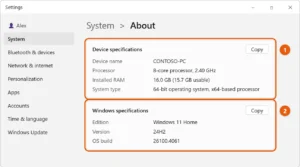
Select Start > Settings > System > About. Under Device specifications, you’ll see the processor, the installed RAM and whether Windows is 64-bit. Windows specifications… Continue Reading How to Check Your PC Specs in Windows 11

Connect your iPhone to the PC with a USB cable, unlock it, and tap Trust or Allow on the phone. Then open the Photos app… Continue Reading How to Transfer Photos from an iPhone to a Windows 11 PC

To cast your phone to a Windows 11 laptop, first add the free Wireless Display feature to the laptop. Then go to Settings > System… Continue Reading How to Cast Your Phone to a Windows 11 Laptop
To boot from a USB drive in Windows 11, plug it in, open Settings > System > Recovery, click Restart now next to Advanced startup,… Continue Reading How to Boot from USB Windows 11

To open HEIC files in Windows 11, install HEIF Image Extensions and HEVC Video Extensions from Microsoft Store, then reopen the photo in Photos. Continue Reading How to Open HEIC Files in Windows 11

To upgrade Windows 10 to Windows 11, go to Settings > Update & Security > Windows Update and select Check for updates. If your PC… Continue Reading How to Upgrade Windows 10 to Windows 11

Create a partition on a Windows 11 SSD: open Disk Management, shrink a volume to free space, then use New Simple Volume to set its size and letter. Continue Reading How to Create a Partition on an SSD in Windows 11

Turn off Copilot in Windows 11: uninstall the app in Settings > Apps > Installed apps, unpin it from the taskbar, and remap the Copilot key. Continue Reading How to Turn Off Copilot in Windows 11

To update drivers in Windows 11, open Settings > Windows Update > Advanced options > Optional updates, or use Update driver in Device Manager. Continue Reading How to Update Drivers in Windows 11

Check for and fix corrupted system files in Windows 11 with DISM and SFC, check the drive with chkdsk, use recovery tools, and repair corrupted documents. Continue Reading How to Check for and Fix Corrupted Files in Windows 11

Run wsl –install in an administrator Terminal, restart, and create your Linux username and password. Plus how to add other distributions and fix install errors. Continue Reading How to Install WSL on Windows 11

Select Start > Settings > Accessibility > Keyboard, then switch Sticky keys to Off. To stop it from turning on when you press Shift five… Continue Reading How to Turn Off Sticky Keys in Windows 11

To check battery health in Windows 11, create a battery report. Right-click Start, select Terminal, type powercfg /batteryreport, and press Enter. Open the battery-report.html file… Continue Reading How to Check Battery Health in Windows 11

Drag a window to the left or right edge of the screen and let go. It fills that half, and Windows shows your other open… Continue Reading How to Split Screen in Windows 11

Select Start > Settings > Time & language > Date & time. Make sure Show time and date in the System tray is on, then… Continue Reading How to Show Seconds on the Clock in Windows 11

To remove an account from Windows 11, sign in with an administrator account and go to Settings > Accounts > Other users. Select the account,… Continue Reading How to Remove an Account from Windows 11

Uninstall a program in Windows 11 from Start > Settings > Apps > Installed apps: select More, then Uninstall. Control Panel and winget also work. Continue Reading How to Uninstall a Program in Windows 11

Select Start > Settings > Accessibility > Mouse pointer and touch. Under Mouse pointer style, pick white, black, inverted or a custom color, and drag… Continue Reading How to Change the Cursor in Windows 11

To change the screen timeout in Windows 11, go to Settings > System > Power & battery (or Power on a desktop PC). Expand Screen,… Continue Reading How to Change the Screen Timeout in Windows 11

Select the network, sound or battery icon next to the clock, then select the Bluetooth tile so it’s highlighted. Or go to Start > Settings… Continue Reading How to Turn On Bluetooth in Windows 11

First turn on file name extensions in File Explorer (View > Show > File name extensions). Then select the file, press F2, change the letters… Continue Reading How to Change a File Extension in Windows 11

To enable Hibernate in Windows 11, open Control Panel, choose what the power buttons do, tick Hibernate under Shutdown settings, and select Save changes. Continue Reading How to Enable and Use Hibernate in Windows 11

Press Windows logo key + Ctrl + Right arrow or Left arrow to move between desktops. Or press Windows logo key + Tab to open… Continue Reading How to Switch Desktops in Windows 11

To update Windows 11, open Settings > Windows Update and select Check for updates, then Download & install and restart. Includes fixes for failed updates. Continue Reading How to Update Windows 11

To reboot Windows 11, select Start, then Power, then Restart. Also covers keyboard and command restarts, update restarts, and fixes for a frozen PC. Continue Reading How to Reboot (Restart) Windows 11

Select the language icon (such as ENG) next to the clock on the taskbar, then pick a keyboard layout. You can also hold the Windows… Continue Reading How to Change the Keyboard Layout in Windows 11

To map a network drive in Windows 11, open File Explorer, select This PC, then More > Map network drive, pick a letter, and enter the folder path. Continue Reading How to Map a Network Drive in Windows 11

“Cache” means a few different things in Windows 11. To free up space, clear temporary files in Settings > System > Storage. If a website… Continue Reading How to Clear Cache in Windows 11

Select Start > Settings > Personalization > Colors. Set Choose your mode to Custom and Choose your default Windows mode to Dark. Then pick an… Continue Reading How to Change the Taskbar Color in Windows 11
To wipe the Windows 11 system drive, go to Settings > System > Recovery > Reset PC, choose Remove everything, select Change settings, and turn… Continue Reading How to Wipe a Hard Drive in Windows 11

To change startup programs in Windows 11, open Settings > Apps > Startup and set each app’s toggle to On or Off. Task Manager works too. Continue Reading How to Change Startup Programs in Windows 11

Right-click a program and choose Run as administrator, press Ctrl+Shift+Enter from Start, or set it to always run as administrator on the Compatibility tab. Continue Reading How to Run as Administrator in Windows 11

Select Show hidden icons (^) on the taskbar, right-click the Safely Remove Hardware and Eject Media icon, and select Eject for your drive. When Safe… Continue Reading How to Safely Eject an External Hard Drive or USB in Windows 11
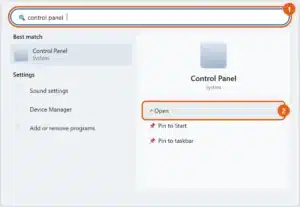
The quickest way to open Control Panel in Windows 11 is to select Start, type control panel, and press Enter. You can also press Windows… Continue Reading How to Open Control Panel in Windows 11
To remove your PIN in Windows 11, go to Settings > Accounts > Sign-in options, select PIN (Windows Hello), select Remove, confirm, and enter your… Continue Reading How to Remove PIN in Windows 11